
Bash Arithmetic Operations
Learn how to perform mathematical calculations in Bash scripts using double parentheses, expr command, and bc for floating-point operations. Includes practical examples and common use cases.

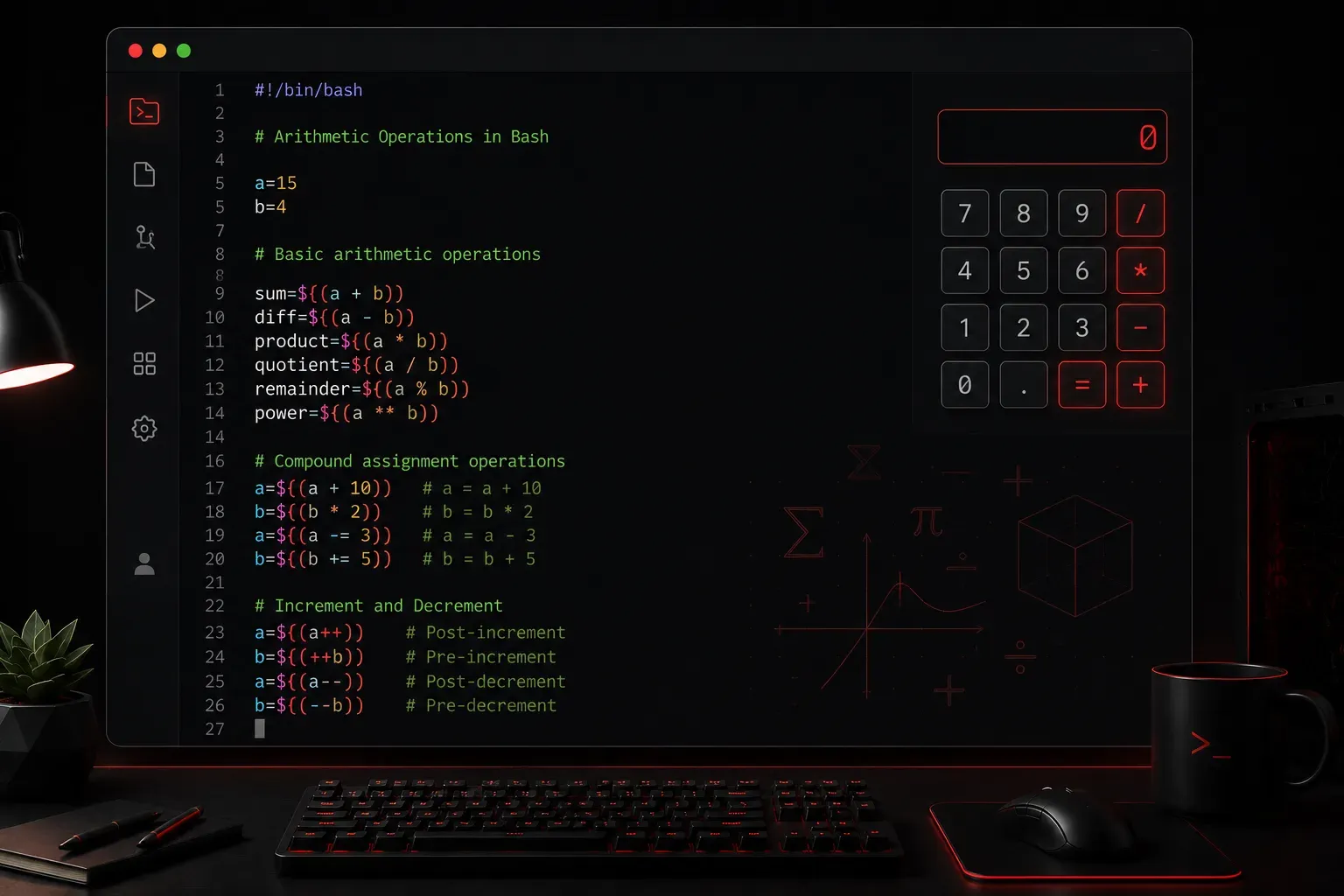
Bash Arithmetic Operations
When you're writing Bash scripts, you'll often need to perform mathematical calculations. Whether you're counting files, calculating percentages, or processing numerical data, Bash provides several ways to handle arithmetic operations. Let's explore the most common methods that every scripter should know.
Understanding Integer vs. Floating-Point Arithmetic
Before diving into specific methods, it's crucial to understand that Bash performs integer arithmetic by default. This means that operations like division will truncate decimal places, returning whole numbers only. For example, 10 / 3 returns 3, not 3.333. When you need decimal precision, you'll need external tools like bc, which we'll cover later in this article.
The Double Parentheses Method
The most straightforward way to perform arithmetic in Bash is using double parentheses ((...)). This method allows you to write mathematical expressions naturally, similar to other programming languages.
#!/bin/bash
# Basic arithmetic with double parentheses
a=10
b=3

# Addition
result=$((a + b))
echo "Addition: $a + $b = $result"

# Subtraction
result=$((a - b))
echo "Subtraction: $a - $b = $result"

# Multiplication
result=$((a * b))
echo "Multiplication: $a * $b = $result"

# Division (integer division)
result=$((a / b))
echo "Division: $a / $b = $result"

# Modulo (remainder)
result=$((a % b))
echo "Modulo: $a % $b = $result"
When you run this script, you'll see:
Addition: 10 + 3 = 13
Subtraction: 10 - 3 = 7
Multiplication: 10 * 3 = 30
Division: 10 / 3 = 3
Modulo: 10 % 3 = 1
Notice how the division returns 3 instead of 3.333 due to Bash's integer-only arithmetic.
The expr Command (Legacy)
The expr command is a legacy method for arithmetic operations that's largely obsolete in modern Bash scripting. While you may encounter it in older scripts, it's not recommended for new scripts due to its cumbersome syntax and limitations. The double parentheses method is preferred for better readability and functionality.
#!/bin/bash
# Using expr (not recommended for new scripts)
a=15
b=4

# Basic operations with expr
sum=$(expr $a + $b)
difference=$(expr $a - $b)
product=$(expr $a \* $b)  # Note the escaped asterisk
quotient=$(expr $a / $b)

echo "Using expr (legacy method):"
echo "Sum: $sum"
echo "Difference: $difference"
echo "Product: $product"
echo "Quotient: $quotient"
Note: When using expr, you must escape the multiplication operator with a backslash (\*) to prevent shell expansion. This is one reason why the double parentheses method is preferred.
Increment and Decrement Operations
Bash supports increment and decrement operations, which are particularly useful in loops and counters.
#!/bin/bash
# Increment and decrement operations
counter=5

# Pre-increment
echo "Original counter: $counter"
echo "Pre-increment: $((++counter))"
echo "Counter is now: $counter"

# Post-increment
counter=5
echo "Post-increment: $((counter++))"
echo "Counter is now: $counter"

# Decrement works similarly
echo "Pre-decrement: $((--counter))"
echo "Post-decrement: $((counter--))"
echo "Final counter: $counter"
Compound Assignment Operators
You can also use compound assignment operators to modify variables in place:
#!/bin/bash
# Compound assignment operators
number=10

# Add and assign
((number += 5))
echo "After += 5: $number"

# Subtract and assign
((number -= 3))
echo "After -= 3: $number"

# Multiply and assign
((number *= 2))
echo "After *= 2: $number"

# Divide and assign
((number /= 4))
echo "After /= 4: $number"
Working with Floating Point Numbers
Since Bash only handles integers natively, you'll need external tools for floating-point arithmetic. The most common tool is bc (basic calculator), which is a command-line calculator that supports arbitrary precision arithmetic.
What is bc?
bc is a mathematical scripting language that supports arbitrary precision numbers with interactive execution of statements. It's usually pre-installed on most Unix-like systems, but if it's not available, you can install it using your system's package manager (e.g., apt install bc on Ubuntu/Debian or yum install bc on RHEL/CentOS).
#!/bin/bash
# Floating point arithmetic with bc
a=10
b=3

# Division with decimal places
result=$(echo "scale=2; $a / $b" | bc)
echo "Floating point division: $a / $b = $result"

# More complex calculations
pi=$(echo "scale=4; 4*a(1)" | bc -l)
echo "Pi (4 decimal places): $pi"

# Square root
sqrt_result=$(echo "scale=2; sqrt(25)" | bc -l)
echo "Square root of 25: $sqrt_result"
Practical Example: File Size Calculator
Here's a practical script that demonstrates arithmetic operations by calculating total file sizes in a directory. Note the cross-platform compatibility for the stat command:
#!/bin/bash
# Calculate total size of files in current directory
total_size=0
file_count=0

for file in *; do
    if [[ -f "$file" ]]; then
        # Use BSD stat format first, fall back to GNU stat format
        # BSD systems (macOS): -f%z
        # GNU systems (Linux): -c%s
        size=$(stat -f%z "$file" 2>/dev/null || stat -c%s "$file" 2>/dev/null)
        ((total_size += size))
        ((file_count++))
    fi
done

echo "Files processed: $file_count"
echo "Total size: $total_size bytes"

# Convert to KB and MB
kb_size=$((total_size / 1024))
mb_size=$(echo "scale=2; $total_size / 1024 / 1024" | bc)

echo "Total size: $kb_size KB"
echo "Total size: $mb_size MB"
Note: This script uses both BSD (-f%z) and GNU (-c%s) formats for the stat command to ensure compatibility across different systems. BSD format is used on macOS, while GNU format is standard on Linux distributions.
What's Next
Now that you understand arithmetic operations in Bash, you're ready to tackle more complex scripting concepts. In our next post, we'll explore conditional statements and how to use comparison operators with the arithmetic skills you've just learned to make your scripts more intelligent and responsive.