
What is Event Viewer and How Does it Work
Event Viewer is Windows' built-in logging system that records and displays detailed information about system events, security incidents, and application activities. This guide explains how to access and interpret Windows logs for cybersecurity monitoring and troubleshooting.

When something goes wrong on a Windows computer, how do you figure out what happened? Maybe your system crashed, an application stopped working, or you suspect unauthorized access. This is where Event Viewer becomes your detective tool.
Event Viewer is a built-in Windows application that records and displays detailed information about what's happening on your computer. Think of it as a comprehensive logbook that tracks every significant event, from system startups and shutdowns to security alerts and application errors.
What Event Viewer Actually Does
Event Viewer collects and organizes Windows logs from different parts of your system. Every time something noteworthy occurs, whether it's a successful login, a failed software installation, or an attempted security breach, Windows creates a log entry with detailed information about the event.
These logs include crucial details like:
- When the event occurred (date and timestamp)
- What type of event it was (information, warning, or error)
- Which system component or application was involved
- Specific error codes or success messages
- User accounts associated with the event
Opening and Using Event Viewer
You can access Event Viewer in several ways. The quickest method is pressing Windows + R, typing eventvwr.msc, and hitting Enter. You can also search for "Event Viewer" in the Start menu or find it under Administrative Tools.
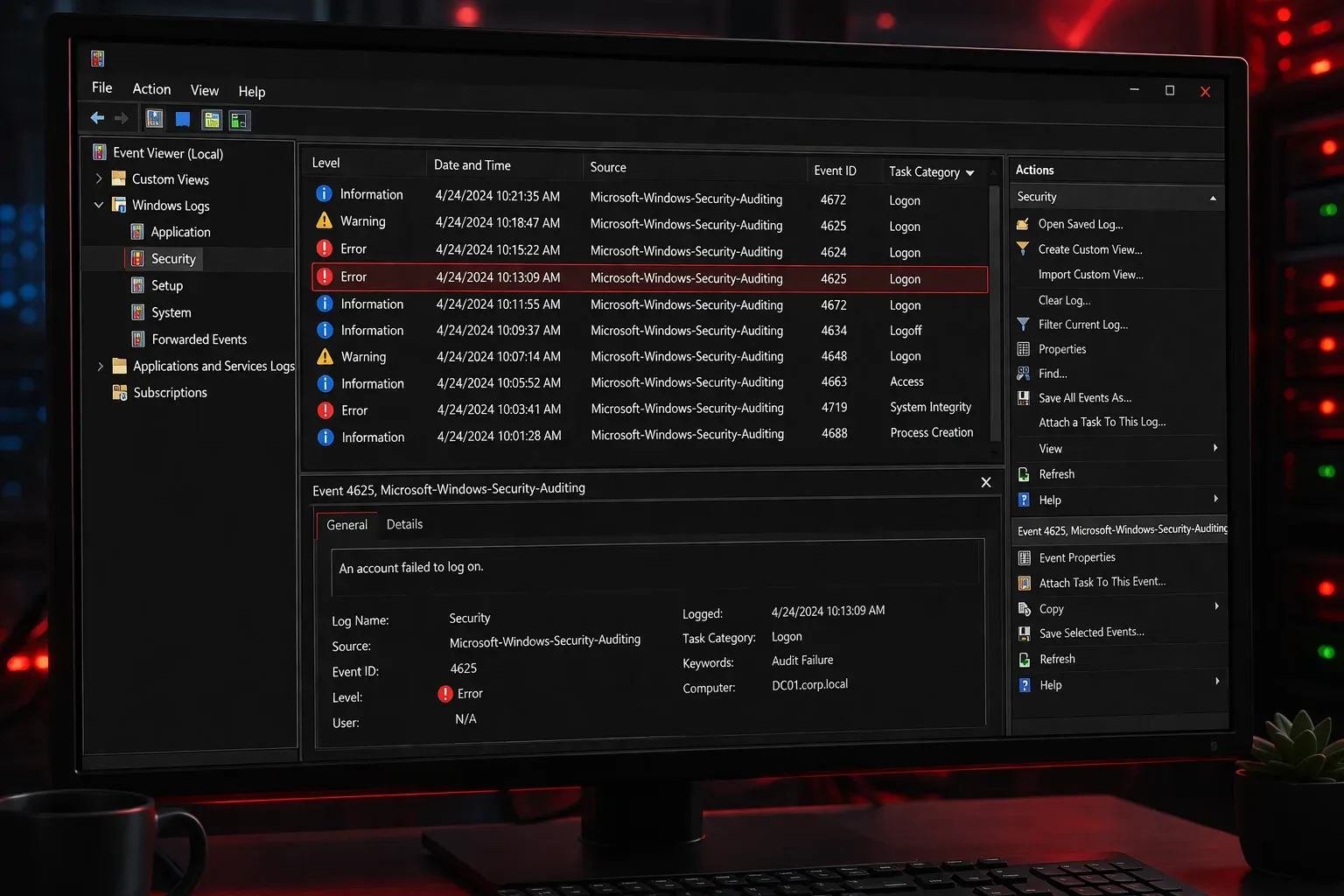
Once open, you'll see a tree structure on the left side with different log categories:
Windows Logs contains the most important categories for system monitoring:
- System: Hardware and system component events
- Security: Login attempts, permission changes, and security-related events
- Application: Software-related events and errors
- Setup: Windows installation and update events
- Forwarded Events: Events from other computers (in network environments)
Reading and Interpreting Log Entries
Log interpretation becomes easier when you understand the event levels. Each entry has a severity level indicated by an icon:
- Information (blue "i"): Normal operations, successful processes
- Warning (yellow triangle): Potential issues that aren't critical yet
- Error (red "X"): Problems that need attention, failed processes
- Critical (white "X" on red): Serious system failures
When you click on any event, the bottom panel displays detailed information. The General tab provides a human-readable description, while the Details tab shows technical data that might be useful for advanced troubleshooting.
Practical Example: Investigating a Security Event
Let's say you want to check recent login attempts on your computer. Navigate to Windows Logs > Security and look for Event ID 4624 (successful logon) or 4625 (failed logon attempt). These entries will show you who tried to log in, when it happened, and whether it succeeded.
For a failed login attempt, you might see details like the account name that was used, the source network address, and the failure reason. This information is invaluable for detecting unauthorized access attempts.
Why Event Viewer Matters for Cybersecurity
In cybersecurity, Event Viewer serves as your first line of defense for incident investigation. Security professionals regularly examine these logs to identify suspicious patterns, track user activities, and investigate potential breaches. Understanding how to navigate and interpret Windows logs is essential for anyone working in endpoint security.
The tool also helps with proactive monitoring. By regularly reviewing system and security logs, you can spot warning signs before they become serious problems, such as repeated failed login attempts or unusual system behavior.
What's Next
Now that you understand what Event Viewer is and how it works, the next step is learning to identify specific security-related events and understanding what different Event IDs mean for system security. We'll explore common security Event IDs and how to create custom views to filter the most important events for cybersecurity monitoring.