
Using Wireshark: A Beginner's Guide to Network Troubleshooting
This beginner's guide introduces Wireshark as a network troubleshooting tool, explaining what a packet analyzer does and why it matters. It covers the Wireshark interface, essential display filters, and a practical step-by-step troubleshooting walkthrough. Ideal for students studying for the CCST N

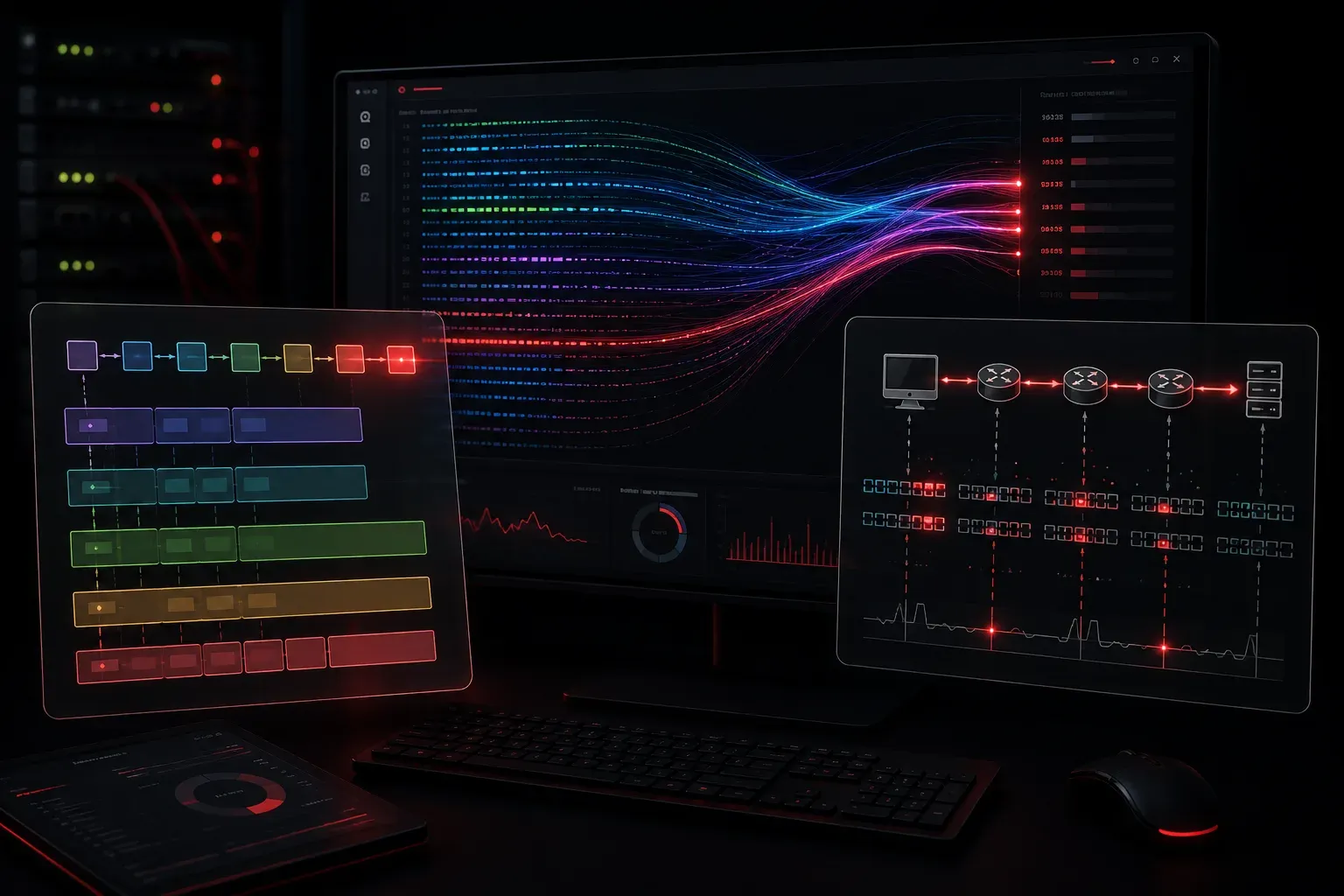
If you've ever wondered what's actually happening on your network when something goes wrong, Wireshark is the tool that gives you the answer. It's a free, open-source packet analyzer that lets you capture and inspect network traffic in real time. Think of it as a microscope for your network: instead of guessing why a connection is failing, you can see exactly what's being sent and received at the packet level.
This Wireshark guide for beginners will walk you through what the tool does, why it matters for network troubleshooting, and how to start using it without feeling overwhelmed.
What Is a Packet Analyzer?
A packet analyzer (also called a protocol analyzer or packet sniffer) captures network traffic passing through a network interface. Every time your computer communicates over a network, it sends and receives small chunks of data called packets. A packet analyzer captures those packets and decodes them so you can read the contents in a human-friendly format.
Wireshark is the most widely used packet analyzer in the networking world. It's free to download from wireshark.org and runs on Windows, macOS, and Linux.
Why Wireshark Matters for Troubleshooting
When a network issue occurs, you typically have two options: guess at the problem or observe it directly. Wireshark gives you option two. Here are some real-world scenarios where packet analysis is invaluable:
- A device can't reach a website: is it a DNS failure, a routing issue, or a firewall block?
- A VoIP call has poor quality: is the problem packet loss or high latency?
- An application is slow: is the server not responding, or is there excessive retransmission?
- A device keeps disconnecting from the network: is there a DHCP problem?
Without a packet analyzer, you're relying on indirect clues. With Wireshark, the evidence is right in front of you.
The Wireshark Interface at a Glance
When you first open Wireshark, you'll see a list of available network interfaces (such as Ethernet or Wi-Fi). Double-clicking one starts a live capture. The main capture window has three key panels:
- Packet List (top): A scrolling list of every captured packet, showing the time, source, destination, protocol, and a brief summary.
- Packet Details (middle): A breakdown of the selected packet, organized by protocol layer (Ethernet, IP, TCP, etc.).
- Packet Bytes (bottom): The raw hexadecimal and ASCII data of the packet.
As a beginner, you'll spend most of your time in the top two panels.
Using Display Filters to Find What You Need
A live capture can generate thousands of packets per minute. Display filters let you narrow down what you see without losing the full capture. These are typed into the filter bar at the top of the capture window.
Some useful filters for network troubleshooting:
- Show only DNS traffic:
dns - Show traffic to or from a specific IP:
ip.addr == 192.168.1.10 - Show only HTTP traffic:
http - Show TCP connection resets:
tcp.flags.reset == 1 - Show ICMP (ping) traffic:
icmp
For example, if you suspect a DNS resolution problem, applying the dns filter will immediately show you every DNS query and response in your capture. You can quickly see if a query is being sent but no response is coming back, a clear sign of a DNS server issue.
A Simple Troubleshooting Walkthrough
Here's a quick example of using Wireshark to investigate a "can't reach the internet" complaint:
- Start a capture on the affected machine's network interface.
- Open a browser and try to visit a website.
- Stop the capture and apply the filter
dns. - Look for a DNS query for the website's domain name.
- Check whether a DNS response comes back. No response means the DNS server isn't reachable or isn't responding.
- If DNS looks fine, clear the filter and apply
tcpto check if the TCP connection to the web server is completing successfully.
This methodical, layer-by-layer approach is exactly how experienced network engineers use packet analysis to isolate problems quickly.
One Important Note on Capture Permissions
On most operating systems, capturing packets requires administrator or root-level privileges. On Windows, run Wireshark as Administrator. On Linux, you may need to use sudo or configure capture permissions for your user account. Always ensure you have proper authorization before capturing traffic on any network; packet analysis on networks you don't own or manage can have serious legal and ethical implications.
What's Next
Now that you understand what Wireshark does and how it fits into network troubleshooting, the next step is building your understanding of the protocols you'll see in those captures. In an upcoming post, we'll dive into TCP/IP fundamentals, exploring how the handshake works and what a healthy versus unhealthy TCP conversation looks like in Wireshark. Understanding the protocols makes your packet analysis far more powerful.