
Your First JavaScript Program
A beginner-friendly guide to creating your first JavaScript program, covering setup, Hello World example, and basic interactive elements. Includes practical code examples and common mistakes to avoid.

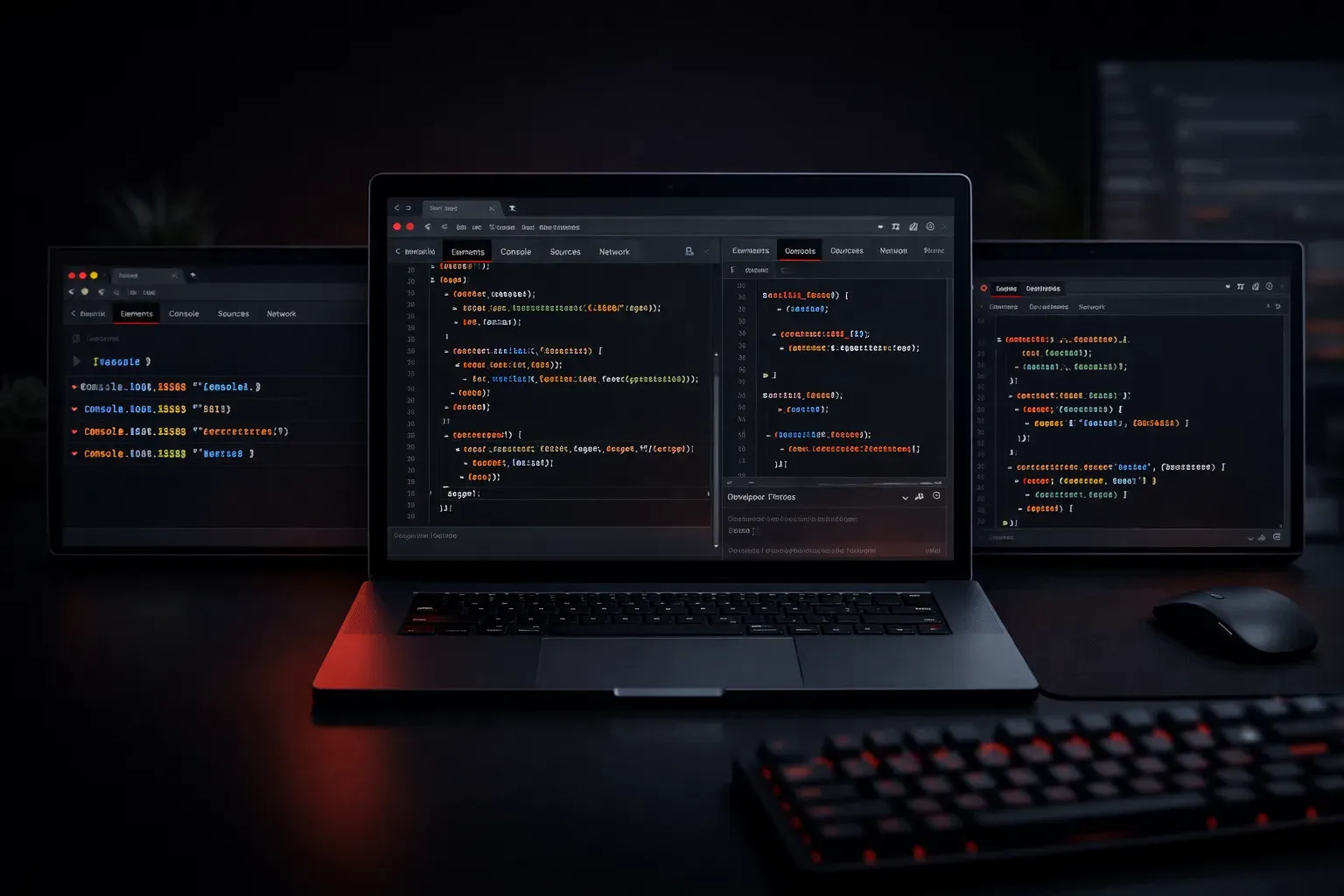
JavaScript is one of the most popular programming languages in the world, and getting started with your first program is easier than you might think. Whether you want to build websites, mobile apps, or even server applications, JavaScript is an excellent choice for beginners.
In this guide, we'll walk through creating your very first JavaScript program step by step. By the end, you'll understand how to write, save, and run JavaScript code.
Setting Up Your Environment
Before writing your first JavaScript program, you need a place to write and run your code. The simplest approach is using your web browser's built-in developer tools.
Open your web browser (Chrome, Firefox, Safari, or Edge) and press F12 or right-click anywhere on a webpage and select "Inspect" or "Developer Tools". Look for the "Console" tab. This is where you can type and execute JavaScript code immediately.
Alternatively, you can create an HTML file on your computer. Create a new file called my-first-program.html using any text editor like Notepad, TextEdit, or VS Code.
Your First "Hello, World!" Program
Let's start with the traditional first program that displays "Hello, World!" to the screen. In your browser console, type the following line and press Enter:
console.log("Hello, World!");You should see "Hello, World!" appear in the console. Congratulations! You've just written and executed your first JavaScript program.
If you're using an HTML file instead, create this structure:
<!DOCTYPE html>
<html>
<head>
    <title>My First JavaScript Program</title>
</head>
<body>
    <script>
        console.log("Hello, World!");
    </script>
</body>
</html>
Save this file and open it in your web browser. Open the developer tools to see your message in the console.
Understanding the Code
Let's break down what just happened:
console.log()is a built-in JavaScript function that displays information in the browser's console- The parentheses
()tell JavaScript to execute the function - The quotes
""create a string, which is programming terminology for text - The semicolon
;marks the end of a statement (optional in JavaScript, but good practice)
Making It Interactive
Console messages are useful for debugging, but let's create something more interactive. Try this program that displays a message directly on the webpage:
<!DOCTYPE html>
<html>
<head>
    <title>Interactive JavaScript Program</title>
</head>
<body>
    <h1 id="greeting">Welcome!</h1>
    <button onclick="changeMessage()">Click me!</button>

    <script>
        function changeMessage() {
            document.getElementById("greeting").innerHTML = "Hello from JavaScript!";
        }
    </script>
</body>
</html>
This program creates a button that, when clicked, changes the text on the page. Here's what's happening:
function changeMessage()creates a reusable block of codedocument.getElementById()finds an HTML element by its IDinnerHTMLchanges the content inside that elementonclicktells the button what function to run when clicked
Adding Variables
Let's enhance your program with variables, which store information you can use later:
<script>
    let userName = "Programmer";
    let currentTime = new Date().toLocaleTimeString();

    function showPersonalizedMessage() {
        let message = "Hello " + userName + "! The time is " + currentTime;
        document.getElementById("greeting").innerHTML = message;
    }
</script>
Variables like userName and currentTime store values that your program can use and manipulate. The let keyword creates a new variable.
Common Beginner Mistakes
As you start writing JavaScript programs, watch out for these common issues:
- Missing quotes: Text must be wrapped in quotes:
"Hello"notHello - Case sensitivity:
console.logworks, butConsole.Logdoesn't - Missing parentheses: Functions need
()to execute - Typos in element IDs: Make sure your HTML ID matches exactly what you use in JavaScript
What's Next
Now that you've created your first JavaScript program, you're ready to explore more programming concepts. Next, we'll dive into JavaScript variables and data types, where you'll learn how to store and work with different kinds of information like numbers, text, and boolean values. Understanding these fundamentals will give you the building blocks to create more complex and useful programs.