
Bash If Else Statements
Learn how to use if-else statements in bash scripts to make decisions based on conditions. Covers basic syntax, multiple conditions with elif, common test operators, and best practices for writing reliable conditional statements.

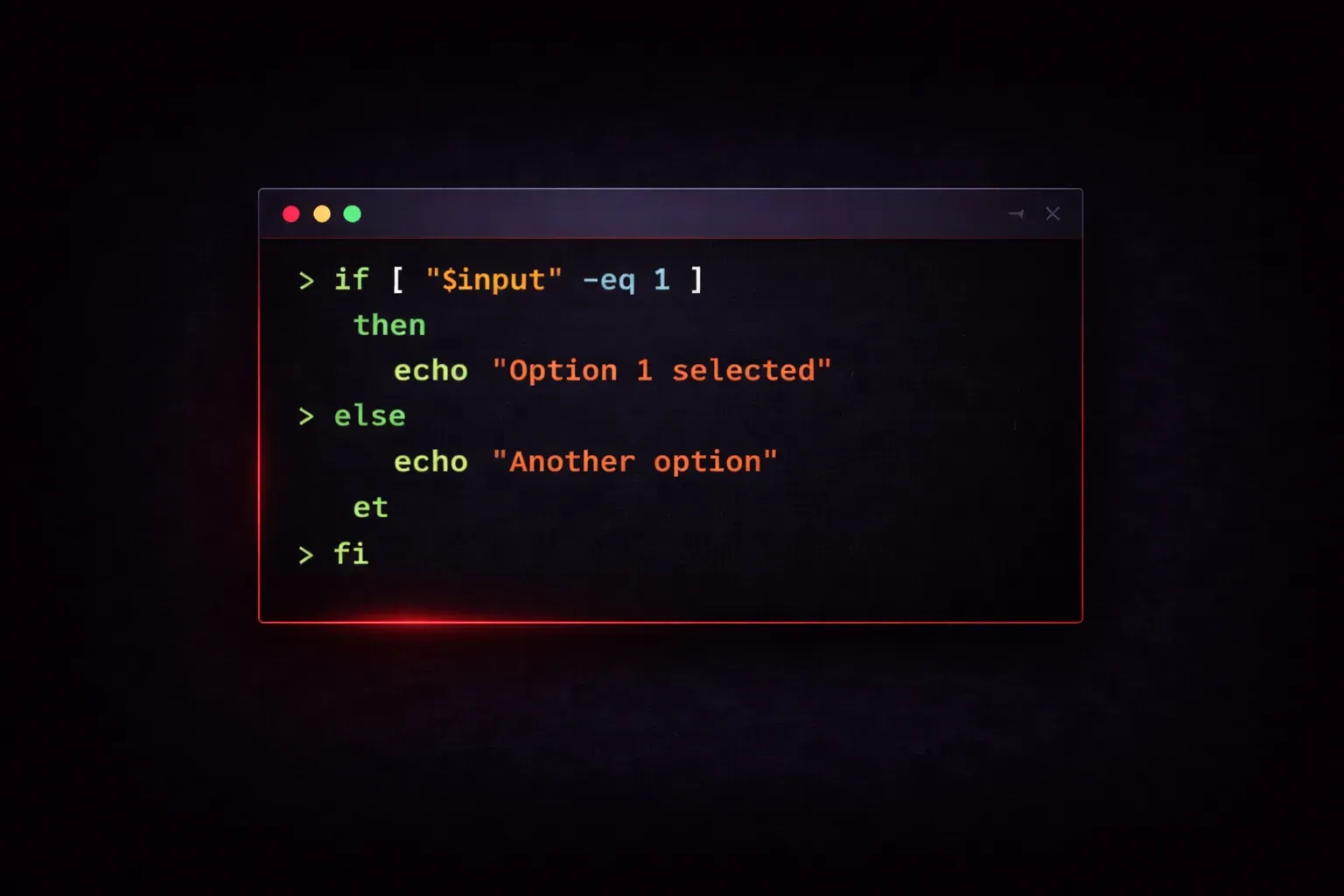
If statements are the foundation of decision-making in bash scripts. They allow your scripts to execute different commands based on conditions, making them dynamic and responsive to different situations. Whether you're checking if a file exists, comparing numbers, or validating user input, if-else statements are essential tools in your bash scripting toolkit.
Basic If Statement Syntax
The most basic form of an if statement in bash follows this structure:
if [ condition ]; then
    # commands to execute if condition is true
fi
Let's look at a simple example that checks if a file exists:
if [ -f "/etc/passwd" ]; then
    echo "Password file exists"
fi
The -f test checks if the specified path is a regular file. If the condition is true, the script prints the message. The fi keyword marks the end of the if statement.
Adding Else for Alternative Actions
Often you'll want to perform one action if a condition is true and a different action if it's false. That's where the else clause comes in:
if [ -f "config.txt" ]; then
    echo "Config file found, loading settings..."
    source config.txt
else
    echo "Config file not found, using defaults"
    # Set default values here
fi
This script checks for a configuration file. If it exists, it loads the settings. If not, it uses default values and notifies the user.
Multiple Conditions with Elif
When you need to check multiple conditions, use elif (else if) to create a chain of tests:
#!/bin/bash
echo "Enter a number: "
read number

if [ $number -gt 100 ]; then
    echo "That's a big number!"
elif [ $number -gt 50 ]; then
    echo "That's a medium number"
elif [ $number -gt 0 ]; then
    echo "That's a small positive number"
else
    echo "That's zero or negative"
fi
This script evaluates the number from largest to smallest, executing only the first condition that matches.
Common Test Conditions
Bash provides many built-in test conditions. Here are the most commonly used ones:
- File tests:
-f(regular file),-d(directory),-e(exists) - String tests:
-z(empty string),-n(non-empty string) - Numeric comparisons:
-eq(equal),-ne(not equal),-gt(greater than),-lt(less than)
Here's an example combining different types of tests:
#!/bin/bash
username="admin"
password=""

if [ -z "$password" ]; then
    echo "Password cannot be empty"
elif [ "$username" = "admin" ] && [ ${#password} -gt 8 ]; then
    echo "Admin login successful"
else
    echo "Invalid credentials"
fi
Best Practices
Always quote your variables to prevent word splitting issues:
# Good
if [ "$filename" = "config.txt" ]; then

# Avoid
if [ $filename = "config.txt" ]; then
Use double brackets [[ ]] for more advanced pattern matching and to avoid some common pitfalls:
if [[ "$filename" == *.txt ]]; then
    echo "This is a text file"
fi
The double bracket syntax supports pattern matching with wildcards and is generally more forgiving with variable handling.
What's Next
Now that you understand if-else statements, you're ready to explore bash loops, which will let you repeat actions and process multiple items efficiently. Combining loops with conditional statements creates powerful automation scripts that can handle complex tasks.