
Setting Up a SOHO Network: A Beginner's Guide
Learn how to set up a Small Office/Home Office (SOHO) network with this beginner-friendly guide covering essential components, step-by-step configuration, and security best practices for small business and home office environments.

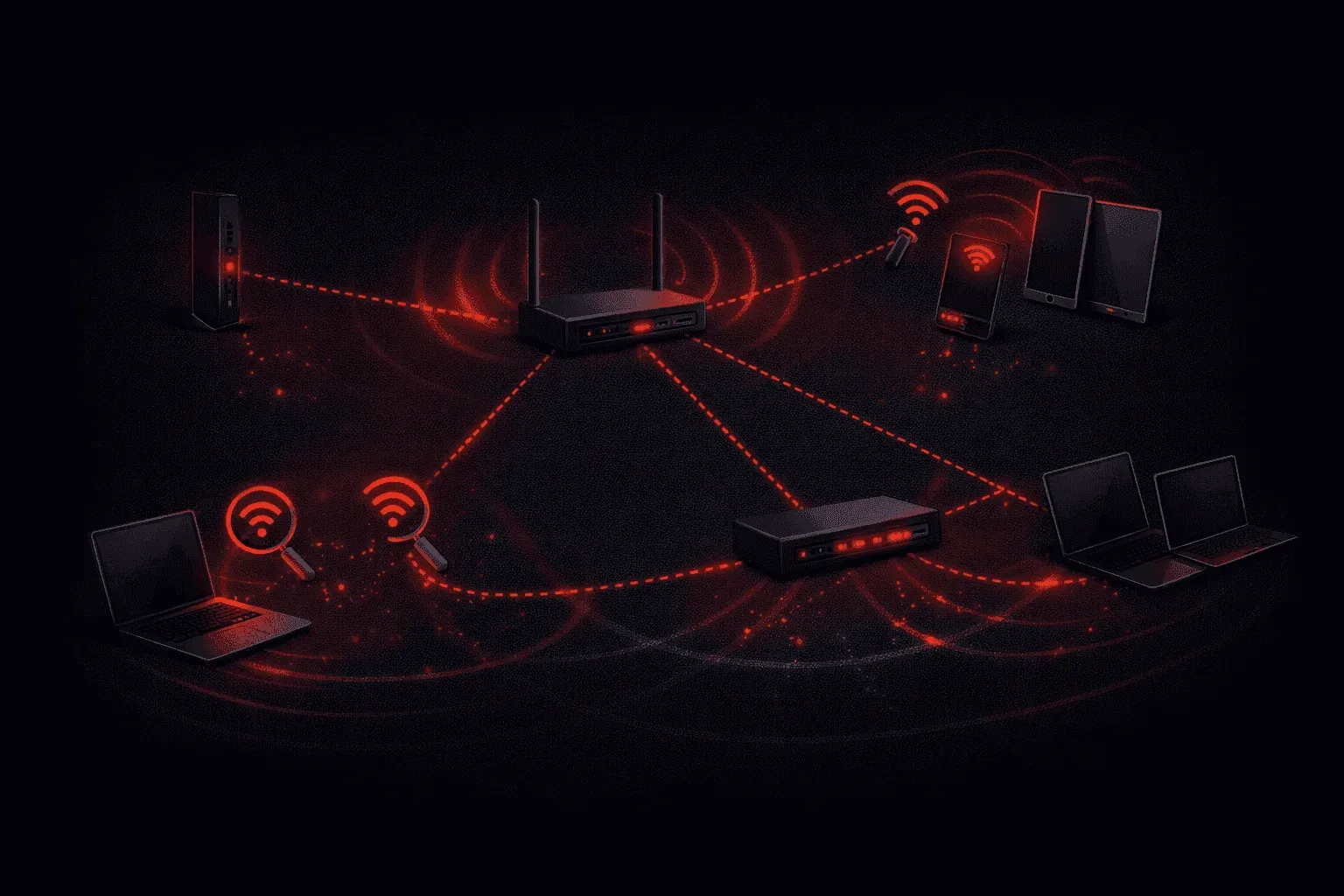
Setting up a Small Office/Home Office (SOHO) network doesn't have to be intimidating. Whether you're working from home or running a small business, understanding the fundamentals of SOHO network setup will help you create a reliable, secure connection for all your devices.
What is a SOHO Network?
A SOHO network is designed for environments with 1-10 users, typically combining internet access, file sharing, and basic security in a cost-effective package. Unlike enterprise networks, SOHO networks prioritize simplicity and affordability while still providing essential networking features.
The key characteristics of a SOHO network include:
- Limited number of devices (usually under 25)
- Single internet connection shared among users
- Basic security features like firewall and Wi-Fi encryption
- Minimal administrative overhead
- Cost-effective equipment choices
Essential SOHO Network Components
Every home office network requires these fundamental components:
1) Internet Service Provider (ISP) Connection
Your ISP provides the gateway to the internet through cable, DSL, fiber, or wireless connections. The speed you choose depends on your usage requirements and the number of concurrent users.
2) Modem
The modem converts your ISP's signal into a format your network equipment can use. Many modern setups use a combined modem/router device for simplicity.
3) Router
The router serves as the central hub of your small office networking setup. It provides:
- DHCP services to assign IP addresses automatically
- NAT (Network Address Translation) to share a single public IP
- Basic firewall protection
- Wi-Fi access point functionality
Switch (Optional)
If you need additional wired connections beyond what your router provides, an unmanaged switch is perfect for SOHO environments. Simply connect it to your router to expand available ports.
Step-by-Step SOHO Network Setup
Step 1: Plan Your Network Layout
Before connecting anything, map out where your devices will be located. Consider both wired devices (desktop computers, printers, NAS devices) and wireless devices (laptops, smartphones, tablets).
Step 2: Connect Your Modem and Router
Connect your modem to your router's WAN port using an Ethernet cable. If you're using a combined modem/router, connect this directly to your ISP's service line.
Step 3: Configure Basic Router Settings
Access your router's web interface by typing its default IP address (commonly 192.168.1.1 or 192.168.0.1) into a web browser. Configure these essential settings:
- Wi-Fi Network Name (SSID): Choose a descriptive but not revealing name
- Wi-Fi Password: Use WPA3 encryption with a strong password
- Admin Password: Change the default admin credentials
- Firmware Updates: Enable automatic updates for security
Step 4: Connect Your Devices
Connect wired devices directly to the router's LAN ports or through a switch. Configure wireless devices by selecting your network name and entering the password you set.
Step 5: Test Connectivity
Verify that all devices can access the internet and communicate with each other as needed. Test both wired and wireless connections from different locations.
SOHO Network Security Best Practices
Even in a beginner guide, security cannot be overlooked:
- Enable WPA3 encryption (or WPA2 if WPA3 isn't available)
- Use strong, unique passwords for both Wi-Fi and router admin access
- Disable WPS if you don't need it
- Keep firmware updated
- Consider guest network isolation for visitors
- Enable the built-in firewall
Common SOHO Network Troubleshooting
When issues arise, start with these basic steps:
- Check all physical connections
- Restart the modem and router (unplug for 30 seconds)
- Verify device IP address assignment using
ipconfig(Windows) orifconfig(Mac/Linux) - Test connectivity with
ping 8.8.8.8to check internet access - Check for firmware updates
What's Next
Now that you have your basic SOHO network running, the next step is understanding how to optimize performance and expand your network as your needs grow. In our next post, we'll explore advanced SOHO features like Quality of Service (QoS) configuration and network segmentation techniques.
CCNA study resources
- CCNA Official Cert Guide Library (Wendell Odom) — Both volumes covering the full 200-301 exam blueprint. The definitive CCNA study resource.
- Wendell Odom CCNA Vol 1 — Networking fundamentals, switching, VLANs, STP, and IPv4 routing.
- Wendell Odom CCNA Vol 2 — Advanced routing, WAN, security, automation, and network management.