
Understanding Common Environmental Variables in Linux
Environmental variables like PATH, HOME, SHELL, PS1, and DISPLAY control how Linux systems and applications behave. This guide explains what each variable does and how to manage them effectively.

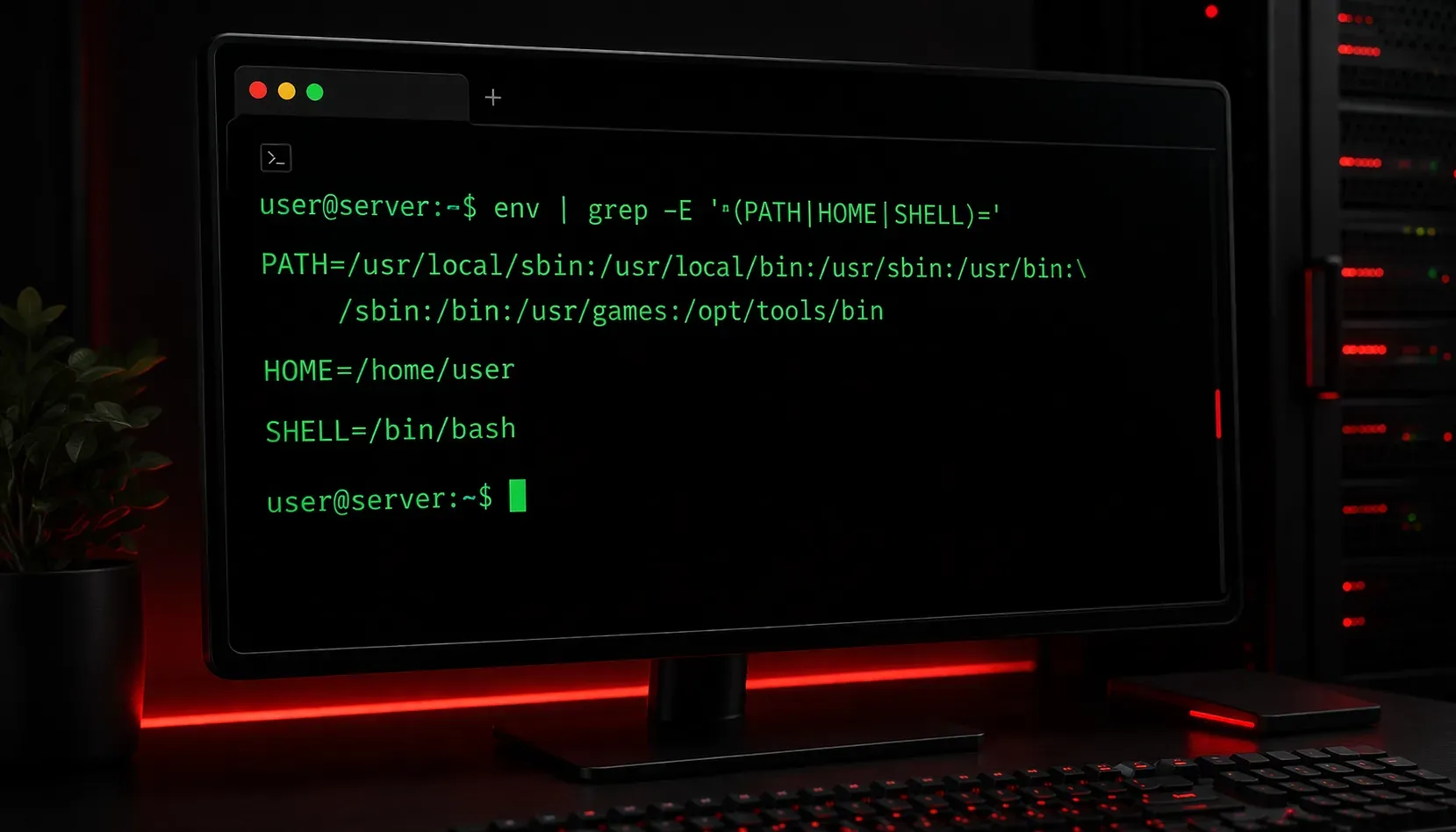
Environmental variables are fundamental settings that define how your Linux system and applications behave. Think of them as global configuration options that programs can read to understand your preferences and system setup. These variables control everything from where your shell looks for commands to how your desktop displays applications.
What Are Environmental Variables?
Environmental variables are named values stored in memory that programs can access to determine how they should operate. Unlike regular shell variables that only exist in the current shell session, environmental variables are passed to child processes, making them available to all programs you run.
You can view all current environmental variables with the env command or see specific ones using echo $VARIABLE_NAME.
Essential Environmental Variables
PATH: Your Command Search Route
The PATH variable is arguably the most important environmental variable. It tells your shell where to look for executable files when you type a command.
$ echo $PATH
/usr/local/bin:/usr/bin:/bin:/usr/local/sbin:/usr/sbin:/sbin
This colon-separated list represents directories searched in order. When you type ls, the shell searches these directories until it finds the ls executable in /usr/bin. You can add directories to your PATH:
$ export PATH=$PATH:/home/username/scriptsHOME: Your Personal Space
The HOME variable contains the path to your user's home directory. This is where the shell takes you when you use cd without arguments, and it's the base for relative paths starting with ~.
$ echo $HOME
/home/username

$ cd ~  # Same as cd $HOME
Programs use HOME to know where to store user-specific configuration files and data.
SHELL: Your Command Interpreter
The SHELL variable identifies your login shell - the program that interprets your commands. Common values include /bin/bash, /bin/zsh, or /bin/fish.
$ echo $SHELL
/bin/bash
Programs that need to spawn a shell (like editors running external commands) use this variable to determine which shell to use.
PS1: Your Command Prompt
The PS1 variable controls what your command prompt looks like. It uses special escape sequences to display information:
$ echo $PS1
[\u@\h \W]\$

# Where:
# \u = username
# \h = hostname
# \W = current directory name
# \$ = $ for users, # for root
You can customize your prompt by modifying PS1:
$ export PS1="[\u@\h \w]\$ " # Show full path instead of just directory nameDISPLAY: Graphics Connection
The DISPLAY variable tells graphical applications where to send their output. This is crucial when using X11 forwarding over SSH or running multiple displays.
$ echo $DISPLAY
:0.0

# Format is usually hostname:display.screen
# :0.0 means local machine, first display, first screen
When SSH forwarding X11 graphics, you might see something like localhost:10.0.
Managing Environmental Variables
You can set environmental variables temporarily for the current session:
$ export EDITOR=vim
$ export BROWSER=firefox
To make changes permanent, add them to your shell's configuration file:
- Bash:
~/.bashrcor~/.bash_profile - Zsh:
~/.zshrc - System-wide:
/etc/environmentor/etc/profile
You can also unset variables:
$ unset VARIABLE_NAMEPractical Tips
Use printenv to see all environmental variables, or printenv VARIABLE_NAME for specific ones. The which command shows you exactly where the shell finds a command based on your PATH.
Remember that changes to environmental variables in one terminal don't affect other terminals unless you source the configuration files or restart your session.
What's Next
Now that you understand how environmental variables shape your Linux environment, the next step is learning about shell scripting basics. We'll explore how to create simple scripts that can read these variables and automate common tasks, building on this foundation of system configuration knowledge.
Tools and resources for this topic
- CompTIA Linux+ Study Guide — Comprehensive Linux+ exam preparation covering system administration, security, and scripting.