
Common JSON Errors and How to Fix Them
JSON errors are common but predictable. This post covers the six most frequent JSON syntax mistakes, including trailing commas, single quotes, unquoted keys, and invalid data types, with clear before-and-after examples and practical tools to validate your JSON quickly.

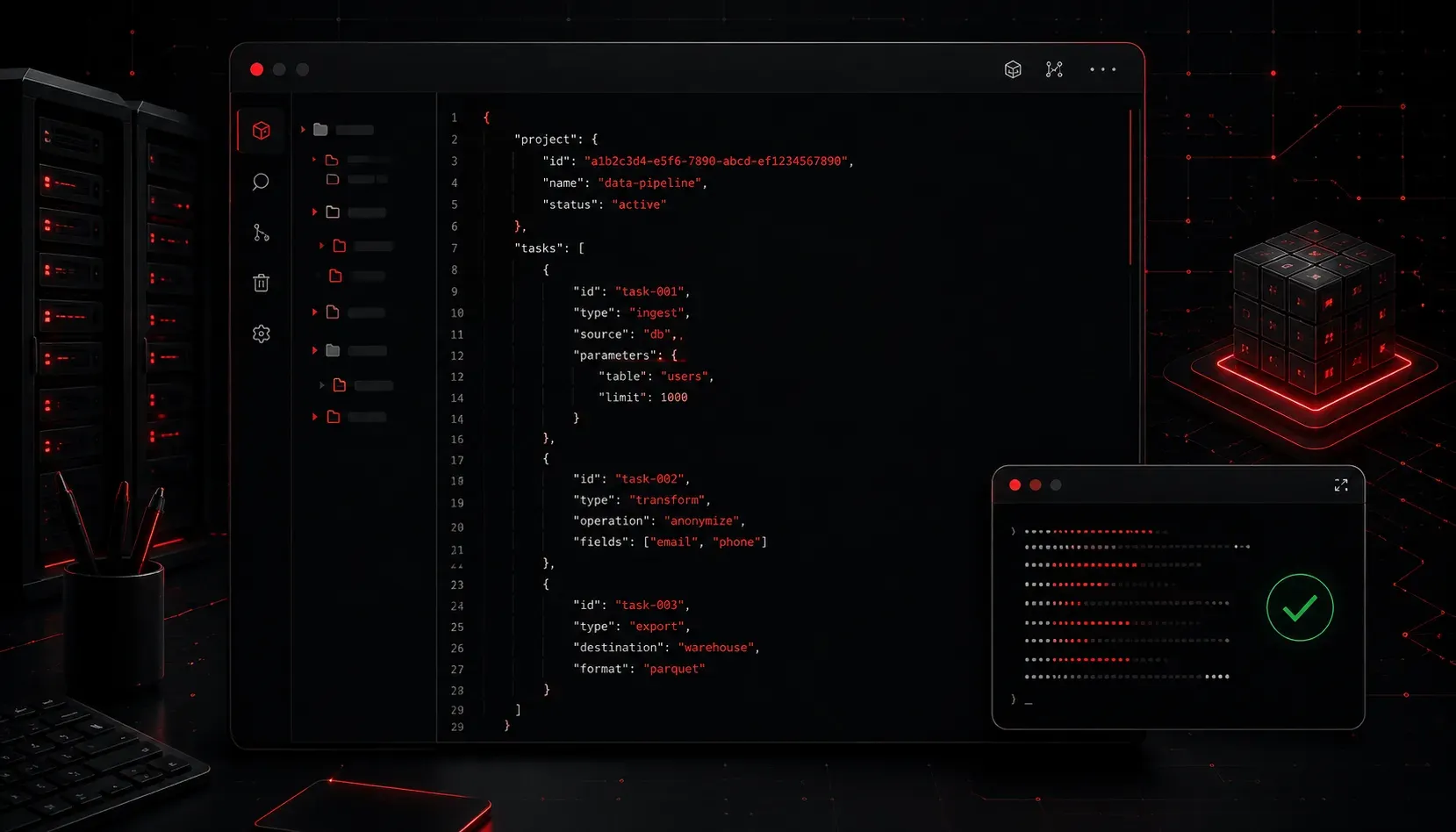
JSON (JavaScript Object Notation) is everywhere in modern programming. Whether you are working with APIs, configuration files, or data storage, you will encounter JSON constantly. And when something goes wrong, the errors can be cryptic and frustrating, especially for beginners. The good news is that most JSON errors fall into a small set of predictable categories, and once you know what to look for, they are quick to fix.
Why JSON is So Strict
Before diving into specific errors, it helps to understand why JSON throws errors so readily. JSON has a very rigid syntax specification. Unlike Python dictionaries or JavaScript objects, there is almost no room for deviation. A single misplaced comma or a missing quote will break the entire document. This strictness is actually a feature, not a bug: it makes JSON easy to parse reliably across every programming language.
The Most Common JSON Errors
1. Trailing Commas
This is probably the most frequent mistake, especially for developers coming from JavaScript or Python, where trailing commas are often allowed. In JSON, the last item in an object or array must not have a comma after it.
Broken:
{
  "hostname": "router1",
  "ip": "10.0.0.1",
  "active": true,
}
Fixed:
{
  "hostname": "router1",
  "ip": "10.0.0.1",
  "active": true
}
The fix is simple: remove the comma after the last item.
2. Single Quotes Instead of Double Quotes
JSON requires double quotes for both keys and string values. Single quotes are not valid JSON, even though they work fine in Python dictionaries and JavaScript objects.
Broken:
{
  'hostname': 'router1'
}
Fixed:
{
  "hostname": "router1"
}
3. Unquoted Keys
Every key in a JSON object must be wrapped in double quotes. This catches developers who come from JavaScript, where bare key names are valid in object literals.
Broken:
{
  hostname: "router1"
}
Fixed:
{
  "hostname": "router1"
}
4. Comments in JSON
JSON does not support comments. Attempting to add them with // or /* */ will cause a parse error. If you need to document a JSON configuration file, consider using a key like "_comment" as a workaround, or switch to a format like YAML that supports comments natively.
Broken:
{
  // This is the primary router
  "hostname": "router1"
}
5. Wrong Data Types
JSON supports a specific set of data types: strings, numbers, booleans (true/false), null, objects, and arrays. Boolean values and null must be lowercase and unquoted. Wrapping them in quotes turns them into strings, which can cause logic errors in your application.
Broken:
{
  "active": "True",
  "value": "null"
}
Fixed:
{
  "active": true,
  "value": null
}
6. Mismatched Brackets or Braces
A missing closing brace } or bracket ] will break the entire document. This becomes harder to spot in large JSON files. Curly braces {} define objects, while square brackets [] define arrays. Make sure every opening character has a matching closing character.
Your Best Tool: A JSON Validator
When you cannot spot the error by eye, use a validator. These tools will parse your JSON and point you directly to the line with the problem:
- JSONLint: jsonlint.com is a free, straightforward online validator.
- VS Code: The built-in JSON language support highlights errors in real time as you type.
- Python: Run
python -m json.tool yourfile.jsonin your terminal to validate a file instantly from the command line.
That last one is particularly useful. If the file is valid, Python prints the formatted JSON. If it is not, you get a clear error message with the line number.
A Quick Reference Summary
- Trailing commas: Remove the comma after the last item in any object or array.
- Single quotes: Replace all single quotes with double quotes.
- Unquoted keys: Wrap every key in double quotes.
- Comments: Delete them; JSON does not support comments.
- Wrong booleans/null: Use lowercase
true,false, andnullwithout quotes. - Mismatched brackets: Use a validator or a code editor with bracket matching.
What's Next
Now that you can write and debug valid JSON, the next step is learning how to work with it programmatically. In the next post, we will look at how to read and write JSON files in Python using the built-in json module, including how to convert between JSON strings and Python dictionaries with json.loads() and json.dumps().