
Common Wireless Network Problems and How to Solve Them
A comprehensive guide to identifying and solving the most common wireless network problems, including signal strength issues, interference, authentication failures, and performance problems with step-by-step troubleshooting methods.

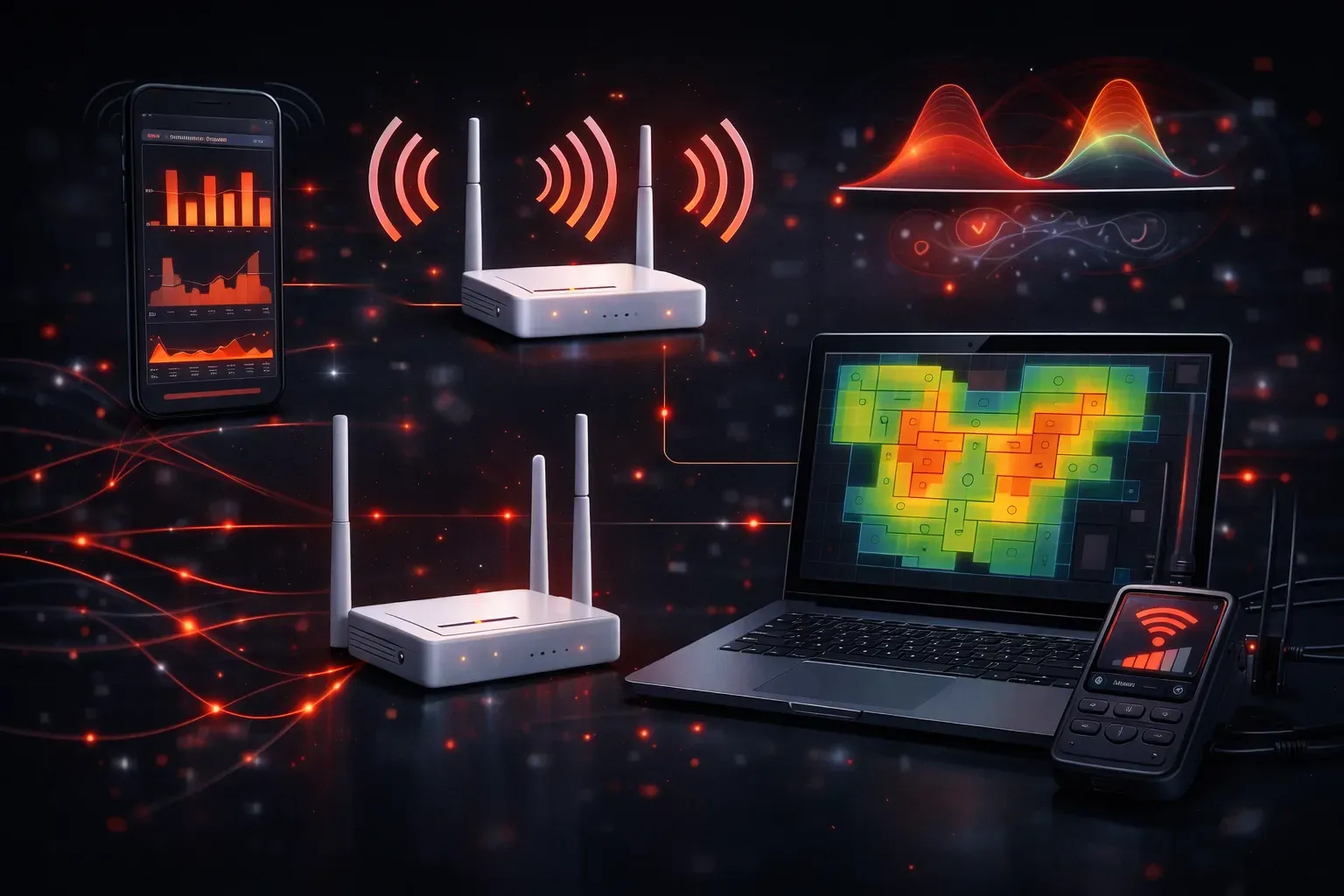
Wireless networks can be frustrating when they don't work as expected. Whether you're setting up your first wireless network or helping others troubleshoot connectivity issues, understanding common problems and their solutions will save you hours of headaches. Let's walk through the most frequent wireless network problems you'll encounter and how to fix them step by step.
Signal Strength and Coverage Problems
The most common wireless network problem is poor signal strength or dead zones in your coverage area. Users complain about slow speeds or dropped connections, especially when moving around the building.
Symptoms:
- Weak signal bars on devices
- Slow internet speeds in certain areas
- Frequent disconnections
- Unable to connect from specific locations
Solutions:
- Relocate your access point: Move it to a central location, away from walls and metal objects
- Adjust antenna positioning: Point antennas vertically for better horizontal coverage
- Add additional access points: Install more APs to eliminate dead zones
- Upgrade to higher-gain antennas: Replace stock antennas with directional or high-gain options
Use tools like inSSIDer or your smartphone's Wi-Fi analyzer to measure signal strength in different locations. Look for readings above -70 dBm for reliable connectivity.
Interference Issues
Wireless networks operate in shared frequency bands, making them susceptible to interference from other devices and networks. This is especially problematic in crowded environments like apartment buildings or office complexes.
Common interference sources:
- Other Wi-Fi networks on the same channel
- Microwave ovens (2.4 GHz interference)
- Bluetooth devices
- Baby monitors and cordless phones
- Fluorescent lights
Troubleshooting steps:
- Change your wireless channel: Use channels 1, 6, or 11 on 2.4 GHz to avoid overlap
- Switch to 5 GHz: Less crowded frequency band with more available channels
- Enable automatic channel selection: Let your router find the clearest channel
- Identify interference sources: Use Wi-Fi analyzer tools to spot congested channels
Authentication and Security Problems
Users often struggle with connecting to secured wireless networks, especially when passwords are involved or security settings are misconfigured.
Common authentication issues:
- "Wrong password" errors despite correct credentials
- Connection timeouts during authentication
- Devices connecting but unable to access internet
- Enterprise networks rejecting valid certificates
Quick fixes:
- Verify password accuracy: Re-type the network password carefully
- Forget and reconnect: Remove the network profile and add it fresh
- Check security type: Ensure device matches network security (WPA2, WPA3)
- Update network drivers: Install the latest wireless adapter drivers
- Reset network settings: Clear all stored network profiles on the device
Performance and Speed Issues
Even with strong signal strength, wireless networks can suffer from poor performance due to configuration problems or bandwidth limitations.
Performance troubleshooting:
- Test wired vs. wireless speeds: Compare Ethernet and Wi-Fi performance
- Check for bandwidth hogs: Identify devices consuming excessive bandwidth
- Update firmware: Install the latest router and device firmware
- Optimize QoS settings: Prioritize critical traffic types
- Consider wireless standards: Upgrade older 802.11g devices to 802.11n or 802.11ac
Basic Troubleshooting Methodology
When facing any wireless network problem, follow this systematic approach:
- Identify the scope: Is it affecting one device or all devices?
- Check physical connections: Verify power, ethernet cables, and LED status
- Test with different devices: Isolate device-specific vs. network-wide issues
- Restart equipment: Power cycle the router, modem, and affected devices
- Verify settings: Check SSID, security type, and channel configuration
- Monitor performance: Use built-in diagnostics and third-party tools
Remember to document your changes and test thoroughly after each modification. Many wireless problems have simple solutions once you understand the underlying cause.
What's Next
Now that you can troubleshoot common wireless issues, the next step is understanding wireless security implementations and how to configure enterprise-grade authentication methods like WPA2-Enterprise and certificate-based authentication.
Tools and resources for this topic
- CompTIA Network+ Study Guide — Comprehensive N10-009 exam preparation covering all five domains.