
How to Configure WLAN Security Settings
This post covers how to configure WLAN security settings, including an overview of security standards like WPA2 Personal and Enterprise, practical configuration steps on a Cisco WLC, and best practices for maintaining a secure wireless network. It is aimed at CCNA learners building foundational wir

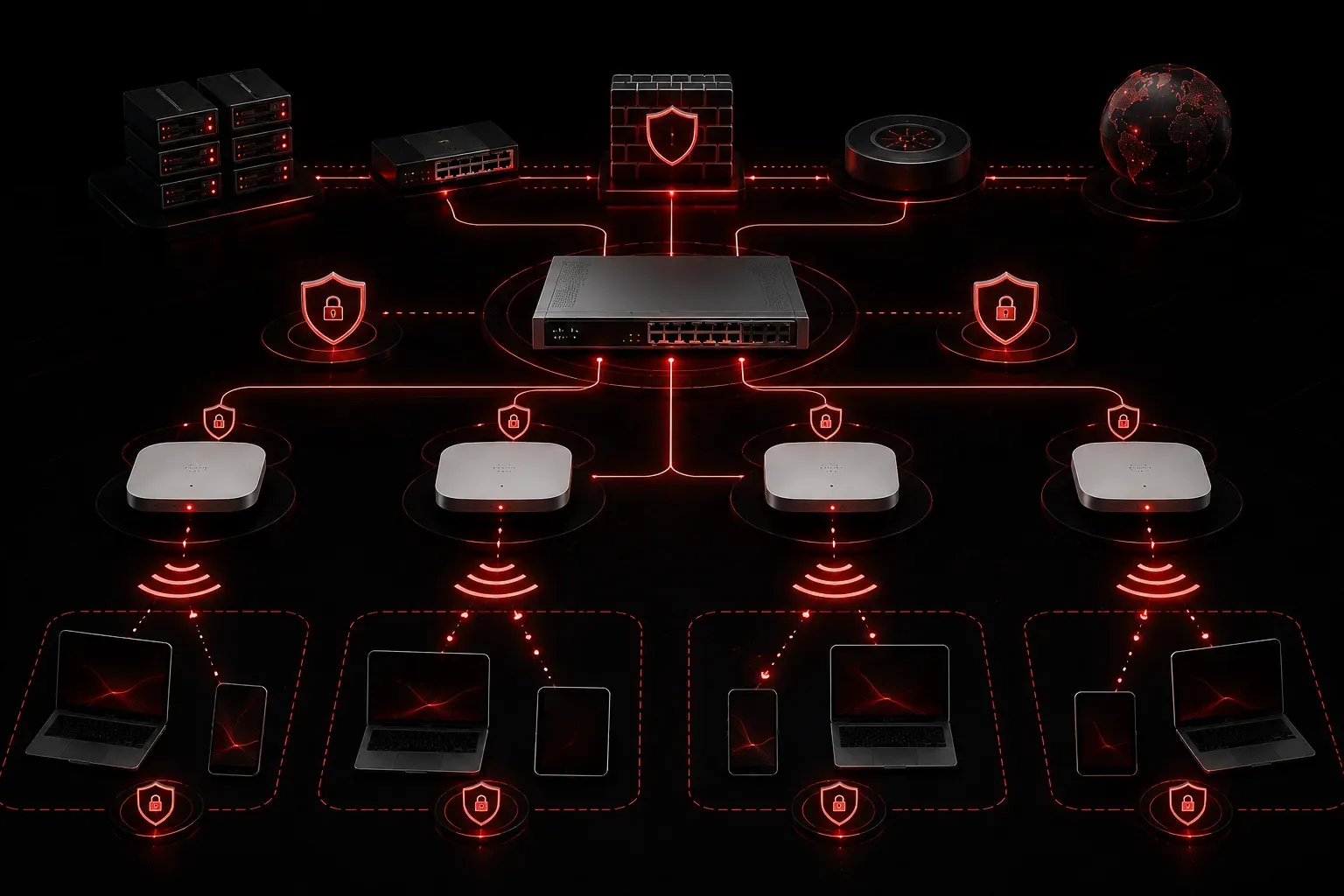
Securing your wireless network is one of the most important steps you can take when setting up or managing a network. Without proper WLAN security settings, you're essentially leaving the front door of your network wide open. In this guide, we'll walk through the key concepts and practical steps for configuring WLAN security to protect your network and keep client connections safe.
Why WLAN Security Matters
Wireless networks broadcast signals through the air, which makes them inherently more exposed than wired connections. Anyone within range of your access point can attempt to connect or capture traffic. A secure WLAN ensures that only authorized users can join the network and that data in transit is encrypted, preventing easy interception.
For the CCNA exam and real-world networking, you need to understand the available security options and when to use each. The CCNA exam objectives cover a range of WLAN security standards, including WPA2 and WPA3, so familiarity with both is valuable; check the current Cisco exam topics page to confirm the latest scope before your exam.
Wireless Security Modes Overview
There are several authentication and encryption standards you'll encounter when configuring WLAN security settings:
- Open Authentication: No password required. Anyone can connect. Only appropriate for guest networks with additional controls like a captive portal.
- WEP (Wired Equivalent Privacy): An older, broken standard. Never use this in a production environment.
- WPA (Wi-Fi Protected Access): An improvement over WEP but still considered outdated.
- WPA2: The current standard for most enterprise and home networks. Uses AES encryption and remains the dominant security protocol across deployed devices and the primary focus of most CCNA WLAN security objectives.
- WPA3: The newest standard, offering stronger encryption and better protection against brute-force attacks. WPA3 adoption is growing, particularly in newer devices and deployments, but WPA2 still accounts for the majority of wireless networks in production today.
For a safe WiFi setup, WPA2 or WPA3 should always be your starting point.
WPA2 Personal vs. WPA2 Enterprise
WPA2 comes in two flavors, and choosing the right one matters for your environment:
- WPA2 Personal (PSK): Uses a pre-shared key (a password) that all clients use to connect. Simple to configure, common in home and small office environments.
- WPA2 Enterprise: Uses a RADIUS server to authenticate individual users with unique credentials. This is the preferred option for corporate environments because it gives you per-user accountability and allows you to revoke access for specific users without changing the password for everyone.
Configuring WLAN Security on a Cisco Wireless LAN Controller
In a Cisco environment, WLAN security is typically configured on a Wireless LAN Controller (WLC). Here's what a basic WPA2 PSK configuration looks like through the WLC GUI workflow, and the equivalent conceptual CLI steps for a controller-based setup.
When creating a WLAN on a Cisco WLC, navigate to WLANs > [your WLAN] > Security > Layer 2 and configure the following settings:
- Layer 2 Security: Set to
WPA+WPA2 - WPA2 Policy: Enabled
- WPA2 Encryption: Set to
AES - Auth Key Mgmt: Set to
PSKfor Personal, or802.1Xfor Enterprise - PSK Format: ASCII, then enter your passphrase
After saving the Layer 2 settings, apply the WLAN to an interface or interface group, and ensure the WLAN is Enabled before testing client connectivity.
For a WPA2 Enterprise setup, navigate to the Security > AAA Servers tab for the WLAN and specify your RADIUS server IP address, port (1812 for authentication), and shared secret. The WLC will forward client authentication requests to the RADIUS server, which validates credentials before granting network access.
Key Security Best Practices
Beyond choosing the right security mode, a few additional practices help you maintain a secure WLAN:
- Use strong, unique passphrases for PSK networks; at least 12 characters mixing letters, numbers, and symbols.
- Broadcast separate SSIDs for different user groups (employees vs. guests) with appropriate security levels for each.
- Disable older protocols like WEP and WPA on your access points if supported by your hardware.
- Enable Management Frame Protection (MFP) on Cisco WLCs to protect management frames from spoofing attacks.
- Regularly audit connected clients and review RADIUS logs if running an enterprise setup.
Quick Reference: Matching Security to the Use Case
- Home or small office: WPA2 Personal with a strong passphrase
- Enterprise or corporate: WPA2 Enterprise with 802.1X and a RADIUS server
- Guest network: Open with captive portal, or WPA2 Personal on an isolated SSID
- Highest security available: WPA3 where hardware supports it
What's Next
Now that you understand how to configure WLAN security settings, the natural next step is understanding how wireless clients actually associate and authenticate to an access point. In the next post, we'll dig into the wireless association process, covering how devices discover, authenticate, and join a wireless network from start to finish. It ties directly into everything you've learned here and solidifies your understanding of how secure WLAN connections are established end to end.
Tools and resources for this topic
- CCNA Official Cert Guide (Wendell Odom) — The definitive CCNA study resource. Both volumes cover the 200-301 exam blueprint in full.
- Wendell Odom CCNA Vol 1 — Covers networking fundamentals, switching, and routing basics.
- Wendell Odom CCNA Vol 2 — Covers advanced routing, WAN, infrastructure services, and security.