
The sudo Command: Running as Administrator
Learn how to use the sudo command in Linux to run commands with administrator privileges safely. Covers basic syntax, common use cases, security best practices, and troubleshooting tips for beginners.

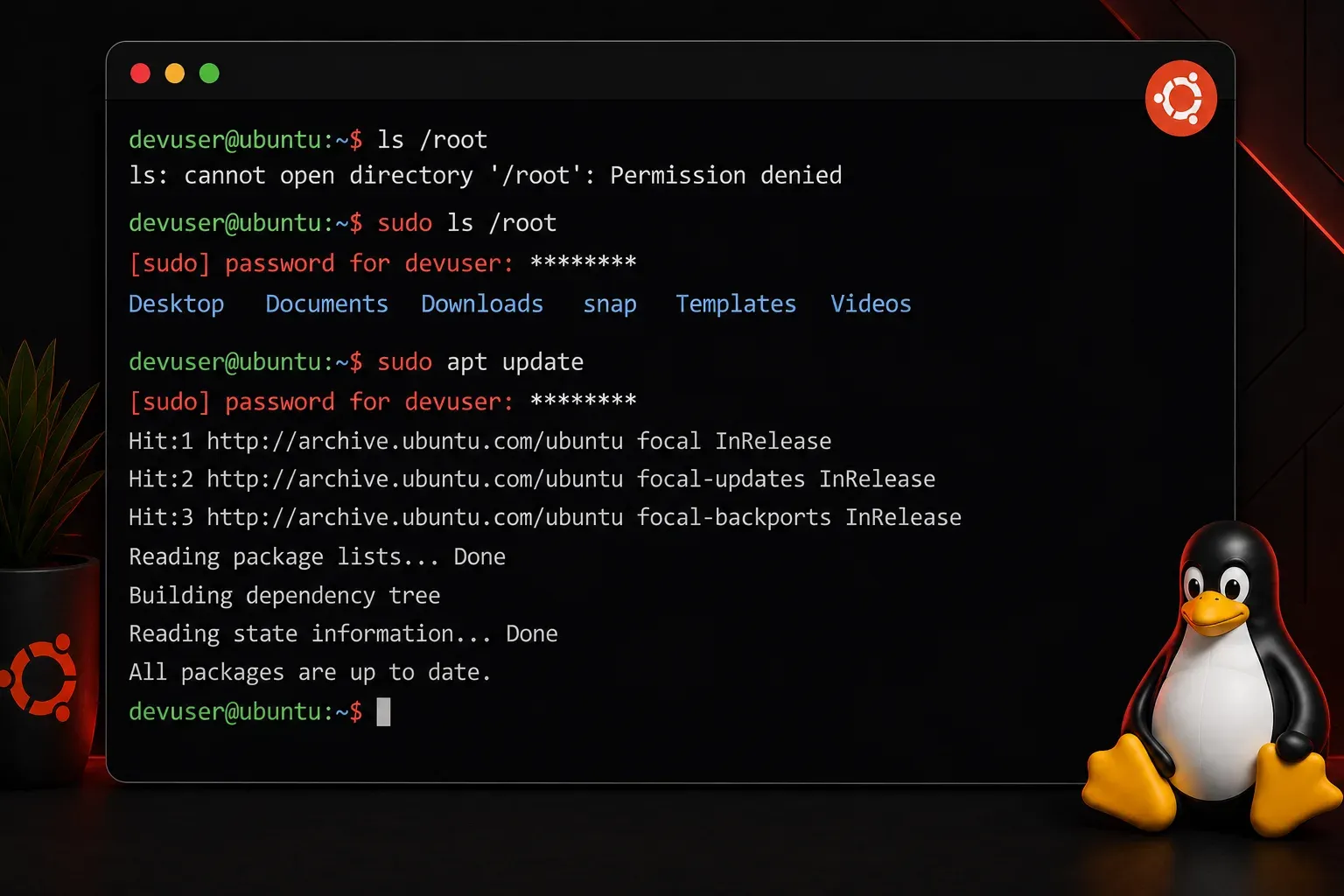
In the Linux world, the sudo command is your gateway to administrative privileges. Think of it as the "Run as Administrator" feature in Windows, but more flexible and secure. Whether you're installing software, editing system files, or managing users, sudo is an essential tool you'll use daily.
What is sudo?
sudo stands for "superuser do." It allows regular users to run commands with the privileges of another user, typically the root user. The root user is the system administrator account with complete control over the system; think of it as the master key that can access and modify anything on your Linux machine. Instead of logging in as root directly, which can be dangerous, sudo provides a safer way to perform administrative tasks.
Basic sudo Syntax
The basic syntax is simple:
sudo commandFor example, to update your system packages on Ubuntu:
sudo apt updateWhen you run this command for the first time in a session, you'll be prompted for your password (not the root password, but your own user password):
[sudo] password for username:Why Use sudo Instead of Root?
Running as root all the time is like driving with your seatbelt off—it works until something goes wrong. Here's why sudo is better:
- Safety: Reduces the risk of accidentally damaging your system
- Accountability: Logs all administrative actions
- Convenience: No need to switch users constantly
- Temporary elevation: Privileges expire after a timeout period
Common sudo Commands
Here are some everyday examples you'll encounter:
# Install software
sudo apt install firefox

# Edit system configuration files
sudo nano /etc/hosts

# Start/stop system services
sudo systemctl restart apache2

# Change file ownership
sudo chown user:group filename

# Create directories in system locations
sudo mkdir /opt/myapp
Switching to Root Shell
Sometimes you need to run multiple administrative commands. Instead of typing sudo repeatedly, you can switch to a root shell:
# Become root temporarily
sudo -i

# Or preserve your current environment
sudo -s
Warning: When using sudo -i or sudo -s, you're operating with full administrative privileges, which increases the risk of accidentally damaging your system. Use these options sparingly and avoid staying in a root shell for extended periods.
To exit back to your regular user, simply type exit.
Understanding sudo Configuration
The sudo behavior is controlled by the /etc/sudoers file. You should never edit this file directly with a regular text editor. Instead, use:
sudo visudoThis command opens the sudoers file in a safe editor that checks for syntax errors before saving.
Common sudoers Configurations
Most Ubuntu systems include this line by default:
%sudo ALL=(ALL:ALL) ALLThis means any user in the "sudo" group can run any command as any user. You can check if your user is in the sudo group:
groups $USERSecurity Tips
While sudo is safer than running as root, follow these best practices:
- Use strong passwords: Your sudo access is only as secure as your user password
- Be cautious with scripts: Understand what any script does before running it with
sudo - Don't share sudo access: Each user should have their own account
- Regular audits: Periodically review who has sudo access
Troubleshooting sudo Issues
If you see "user is not in the sudoers file," it means your user lacks sudo privileges. An administrator needs to add you to the sudo group:
sudo usermod -aG sudo usernameFor the "sudo: command not found" error, you might need to install sudo:
# On Debian/Ubuntu (as root)
apt install sudo
What's Next
Now that you understand sudo, you're ready to explore file permissions and ownership in Linux. Understanding how Linux controls access to files and directories will help you use sudo more effectively and troubleshoot permission-related issues when they arise.