
Creating Files and Folders in Linux
Learn the essential Linux commands for creating files and folders, including touch, mkdir, and echo. Covers practical examples, best practices, and common mistakes to avoid when organizing your Linux filesystem.

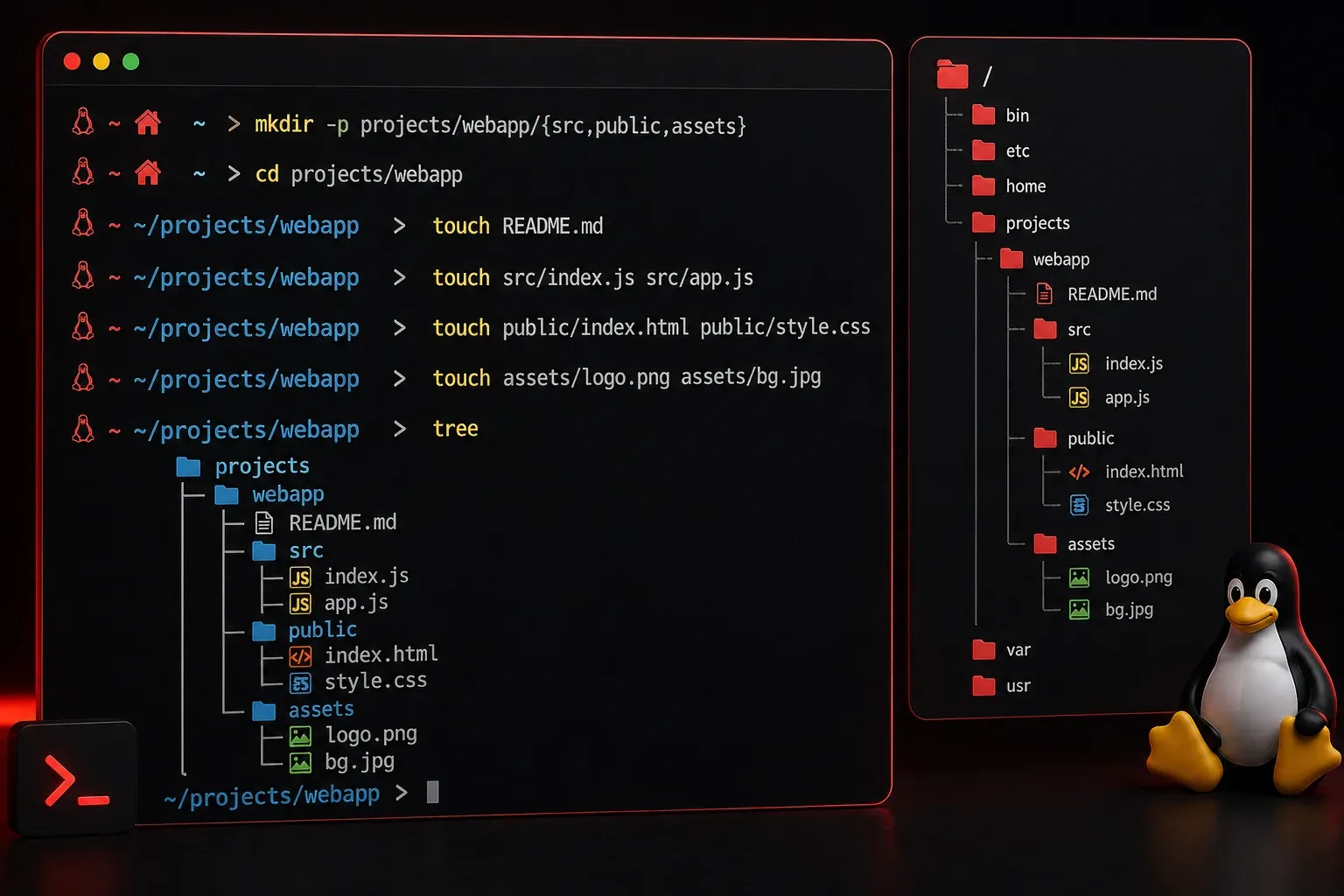
Creating files and folders is one of the most fundamental skills you'll need when working with Linux. Whether you're organizing your home directory, setting up project folders, or creating configuration files, these basic operations form the foundation of effective Linux file management.
Let's start with the most common ways to create files and directories from the command line, then explore some practical examples you'll use every day.
Creating Files in Linux
Linux offers several methods to create files, each suited for different scenarios. Here are the most important ones you should know:
Using the touch Command
The touch command is the quickest way to create empty files. It's perfect when you need to create placeholder files or when another program expects a file to exist.
touch myfile.txt
touch document.pdf notes.md
You can create multiple files at once by listing them after the touch command. If a file already exists, touch simply updates its timestamp without changing the content.
Creating Files with Content
When you want to create a file with initial content, you have several options:
echo "Hello, Linux!" > greeting.txt
echo "This is line 1" > example.txt
echo "This is line 2" >> example.txt
The single > creates a new file (or overwrites an existing one), while >> appends to an existing file. This distinction is crucial to avoid accidentally overwriting important data.
For creating files with multiple lines, you can use a here document:
cat > myconfig.conf << EOF
# Configuration file
server_name = localhost
port = 8080
debug = true
EOF
Creating Directories in Linux
Directory creation is straightforward with the mkdir command, but there are some useful options that make it more powerful.
Basic Directory Creation
mkdir projects
mkdir photos videos documents
Like touch, you can create multiple directories at once by listing them after the command.
Creating Nested Directory Structures
The -p (parent) option is incredibly useful when you need to create a directory structure several levels deep:
mkdir -p projects/web-development/frontend/css
mkdir -p backup/2024/january/week1
Without the -p flag, you'd need to create each directory level individually. With it, Linux creates all the necessary parent directories automatically.
Practical Examples and Best Practices
Let's look at some real-world scenarios where you'd commonly create files and folders:
Setting Up a Project Directory
mkdir -p my-website/{css,js,images,docs}
touch my-website/index.html
touch my-website/css/style.css
touch my-website/js/script.js
echo "# My Website Project" > my-website/docs/README.md
This example demonstrates brace expansion {css,js,images,docs}, which creates multiple subdirectories at once. It's a powerful shell feature that saves time when setting up standardized directory structures.
Creating Log Files and Directories
mkdir -p logs/$(date +%Y)/$(date +%m)
touch logs/$(date +%Y)/$(date +%m)/app-$(date +%Y-%m-%d).log
This creates a date-organized directory structure and a timestamped log file, which is common in system administration and application development.
Understanding File and Directory Permissions
When you create files and directories in Linux, they inherit default permissions. Files typically get read and write permissions for the owner (644), while directories get read, write, and execute permissions (755). The execute permission on directories allows you to access their contents.
ls -la
drwxr-xr-x 2 user user 4096 Dec  1 10:30 projects
-rw-r--r-- 1 user user    0 Dec  1 10:30 myfile.txt
Understanding these permissions early will save you troubleshooting time later when working with file access issues.
Common Mistakes to Avoid
When starting with Linux file operations, avoid these common pitfalls:
- Using spaces in file names without quotes:
touch "my file.txt"instead oftouch my file.txt - Forgetting that Linux is case-sensitive:
MyFile.txtandmyfile.txtare different files - Using the single
>when you meant to append with>>
What's Next
Now that you can create files and directories, the next logical step is learning how to navigate between them effectively. In our next post, we'll explore changing directories and understanding the Linux directory structure, including shortcuts that will make moving around your system much faster.