
Understanding DNS and How It Affects Network Services
This post explains how DNS works, why it affects nearly every network service, and how to troubleshoot common DNS problems using practical commands. It covers the DNS resolution process step by step and maps to CompTIA Network+ exam objective 5.3.

If you have ever typed a website address into your browser and gotten an error, there is a good chance DNS was involved. DNS is one of those behind-the-scenes services that nobody thinks about until it breaks. Understanding how it works will make you a better troubleshooter and help you on the Network+ exam.
What Is DNS?
DNS stands for Domain Name System. Its job is to translate human-readable names like www.google.com into IP addresses like 142.250.80.46 that computers actually use to communicate. Without DNS, you would have to memorize the IP address of every website you visit. Not exactly practical.
Think of DNS like a phone book. When you want to call your friend, you look up their name and get their phone number. DNS does the same thing: you give it a name, and it returns an address.
How a DNS Query Actually Works
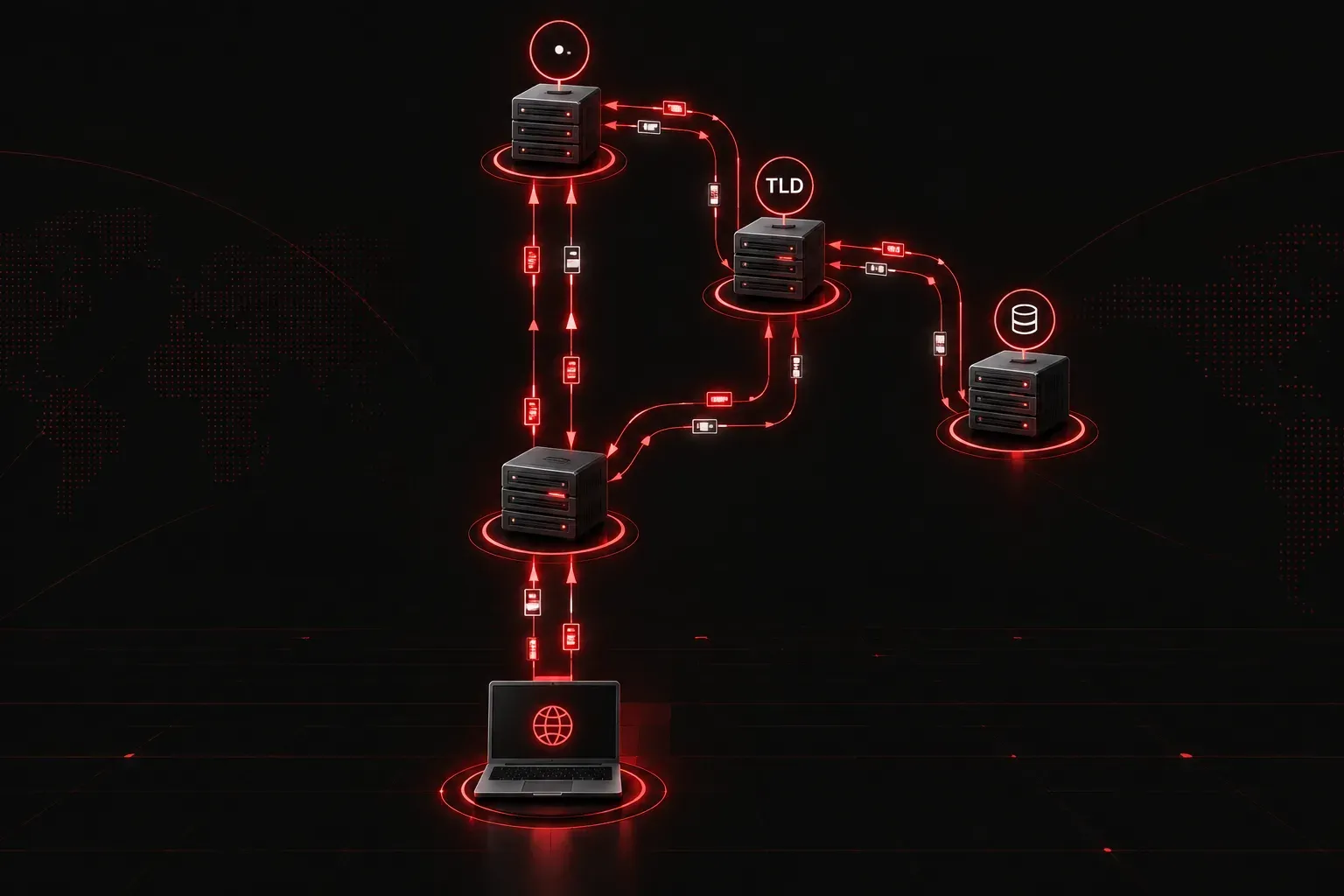
When you type a URL into your browser, several things happen very quickly behind the scenes:
- Your computer checks its local DNS cache first. If it has already looked up this name recently, it uses the cached result.
- If there is no cached result, the query goes to your recursive resolver, which is usually provided by your ISP or a public service like
8.8.8.8(Google) or1.1.1.1(Cloudflare). - The recursive resolver contacts a root name server, which points it toward the correct top-level domain (TLD) server, such as the one responsible for
.com. - The TLD server points to the authoritative name server for the specific domain.
- The authoritative server returns the IP address, which travels back to your computer.
All of this typically happens in milliseconds. When it works, you never notice it. When it fails, nothing works.
DNS and Network Services: The Connection
DNS is not just for websites. Almost every network service relies on it. Email, Active Directory, VoIP systems, and cloud services all use DNS to locate servers and resources. This is why DNS problems often feel like total network failures, even when the physical network is perfectly healthy.
Here is a classic scenario: a user reports they cannot access the internet. You ping 8.8.8.8 and it responds fine. The physical connection and routing are working. You then try to ping www.google.com by name and it fails. That is a DNS problem, not a network problem.
Basic DNS Troubleshooting Commands
These are the commands you need to know for the exam and real-world troubleshooting:
On Windows, use nslookup to query DNS directly:
nslookup www.google.com
Server:  8.8.8.8
Address:  8.8.8.8

Non-authoritative answer:
Name:    www.google.com
Addresses:  2607:f8b0:4004:c1b::63
          142.250.80.46
On Linux or macOS, dig gives you more detailed output:
dig www.google.com

;; ANSWER SECTION:
www.google.com.   60   IN   A   142.250.80.46

;; Query time: 12 msec
;; SERVER: 8.8.8.8#53(8.8.8.8)
You can also flush your local DNS cache when stale entries are causing problems:
- Windows:
ipconfig /flushdns - Linux (systemd):
sudo systemd-resolve --flush-caches - macOS:
sudo dscacheutil -flushcache
Common DNS Problems to Watch For
- Wrong DNS server configured: A device pointing to a non-functional or incorrect DNS server will fail to resolve names entirely.
- Stale cache entries: Old DNS records cached on the client can point to outdated IP addresses.
- DNS server unreachable: If the DNS server itself is down or blocked by a firewall, all name resolution fails.
- Incorrect DNS suffix: On corporate networks, devices need the right domain suffix to resolve internal hostnames properly.
Why This Matters for the Network+ Exam
CompTIA maps DNS troubleshooting to exam objective 5.3, which covers network troubleshooting methodology. You are expected to recognize symptoms that point to DNS failures, use the appropriate tools to isolate the issue, and understand the difference between a DNS problem and a routing or connectivity problem. The ping-by-IP versus ping-by-name test is a classic diagnostic technique you should have memorized.
What's Next
Now that you understand how DNS works and how to troubleshoot it, the next step is exploring other network services that depend on proper DNS configuration, including DHCP and how it interacts with DNS in dynamic environments. We will cover DHCP in the next post, including how dynamic address assignment and DNS registration work together to keep your network running smoothly.
Tools and resources for this topic
- CompTIA Network+ Study Guide — Comprehensive N10-009 exam preparation covering all five domains.