
Understanding Ethernet and USB Ports on Network Devices
This post explains the fundamental roles of Ethernet and USB ports on network devices, covering their functions, types, and practical applications for CCST networking students.

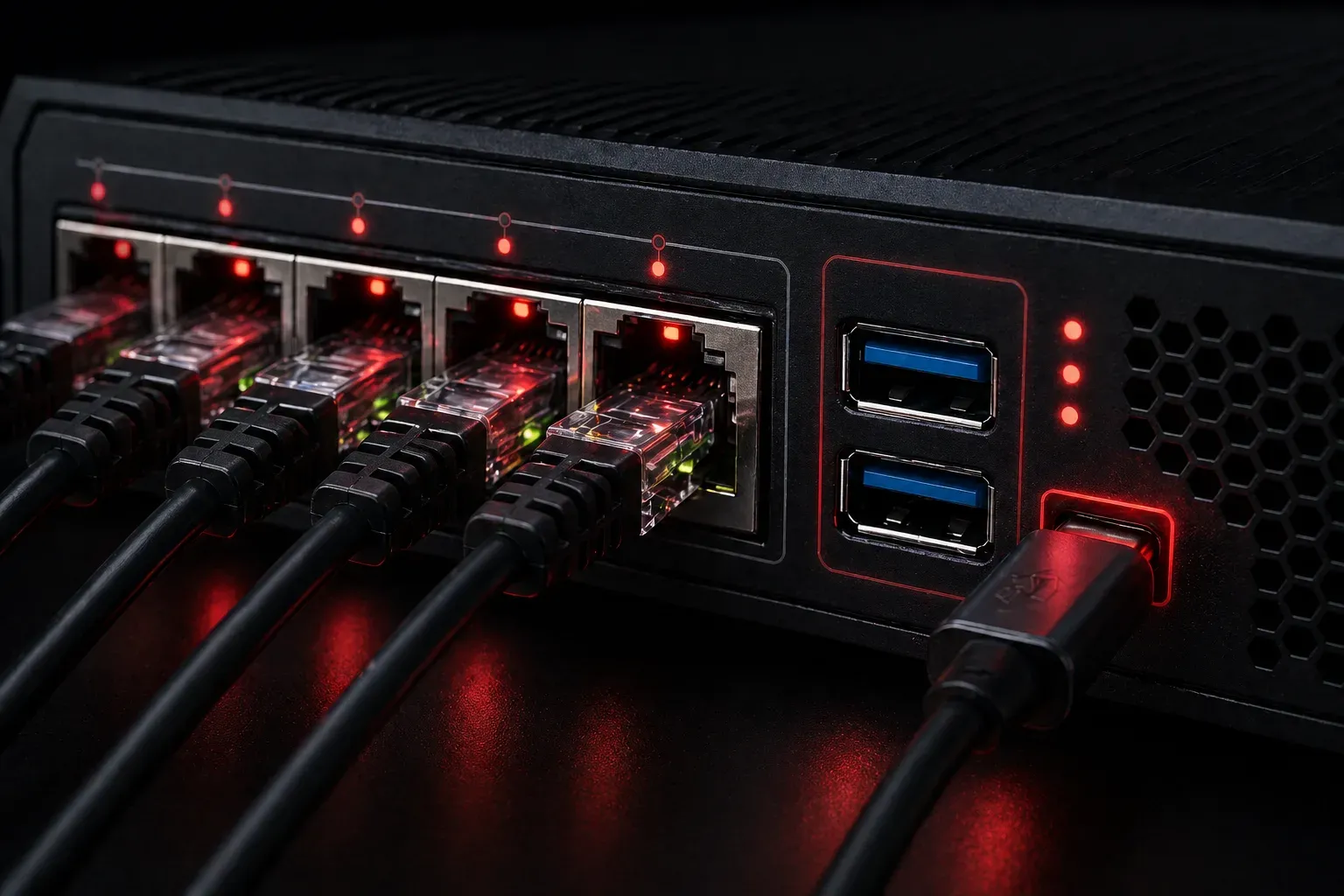
Physical Connections: The Foundation of Networking
When you look at any network device, whether it's a router, switch, or firewall, you'll notice various types of ports along the edges. These physical connections are your gateway into the device, and understanding what each port does is fundamental to working with network infrastructure. Let's explore the two most common types you'll encounter: Ethernet and USB ports.
Ethernet Ports: Your Primary Network Interface
Ethernet ports are the workhorses of network connectivity. These rectangular ports, typically found in groups on network devices, serve as the primary means of connecting devices to your network infrastructure.
What Ethernet Ports Look Like
Ethernet ports are easily recognizable; they're slightly larger than a phone jack and designed to accept RJ-45 connectors. On most network devices, you'll see them arranged in rows, often with LED indicators nearby that show link status and activity. Note that LED indicator colors and their meanings can vary by manufacturer, so consult your device documentation for specific details.
Types of Ethernet Connectivity
Not all Ethernet ports are created equal. Here are the main types you'll encounter:
- FastEthernet (100 Mbps): Older standard, still found on some budget devices
- Gigabit Ethernet (1000 Mbps): Current standard for most business networks
- 10 Gigabit Ethernet: High-performance connections for data centers and backbone links
Many modern devices auto-negotiate the speed, meaning they automatically determine the fastest common speed between connected devices.
How Network Ports Function
Each Ethernet port on a switch creates a separate collision domain, a network segment where data packets can collide when transmitted simultaneously. This separation enables full-duplex communication, allowing devices to send and receive data simultaneously without conflicts. When you connect a device to a switch port, the switch learns the device's MAC address and builds a table for efficient frame forwarding.
USB Ports: Management and Utility Functions
While Ethernet handles data traffic, USB ports on network devices serve different purposes entirely. These familiar rectangular ports provide management capabilities and additional functionality.
Common USB Port Functions
On network devices, USB ports typically serve these roles:
- Console Access: Connect a USB-to-serial cable for initial device configuration
- Storage: Insert USB drives for firmware updates, configuration backups, or log storage
- Power: Some ports can power small devices like USB-based wireless adapters
- Licensing: Some enterprise devices use USB dongles for feature licensing
Console Port Connectivity
The console function deserves special attention. While many modern network devices have transitioned to USB console ports, it's important to note that DB-9 serial console ports are still common on many devices, particularly in enterprise and industrial environments. When using USB console connectivity, you'll need a USB-to-serial adapter cable, then use terminal software like PuTTY or the built-in terminal on macOS/Linux. Keep in mind that some operating systems may require specific drivers for USB-to-serial adapters to function properly.
A typical console connection process looks like this:
1. Connect USB console cable to device and computer
2. Open terminal software
3. Configure connection: 9600 baud, 8 data bits, no parity, 1 stop bit
4. Establish connection to access command-line interface
Practical Applications in Real Networks
Understanding these port types becomes crucial when you're setting up or troubleshooting network devices. For example, when configuring a new switch, you might:
- Use the USB console port for initial setup and configuration
- Connect devices to Ethernet ports for network access
- Use a USB drive to backup the configuration once setup is complete
The LED indicators next to Ethernet ports provide valuable troubleshooting information. A solid green light typically indicates a good connection, while a blinking light shows network activity. No light usually means no connection or a cable problem. Remember that these indicators can vary by manufacturer, so always refer to your device's documentation for accurate interpretation.
Port Security and Best Practices
Both port types require security considerations. Ethernet ports can be configured with port security features to control which devices can connect. USB ports, especially console ports, provide administrative access and should be physically secured in production environments.
Many organizations disable unused Ethernet ports and restrict physical access to USB console ports to prevent unauthorized access to network devices.
What's Next
Now that you understand the physical layer connections, the next step is exploring how these ports connect to create network topologies. In our next post, we'll dive into network cabling standards and how to choose the right cables for different Ethernet connectivity scenarios.