
What Are Console and Serial Ports on Network Devices?
Console and serial ports provide direct access to network devices for configuration and troubleshooting. This post explains their purpose, physical characteristics, and practical uses for network administrators.

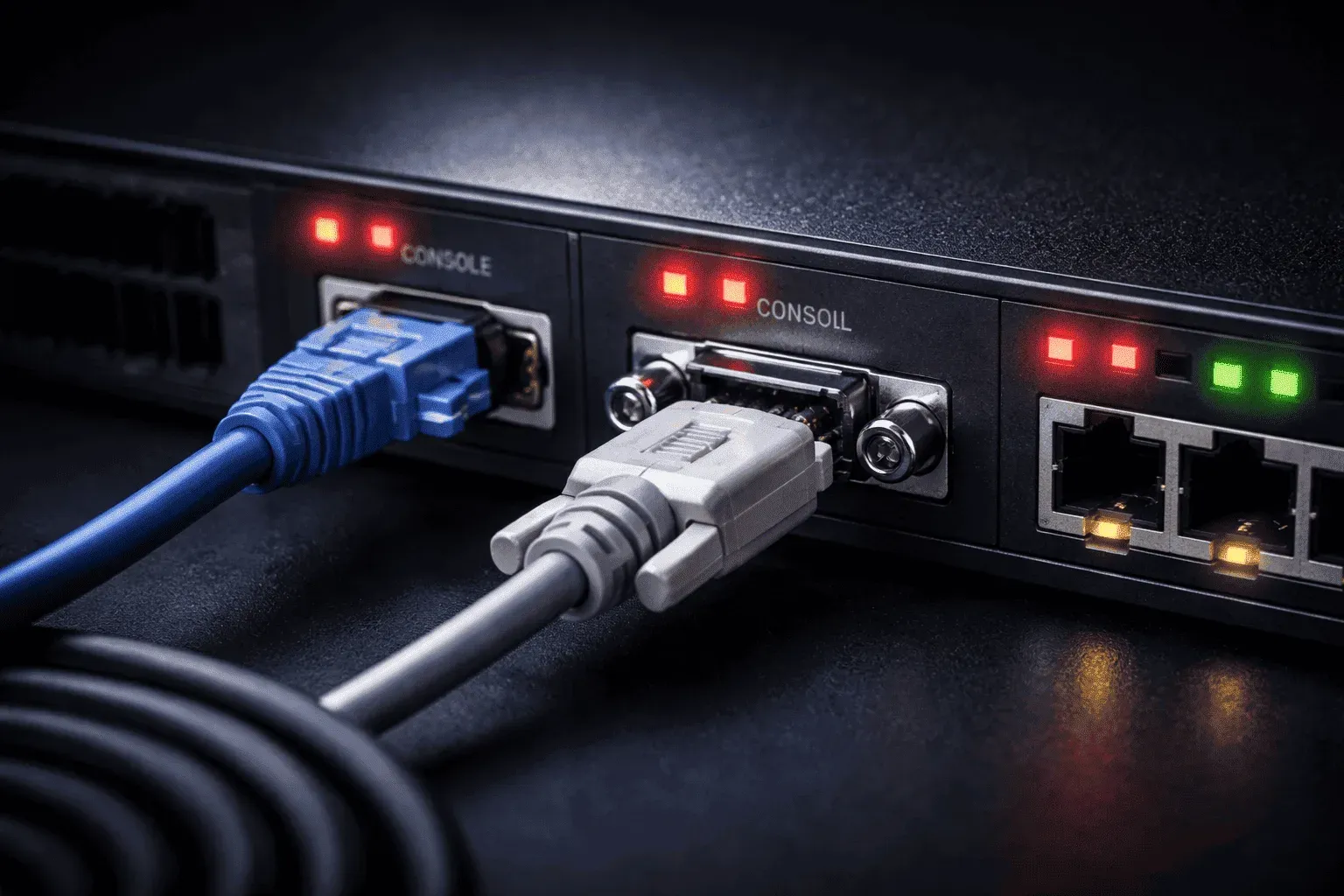
When you're getting started with networking, you'll encounter various ports on switches, routers, and other network devices. Among the most important for network administrators are console serial ports, which serve as your primary gateway for device configuration and troubleshooting.
What Are Console and Serial Ports?
Think of console and serial ports as the "emergency access" to your network devices. Just like your car has a physical key as backup when the electronic key fob fails, console ports provide direct access to a device even when the network is down or misconfigured.
A console port is a specific type of serial connection designed for local device management. While all console ports are serial ports, not all serial ports serve as console ports. The console port gives you direct command-line access to configure, monitor, and troubleshoot the device.
Physical Characteristics of Network Device Ports
Console ports typically appear as:
- RJ-45 connector (looks like an Ethernet port but labeled "Console")
- Mini-USB or USB-C connector on newer devices
- DB-9 serial connector on older equipment
These ports are usually labeled clearly as "CONSOLE," "CON," or have a distinctive color (often light blue on Cisco devices). You'll typically find them grouped with other management ports, separate from the data ports.
Console Port Use in Practice
Here's how console port use works in real scenarios:
Initial Setup: When you unbox a new switch or router, it has no IP address configured. The console port is your only way to perform initial configuration.
Switch> enable
Switch# configure terminal
Switch(config)# interface vlan1
Switch(config-if)# ip address 192.168.1.100 255.255.255.0
Emergency Recovery: If you accidentally misconfigure the management IP address or lock yourself out remotely, the console port provides local access to fix the problem.
Password Recovery: Most network devices have password recovery procedures that require console access to interrupt the boot process.
Serial Port Examples Beyond Console Access
While console access is the primary use, serial port examples in networking include:
- Auxiliary (AUX) ports for dial-in access or out-of-band management
- Serial WAN interfaces for connecting to service provider circuits
- Management ports for connecting external modems
For example, a router might have multiple serial interfaces for T1 or frame relay connections:
Router(config)# interface serial 0/0/0
Router(config-if)# ip address 10.1.1.1 255.255.255.252
Router(config-if)# clock rate 64000
Router(config-if)# no shutdown
Connection Requirements
To connect to console serial ports, you'll need:
- A console cable (often called a rollover cable for Cisco devices)
- Terminal emulation software like PuTTY, SecureCRT, or built-in terminal programs
- Proper connection settings: typically 9600 baud, 8 data bits, no parity, 1 stop bit (9600-8-N-1)
Modern laptops without serial ports require a USB-to-serial adapter, though many newer devices now include direct USB console connections.
Why Console Access Matters
Console access is essential because it's always available regardless of network conditions. When remote management fails, IP addresses are misconfigured, or the device won't boot properly, the console port remains your reliable connection to the device.
For CCST candidates, understanding console serial ports demonstrates knowledge of fundamental device access methods, a critical skill for any networking professional.
What's Next
Now that you understand console and serial ports, the next step is learning about auxiliary ports and their role in out-of-band management. We'll explore how AUX ports provide remote console access when you can't be physically present at the device location.
CCST Networking study resources
- Cisco Certified Support Technician CCST Networking 100-150 Official Cert Guide — The only Cisco-approved study guide for the CCST Networking exam. Perfect first step into network engineering.