
Getting Started with Linux GUIs
An introduction to Linux GUI architecture covering display servers (X Server and Wayland), window managers, and display managers. Essential knowledge for understanding how Linux desktop environments work and troubleshooting GUI issues.

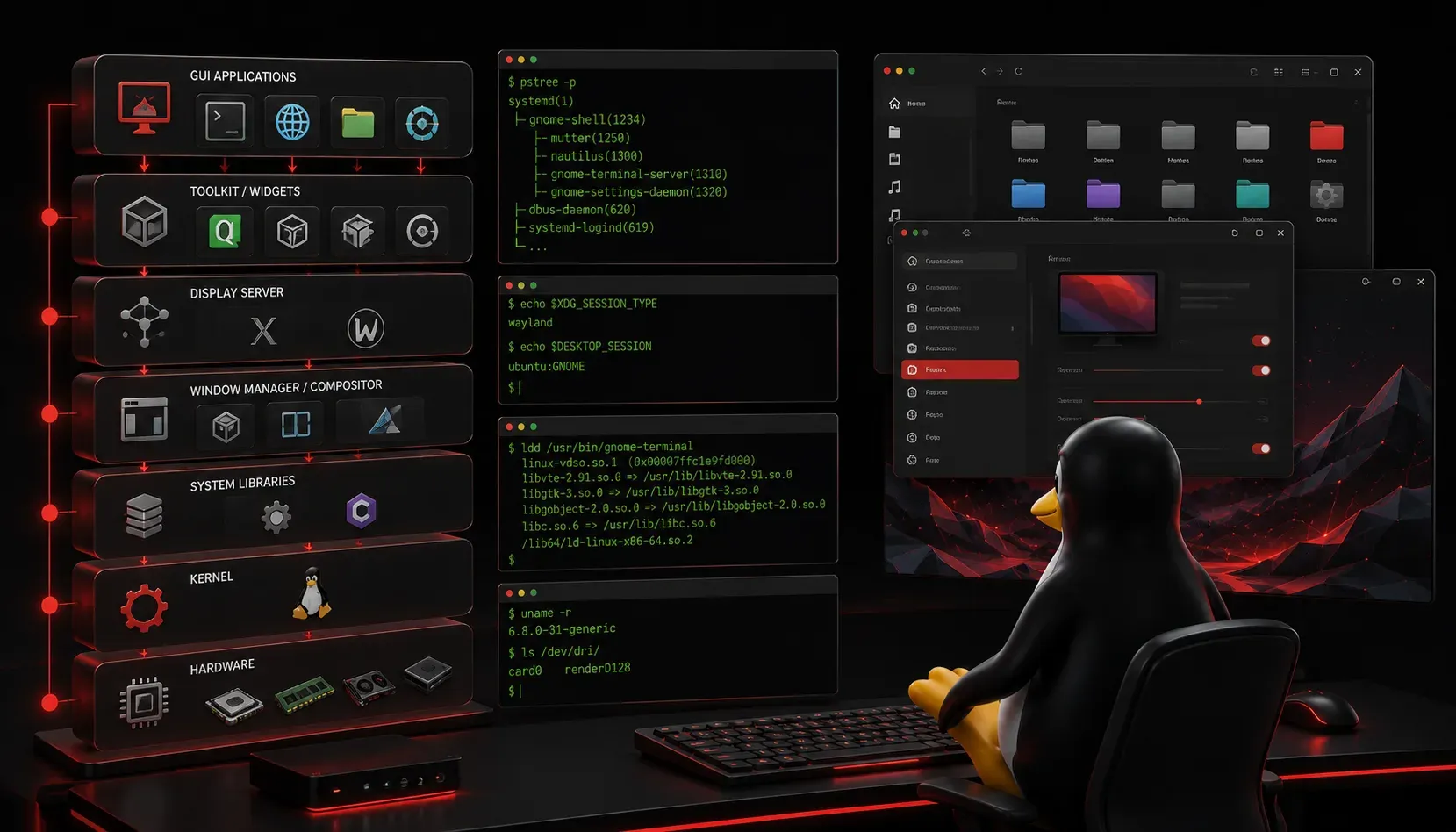
When you first start using Linux, you'll quickly discover that the graphical user interface (GUI) works differently than what you might expect from Windows or macOS. Understanding the architecture behind Linux GUIs helps you troubleshoot issues, customize your desktop, and make informed choices about your Linux environment.
The Foundation: Display Servers
At the heart of every Linux GUI is a display server — the software that manages communication between your applications and your graphics hardware. Think of it as the traffic controller for everything visual on your screen.
X Server (X11) has been the traditional display server for decades. You'll find it running on most Linux distributions today. To check if X11 is running on your system, use:
echo $XDG_SESSION_TYPE
ps aux | grep Xorg
The first command will show your session type (which could be "x11", "wayland", "tty", or other values depending on your setup). If you see processes containing "Xorg" in the second command's output, X Server is running.
Wayland represents the modern approach to display servers. It's more secure and efficient than X11, handling graphics compositing directly rather than relying on separate window managers. Many newer distributions like Ubuntu 22.04+, Fedora, and openSUSE Tumbleweed default to Wayland.
To check for Wayland:
echo $XDG_SESSION_TYPE
ps aux | grep wayland
If the first command returns "wayland" and you see wayland-related processes, you're running Wayland. The $WAYLAND_DISPLAY variable is only set when Wayland is actively running.
Window Managers: Controlling Your Windows
A window manager controls how application windows appear, behave, and interact on your screen. It handles window placement, resizing, minimizing, and decorations like title bars.
There are several types of window managers:
- Stacking window managers (like Mutter in GNOME) work like traditional desktop environments where windows stack on top of each other
- Tiling window managers (like i3 or bspwm) automatically arrange windows in non-overlapping tiles
- Compositing window managers add visual effects like transparency and animations
To see which window manager you're running (note this only works with X11):
wmctrl -mFor Wayland systems, you can check running processes or your desktop environment settings instead.
Display Managers: Your Login Gateway
Before you even see your desktop, a display manager handles your login process. It's the graphical login screen that appears when you boot your system.
Common display managers include:
- GDM (GNOME Display Manager): Used by Ubuntu and Fedora by default
- SDDM: KDE's display manager
- LightDM: Lightweight option used by many distributions
Check which display manager is active:
systemctl status display-managerYou can also check what session types are available:
ls /usr/share/xsessions/
ls /usr/share/wayland-sessions/
These directories contain configuration files for different desktop sessions you can choose from at login.
Desktop Environments: The Complete Package
Most Linux users interact with complete desktop environments that bundle a window manager, display manager, and various applications together. Popular options include:
- GNOME: Modern, clean interface with Wayland by default
- KDE Plasma: Highly customizable with traditional desktop paradigms
- XFCE: Lightweight and efficient for older hardware
- Cinnamon: Traditional desktop experience similar to Windows
To identify your current desktop environment:
echo $XDG_CURRENT_DESKTOP
echo $DESKTOP_SESSION
Practical Troubleshooting
When GUI issues arise, understanding these components helps with diagnosis:
- Login problems often involve the display manager
- Window behavior issues typically relate to the window manager
- Graphics performance problems might stem from the display server
You can restart your display manager to resolve many GUI issues:
sudo systemctl restart display-managerWhat's Next
Now that you understand the architecture behind Linux GUIs, you're ready to dive deeper into system management fundamentals. Next, we'll explore the Linux boot process to understand how all these components start up and work together when your system powers on.
Tools and resources for this topic
- CompTIA Linux+ Study Guide — Comprehensive Linux+ exam preparation covering system administration, security, and scripting.