
How to Install Python on Windows
A complete guide to installing Python on Windows, including downloading from python.org, running the installer with proper PATH configuration, and verifying the installation works correctly.

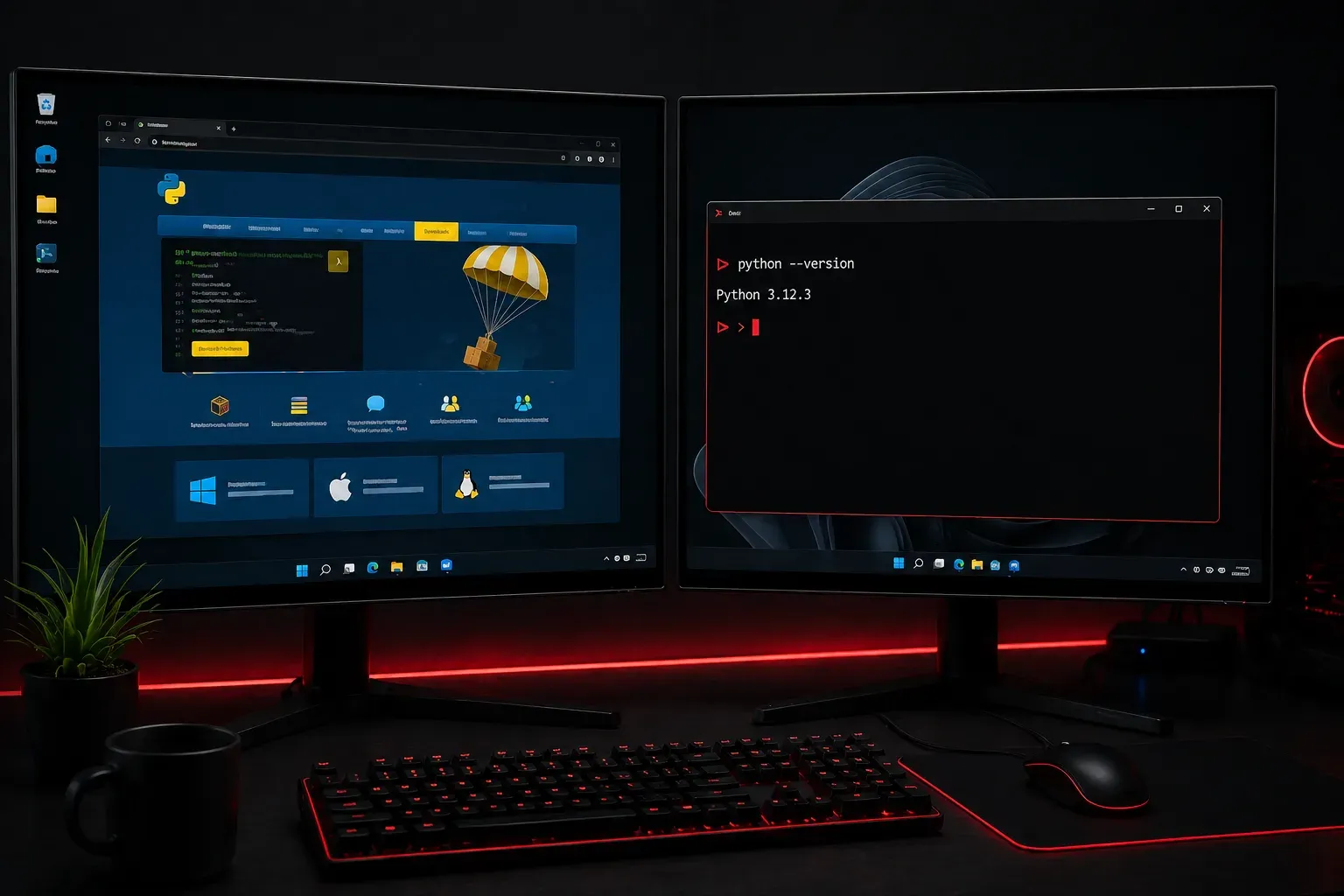
Installing Python on Windows is your first step into the world of programming, and it's easier than you might think. Whether you're planning to automate network tasks, build web applications, or dive into data analysis, having Python properly set up on your Windows machine is essential.
Why Install Python from Python.org?
While Windows 10 and 11 include a basic Python installation through the Microsoft Store, downloading directly from python.org gives you the most complete and up-to-date version. The Microsoft Store version, while convenient, may not always include all features or the latest updates compared to the official distribution. The python.org version includes pip (Python's package installer) and IDLE (Python's built-in development environment) right out of the box.
Step-by-Step Installation Process
Download Python
Navigate to python.org and click the yellow "Download Python" button. This automatically detects your Windows version and offers the latest stable release. Check the official Python website for the most current version, as new releases are published regularly throughout the year.
Run the Installer
Once downloaded, run the installer file. Here's the crucial part: check the box that says "Add Python to PATH" at the bottom of the installer window. This step is critical because it allows you to run Python from any Command Prompt or PowerShell window.
Click "Install Now" for the default installation, which includes:
- Python interpreter
- IDLE development environment
- pip package manager
- Python documentation
Verify Your Installation
After installation completes, open Command Prompt or PowerShell and type:
python --versionYou should see output showing your installed Python version, for example:
Python 3.12.0Next, verify that pip is working:
pip --versionThis should display something like:
pip 23.3.1 from C:\Users\YourName\AppData\Local\Programs\Python\Python312\Lib\site-packages\pip (python 3.12)Test Your Python Installation
Let's write your first Python program. Open Command Prompt and type python to enter the interactive Python shell. You'll see the Python prompt:
Python 3.12.0 (tags/v3.12.0:0fb18b0, Oct  2 2023, 13:03:39) [MSC v.1935 64 bit (AMD64)] on win32
Type "help", "copyright", "credits" or "license" for more information.
>>>
Now try this simple command:
>>> print("Hello, Python!")
Hello, Python!
Type exit() to leave the Python shell and return to your command prompt.
Common Installation Issues
If python --version returns an error saying Python is not recognized, you likely missed checking "Add Python to PATH" during installation. You can either:
- Reinstall Python and ensure you check the PATH option
- Manually add Python to your system PATH through Windows environment variables
For the manual approach, search for "Environment Variables" in Windows settings, edit your system PATH, and add the Python installation directory (usually C:\Users\YourName\AppData\Local\Programs\Python\Python312\).
Installing Your First Package
One of Python's strengths is its vast ecosystem of packages. Let's install a popular package to test pip:
pip install requestsThis installs the requests library, commonly used for making HTTP requests in Python programs.
What's Next
Now that Python is installed and working, you're ready to choose a development environment. In our next post, we'll explore different code editors and IDEs that make writing Python code more enjoyable, from simple text editors to full-featured development environments like VS Code and PyCharm.