
How to Access Network Devices Using HTTP and HTTPS
Learn how to configure and use HTTP and HTTPS to access network devices through web browsers. Understand the security differences between these protocols and best practices for secure network device management.

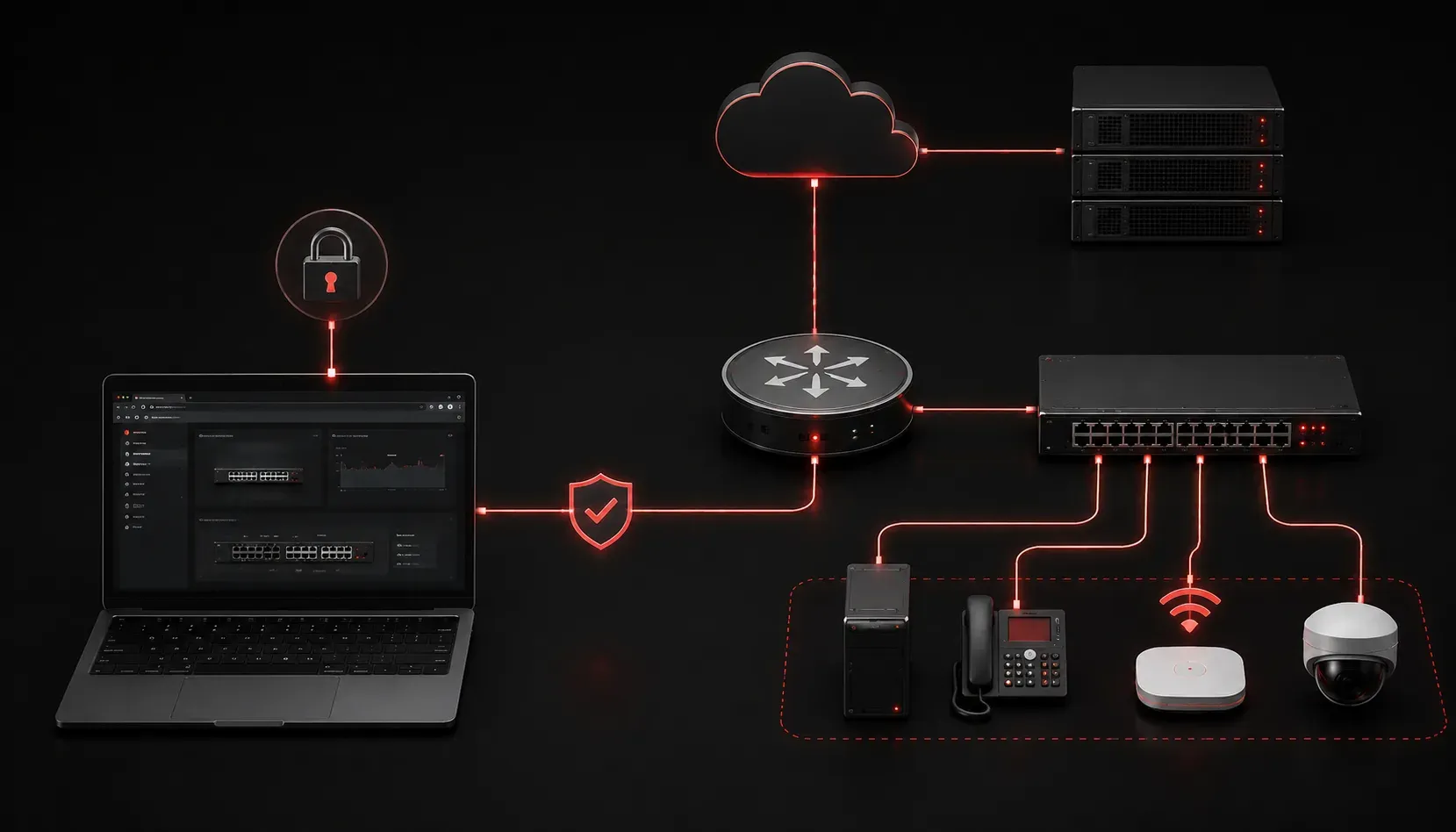
Network device management is a critical skill for any network administrator, and understanding how to access devices using web-based interfaces is essential. Most modern network devices like routers, switches, and wireless access points provide HTTP and HTTPS access for configuration and monitoring. Let's explore how these protocols work and why choosing the right one matters for your network security.
Understanding HTTP and HTTPS for Network Management
HTTP (Hypertext Transfer Protocol) and HTTPS (HTTP Secure) are both methods for accessing network devices through a web browser. The key difference lies in security: HTTP transmits data in plain text, while HTTPS encrypts all communication between your browser and the device using SSL/TLS (Secure Sockets Layer/Transport Layer Security) protocols.
SSL/TLS creates an encrypted tunnel between your browser and the network device, ensuring that sensitive information like passwords and configuration data cannot be intercepted by unauthorized parties. This encryption is particularly crucial when managing network infrastructure over potentially untrusted networks.
When you type http://192.168.1.1 or https://192.168.1.1 into your browser, you're requesting access to a network device's web interface. The device responds by serving web pages that allow you to configure settings, monitor performance, and manage the device remotely.
Setting Up HTTP and HTTPS Access
Most Cisco devices support both protocols, but they need to be enabled first. Here's how to configure them:
Enabling HTTP Access
Router(config)# ip http server
Router(config)# ip http port 80
Router(config)# ip http authentication local
Enabling HTTPS Access
Router(config)# ip http secure-server
Router(config)# ip http secure-port 443
Router(config)# crypto key generate rsa modulus 1024
The RSA key generation is required for HTTPS because encryption needs cryptographic keys to secure the connection. You'll see output similar to this:
% The key pair was generated.
*Jan 15 10:30:25.123: %SSH-5-ENABLED: SSH 1.99 has been enabled
Note: The "SSH 1.99" in the output doesn't refer to an actual SSH version 1.99. Instead, it indicates that the device now supports both SSH version 1 and SSH version 2 protocols. This message appears because generating RSA keys enables SSH functionality alongside HTTPS.
HTTP vs HTTPS: Security Considerations
The choice between HTTP and HTTPS access has significant security implications for network device management:
HTTP vulnerabilities: All data travels in plain text, including usernames, passwords, and configuration changes. Anyone monitoring network traffic can intercept and read this information.
HTTPS benefits: All communication is encrypted using SSL/TLS protocols. Even if someone intercepts the traffic, they cannot read the actual data without the encryption keys.
For production networks, always use HTTPS. The slight performance overhead is negligible compared to the security benefits.
Accessing Your Network Device
Once configured, accessing your device is straightforward:
- Open a web browser on a computer connected to the same network
- Enter the device's IP address:
https://192.168.1.1 - Accept any certificate warnings (self-signed certificates are common)
- Log in using your configured credentials
You might see a certificate warning because network devices typically use self-signed certificates. While this triggers browser warnings, it's still providing encryption for your connection.
Troubleshooting Common Issues
If you cannot access your device's web interface, verify these settings:
Router# show ip http server status
HTTP server status: Enabled
HTTP server port: 80
HTTP server authentication method: local
HTTP secure server status: Enabled
HTTP secure server port: 443
Also check that your access list (if configured) allows HTTP/HTTPS traffic on the appropriate ports.
Best Practices for Secure Connection
When managing network devices through web interfaces, follow these security practices:
- Always use HTTPS instead of HTTP in production environments
- Implement strong authentication with complex passwords
- Consider using access lists to restrict which IP addresses can access the web interface
- Regularly update device firmware to patch security vulnerabilities
- Log out of the web interface when finished to prevent session hijacking
What's Next
Now that you understand HTTP and HTTPS access for network device management, the next step is exploring other remote access methods like SSH and Telnet. These command-line interfaces offer more granular control and are essential for advanced network administration tasks.
Tools and resources for this topic
- CCNA Official Cert Guide (Wendell Odom) — The definitive CCNA study resource. Both volumes cover the 200-301 exam blueprint in full.
- Wendell Odom CCNA Vol 1 — Covers networking fundamentals, switching, and routing basics.
- Wendell Odom CCNA Vol 2 — Covers advanced routing, WAN, infrastructure services, and security.