
Navigating the Filesystem with Bash
Learn essential Bash commands for navigating the filesystem including pwd, ls, cd, and path shortcuts. Perfect introduction for beginners learning command line basics.

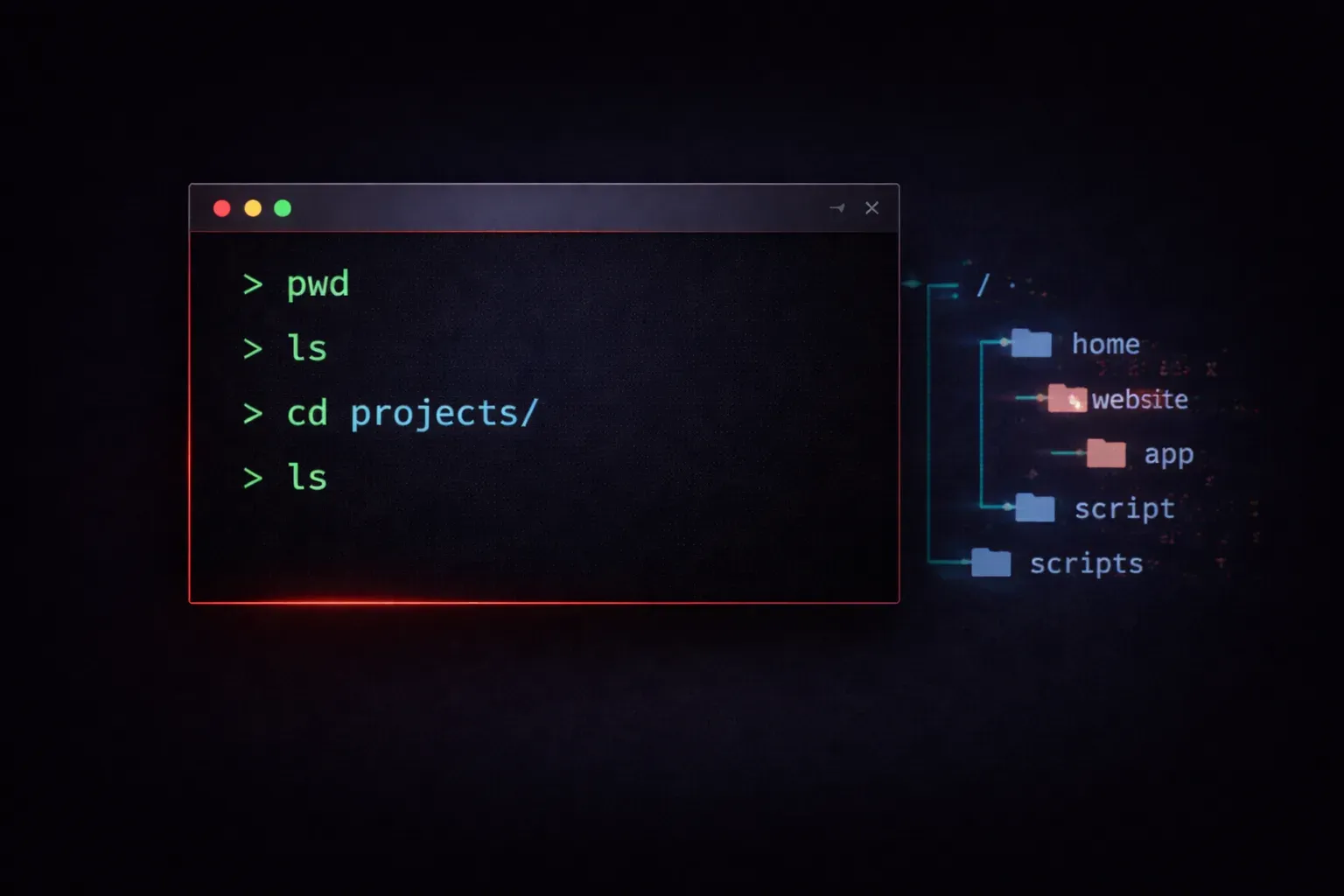
Understanding how to navigate your computer's filesystem using Bash is one of the most fundamental skills you'll need as a programmer or system administrator. Whether you're working on Linux, macOS, or Windows with WSL, the command line gives you powerful tools to move around directories, examine files, and understand your system's structure.
Think of your filesystem as a giant filing cabinet with folders inside folders. Bash provides you with commands to open drawers, peek into folders, and move between different sections efficiently.
Understanding Your Current Location
Before you can navigate anywhere, you need to know where you are. The pwd command (print working directory) shows your current location in the filesystem:
$ pwd
/home/username
This output tells you that you're currently in the /home/username directory. On Windows with WSL, you might see something like /mnt/c/Users/username instead.
Seeing What's Around You
The ls command lists the contents of your current directory:
$ ls
Documents  Downloads  Pictures  Videos  projects
For more detailed information, add the -l flag for a long listing format:
$ ls -l
drwxr-xr-x 2 user user 4096 Nov 15 10:30 Documents
drwxr-xr-x 2 user user 4096 Nov 15 10:30 Downloads
drwxr-xr-x 2 user user 4096 Nov 15 10:30 Pictures
-rw-r--r-- 1 user user  156 Nov 15 09:45 readme.txt
The first character tells you whether it's a directory (d) or a regular file (-). You can also use ls -la to show hidden files (those starting with a dot).
Moving Between Directories
The cd command (change directory) is your primary navigation tool. Here are the most common ways to use it:
- Move to a specific directory:
cd Documents - Move up one level:
cd .. - Move to your home directory:
cd ~or justcd - Move to the root directory:
cd / - Move to the previous directory:
cd -
You can also use absolute paths (starting from the root) or relative paths (from your current location):
$ cd /home/username/Documents/projects
$ cd ../Downloads  # relative path from current location
Understanding Paths and Shortcuts
Bash uses several special symbols that make navigation easier:
.represents the current directory..represents the parent directory~represents your home directory/is the root directory on Unix-like systems
These shortcuts are incredibly useful. For example, if you're deep in a directory structure and want to quickly return home, just type cd ~.
Tab Completion: Your Best Friend
One of Bash's most helpful features is tab completion. Start typing a directory or file name, then press Tab, and Bash will complete it for you or show you available options:
$ cd Doc[TAB]
$ cd Documents/
If multiple options exist, pressing Tab twice will show you all possibilities.
Practical Navigation Tips
Here's a typical workflow when exploring a new project directory:
$ pwd                    # Check where you are
$ ls -la                 # See all contents including hidden files
$ cd projects           # Move to projects directory
$ ls                     # See what's in projects
$ cd my-app             # Move to specific project
$ ls -l                  # Check the project contents
Remember that directory names are case-sensitive on Linux and macOS. Documents and documents are different directories.
What's Next
Now that you can navigate confidently through your filesystem, you're ready to start working with the files and directories you find. In our next post, we'll cover essential file operations like creating, copying, moving, and deleting files using Bash commands.