
Setting Up a Wireless Access Point
This guide covers the essential steps for setting up a wireless access point, from physical installation to security configuration and connectivity testing. Perfect for CCNA candidates learning wireless network fundamentals.

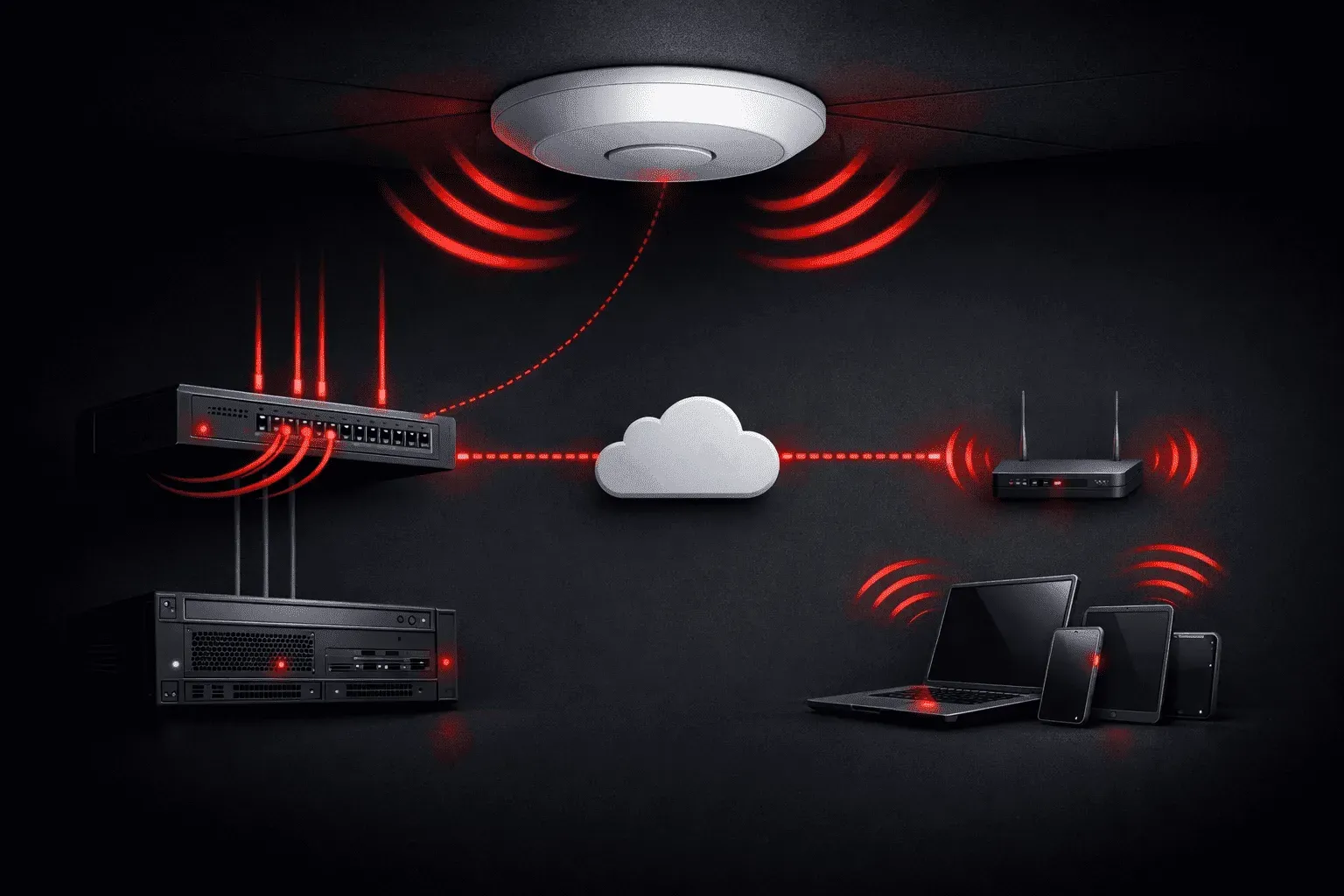
Setting up a wireless access point (AP) is one of the most practical skills you'll develop as a network engineer. Whether you're extending WiFi coverage in an office or creating a wireless network from scratch, understanding access point configuration is essential for modern networking.
A wireless access point serves as a bridge between your wired network and wireless devices. Unlike a wireless router, which combines routing, switching, and wireless functions, an access point focuses solely on providing wireless connectivity to an existing wired network.
Understanding Access Point Basics
Before diving into the setup process, let's clarify what makes an access point different from other networking devices. An AP operates at Layer 2 of the OSI model, essentially functioning as a wireless switch. It takes Ethernet frames from your wired network and converts them to wireless frames that laptops, phones, and other devices can understand.
Most enterprise access points require a controller for centralized management, while standalone APs can be configured individually through a web interface.
Physical Installation Steps
Start with proper physical placement. Mount your access point in a central location, away from interference sources like microwaves or metal objects. Connect the AP to your network switch using a standard Ethernet cable. If your access point supports Power over Ethernet (PoE), a single cable provides both data and power.
For non-PoE devices, connect the power adapter after making the network connection. Watch for LED indicators - typically, you'll see power, network connectivity, and wireless status lights.
Initial Access Point Configuration
Most access points ship with a default IP address, often 192.168.1.1 or similar. Connect your computer to the same network and navigate to this address in your web browser. You'll need the default username and password, usually printed on the device label.
Here's the basic configuration workflow:
- Network Settings: Configure the AP's management IP address to match your network scheme
- Wireless Settings: Set your SSID (network name) and choose appropriate wireless standards
- Security Configuration: Enable WPA3 (or WPA2 if WPA3 isn't available) and create a strong passphrase
- Radio Settings: Configure 2.4GHz and 5GHz bands based on your coverage needs
Essential Security Settings
Never leave your access point with default credentials or open security. Configure these critical security elements:
- Change the default admin password immediately
- Enable the strongest encryption available (WPA3-Personal for most environments)
- Use a complex WiFi passphrase with at least 12 characters
- Consider hiding the SSID for sensitive networks, though this isn't true security
- Enable MAC address filtering if you need strict access control
Testing Network Connectivity
After completing your access point configuration, thorough testing ensures reliable network connectivity. Start by connecting a wireless device and verifying it receives an IP address from your DHCP server. Test internet connectivity by browsing to a website or using the ping command.
Walk around your intended coverage area while monitoring signal strength. Most devices show signal strength in their WiFi settings. Look for consistent coverage without dead zones where users might work.
Use network testing tools to verify throughput. Many smartphones include WiFi analyzer apps that show signal strength, channel utilization, and interference from neighboring networks.
Common Configuration Issues
If devices can't connect, check your security settings first. Mismatched encryption types or incorrect passphrases are the most common culprits. Verify that your chosen wireless channel isn't congested - channels 1, 6, and 11 work best for 2.4GHz networks.
For enterprise environments, ensure your access point can reach any wireless LAN controllers on your network. Controller-based systems won't function properly without this connectivity.
What's Next
Now that you understand basic access point setup, you're ready to explore more advanced topics like wireless controller configuration, VLAN integration for wireless networks, and troubleshooting wireless connectivity issues. These skills build naturally on the foundation you've established with standalone AP configuration.
CCNA study resources
- CCNA Official Cert Guide Library (Wendell Odom) — Both volumes covering the full 200-301 exam blueprint. The definitive CCNA study resource.
- Wendell Odom CCNA Vol 1 — Networking fundamentals, switching, VLANs, STP, and IPv4 routing.
- Wendell Odom CCNA Vol 2 — Advanced routing, WAN, security, automation, and network management.