
Removing Software in Linux
This post covers how to remove software in Linux using apt, including the differences between apt remove and apt purge, cleaning up orphaned dependencies with autoremove, and checking what packages are installed. It is aimed at Linux beginners using Ubuntu or Debian-based systems.

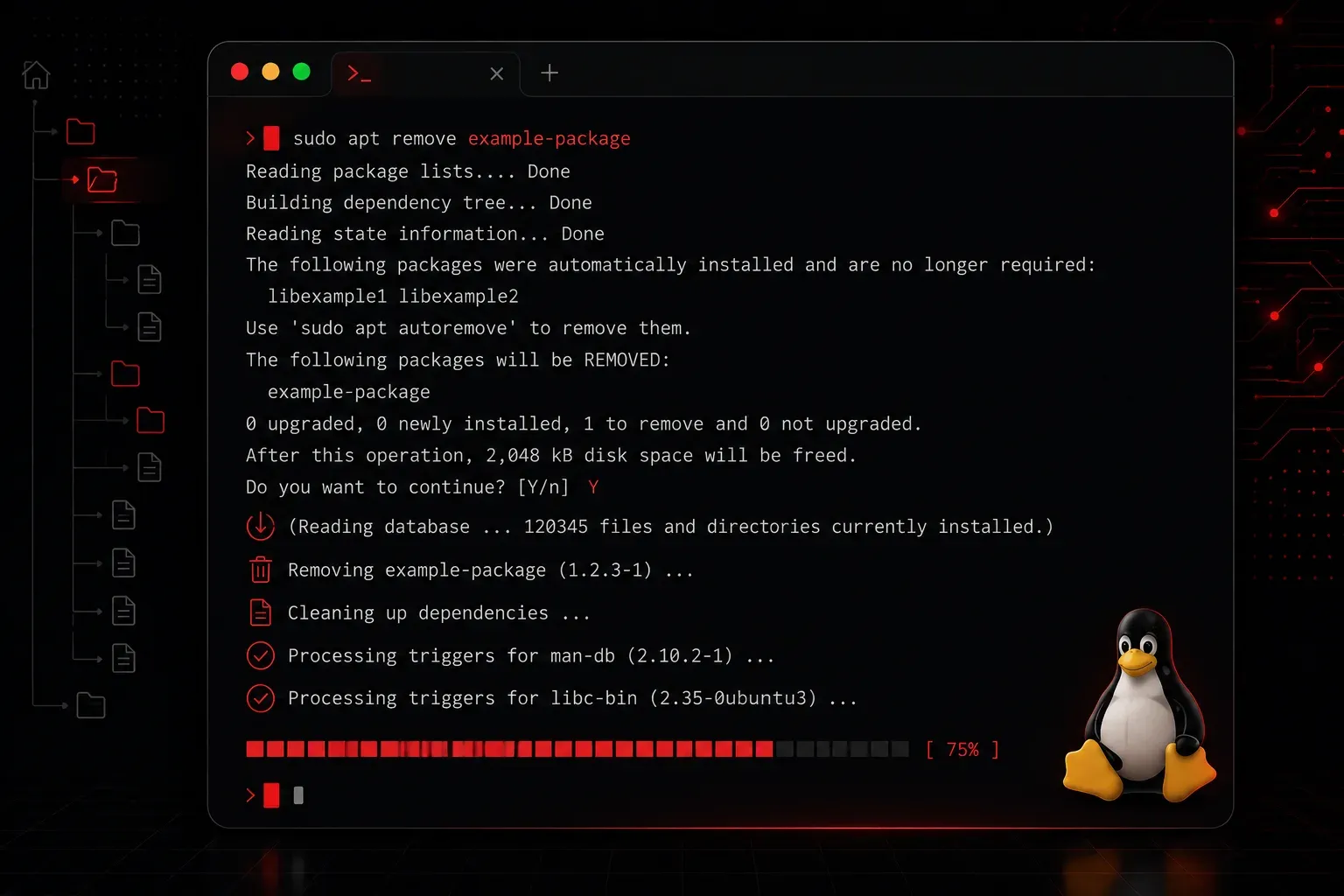
Installing software in Linux is satisfying. Removing it cleanly is a skill that keeps your system lean, organised, and free of leftover clutter. Whether you are clearing out packages you no longer use or troubleshooting a broken install, knowing how to remove software properly is an essential part of managing any Linux system.
Why Removal Matters
On Windows, you might be used to an "Add or Remove Programs" panel. Linux handles this through package managers, command-line tools that track every file belonging to every installed package. This means removal is precise, but there are a few different ways to do it, each with slightly different outcomes. Choosing the right one for the situation is what separates a tidy system from one full of orphaned files and leftover configs.
The Two Main Package Managers
Most Linux distributions fall into one of two camps when it comes to package management:
- APT (Advanced Package Tool): Used on Debian-based systems like Ubuntu, Linux Mint, and Pop!_OS
- DNF / YUM: Used on Red Hat-based systems like Fedora, CentOS, and Rocky Linux
This post focuses on apt, since Ubuntu is the most common starting point for Linux beginners. The concepts translate directly to dnf with minor syntax differences.
Basic Package Removal with apt remove
The simplest way to uninstall a package is with apt remove. This removes the program itself but intentionally leaves behind configuration files. This is useful if you plan to reinstall the package later and want to keep your settings intact.
sudo apt remove packagenameFor example, to remove the htop process viewer:
sudo apt remove htopYou will see a summary of what will be removed and be asked to confirm. Type y and press Enter to proceed.
Full Removal with apt purge
If you want a clean slate, use apt purge. This removes both the package and its associated configuration files. It is the better choice when you are done with something entirely and do not want leftover config files sitting in your system.
sudo apt purge packagenameOr combine the two steps if you already removed a package but want to clean up its configs now:
sudo apt purge --auto-remove packagenameThe --auto-remove flag also removes dependency packages that were installed alongside the target package but are no longer needed by anything else.
Cleaning Up Orphaned Dependencies
Over time, packages get installed as dependencies for something else. When you remove the parent package, those dependencies can be left behind as orphans. The autoremove command handles this automatically.
sudo apt autoremoveThis is a healthy habit to run occasionally after removing software. It keeps your system from accumulating packages that serve no purpose. You can combine it with purge to also remove their configuration files:
sudo apt autoremove --purgeChecking What Is Installed
Before removing something, it helps to confirm the exact package name. You can list all installed packages and filter the output using grep:
dpkg --list | grep packagenameFor example, to check if nginx is installed:
dpkg --list | grep nginxThis output will show the package name, version, and a short description. If nothing appears, the package is not installed.
Quick Reference
apt remove: Removes the package, keeps config filesapt purge: Removes the package and config filesapt autoremove: Removes orphaned dependency packagesdpkg --list: Lists installed packages for reference
What's Next
Now that you can install and remove software confidently, the next step is understanding how Linux manages processes. You will learn how to view running processes, identify what is consuming resources, and stop processes when needed. These skills tie directly into system administration and day-to-day Linux use.