
Telnet vs SSH: Which is Better for Network Management?
Telnet and SSH both provide remote CLI access to network devices, but they differ critically in security. This post compares the two protocols side by side and walks through configuring SSH on a Cisco IOS device, a key CCNA skill.

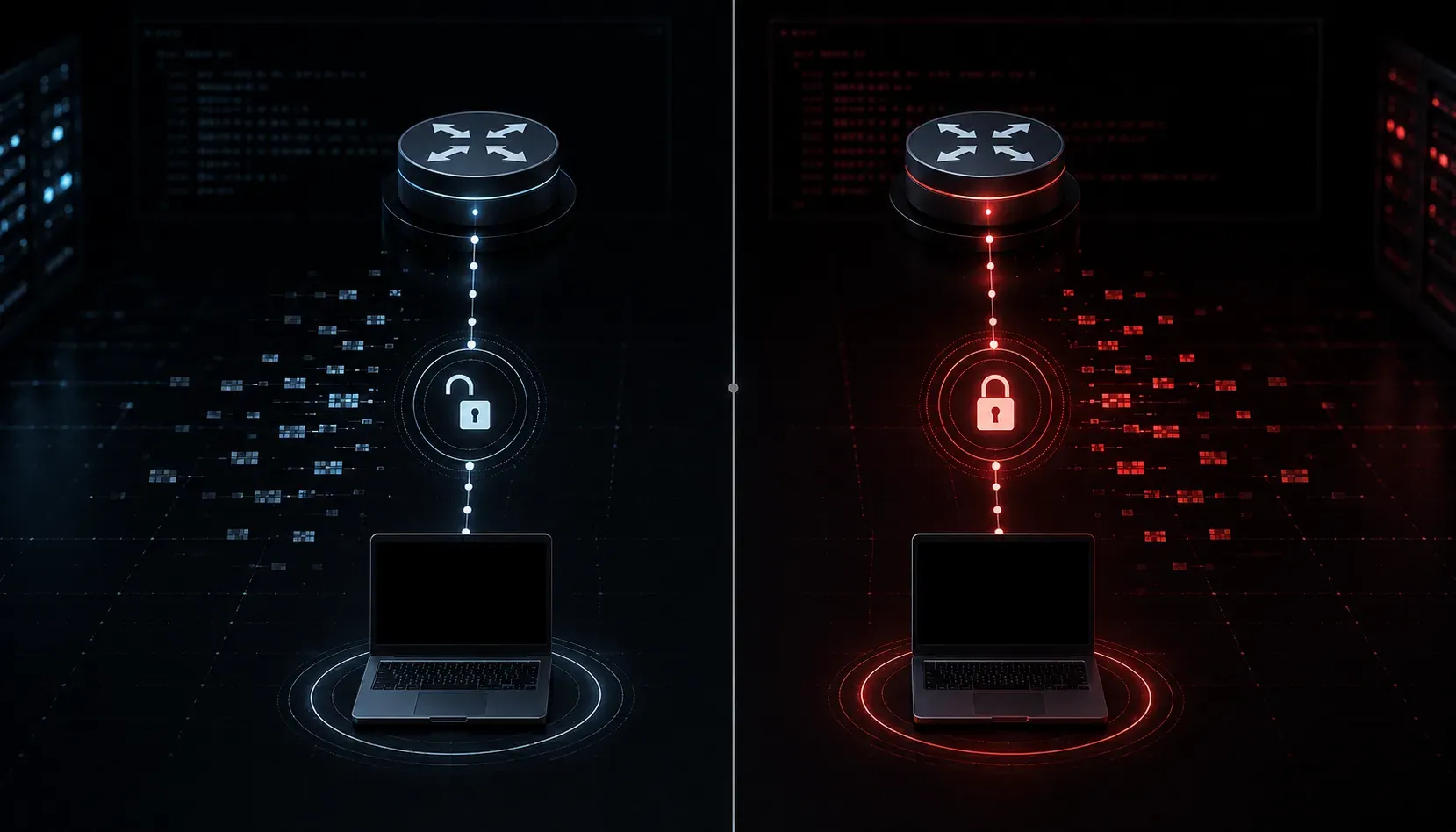
When you connect to a router or switch remotely to run commands, you need a protocol to carry that session across the network. Two protocols have historically been used for this: Telnet and SSH. Understanding the difference between them is not just an exam topic; it is a practical skill every network engineer needs from day one.
What is Telnet?
Telnet is one of the oldest remote access protocols, dating back to the early days of the internet. It operates on TCP port 23 and allows you to open a command-line session on a remote device. The problem is simple but serious: Telnet sends all data, including your username and password, in plain text across the network.
That means anyone capturing traffic between your workstation and the device can read your credentials with a basic packet capture tool. For a lab environment with no external connections, this might seem acceptable, but in any production network, Telnet is a real security risk.
What is SSH?
SSH, or Secure Shell, was designed specifically to address the security weaknesses of Telnet. It operates on TCP port 22 and encrypts the entire session, including authentication. Even if someone captures your SSH traffic, they see scrambled data that is computationally impractical to decrypt.
SSH also supports stronger authentication methods, including key-based authentication, which eliminates the need for passwords entirely. For the CCNA exam, you will work with SSHv2, which is the current recommended version.
Side-by-Side Comparison
- Port: Telnet uses
TCP 23; SSH usesTCP 22 - Encryption: Telnet sends data in plain text; SSH encrypts all traffic
- Authentication: Telnet sends credentials in the clear; SSH encrypts credentials and supports key-based auth
- Security: Telnet is considered insecure for production use; SSH is the industry standard
- Version: Telnet has no versioning; SSH has
v1(deprecated) andv2(current)
Configuring SSH on a Cisco Router
Here is how you configure SSH access on a Cisco IOS device. This is a common task on the CCNA exam and in real networks.
! Step 1: Set a hostname (required for RSA key generation)
Router(config)# hostname R1

! Step 2: Configure a domain name (also required for RSA key generation)
R1(config)# ip domain-name anythingoverip.com

! Step 3: Generate RSA keys (use at least 1024 bits; 2048 is recommended)
R1(config)# crypto key generate rsa modulus 2048

! Step 4: Set SSH version 2
R1(config)# ip ssh version 2

! Step 5: Create a local user account
R1(config)# username admin secret StrongPass123

! Step 6: Apply SSH to the VTY lines
R1(config)# line vty 0 4
R1(config-line)# transport input ssh
R1(config-line)# login local
Notice the command transport input ssh on the VTY lines. This explicitly blocks Telnet and only allows SSH connections. You can also use transport input telnet ssh to allow both, but best practice is to allow SSH only.
Verifying SSH is Working
After configuration, you can verify the SSH setup with this command:
R1# show ip ssh
SSH Enabled - version 2.0
Authentication timeout: 120 secs; Authentication retries: 3
To connect to another device using SSH from a Cisco router:
R1# ssh -l admin 192.168.1.2The -l flag specifies the username. You will be prompted for the password, which travels encrypted over the network.
The Bottom Line on Protocol Comparison
For the CCNA exam and real-world network management, the answer is clear: always use SSH. Telnet has no place in a secure production environment. You may still encounter Telnet in lab scenarios or legacy environments, so you need to know how it works, but SSH should be your default choice for any remote management session.
What's Next
Now that you understand how to securely access network devices, the next logical step is understanding how those devices learn about the network around them. In the next post, we will look at how CDP and LLDP allow Cisco devices to discover their neighbors automatically, giving you a clearer picture of your network topology without manually documenting everything.
Tools and resources for this topic
- CCNA Official Cert Guide (Wendell Odom) — The definitive CCNA study resource. Both volumes cover the 200-301 exam blueprint in full.
- Wendell Odom CCNA Vol 1 — Covers networking fundamentals, switching, and routing basics.
- Wendell Odom CCNA Vol 2 — Covers advanced routing, WAN, infrastructure services, and security.