
The Linux Filesystem Structure Explained
An introduction to the Linux filesystem structure, explaining the root directory, essential directories like /home, /bin, /etc, and /var, and basic navigation concepts. Covers absolute vs relative paths and hidden files for Linux beginners.

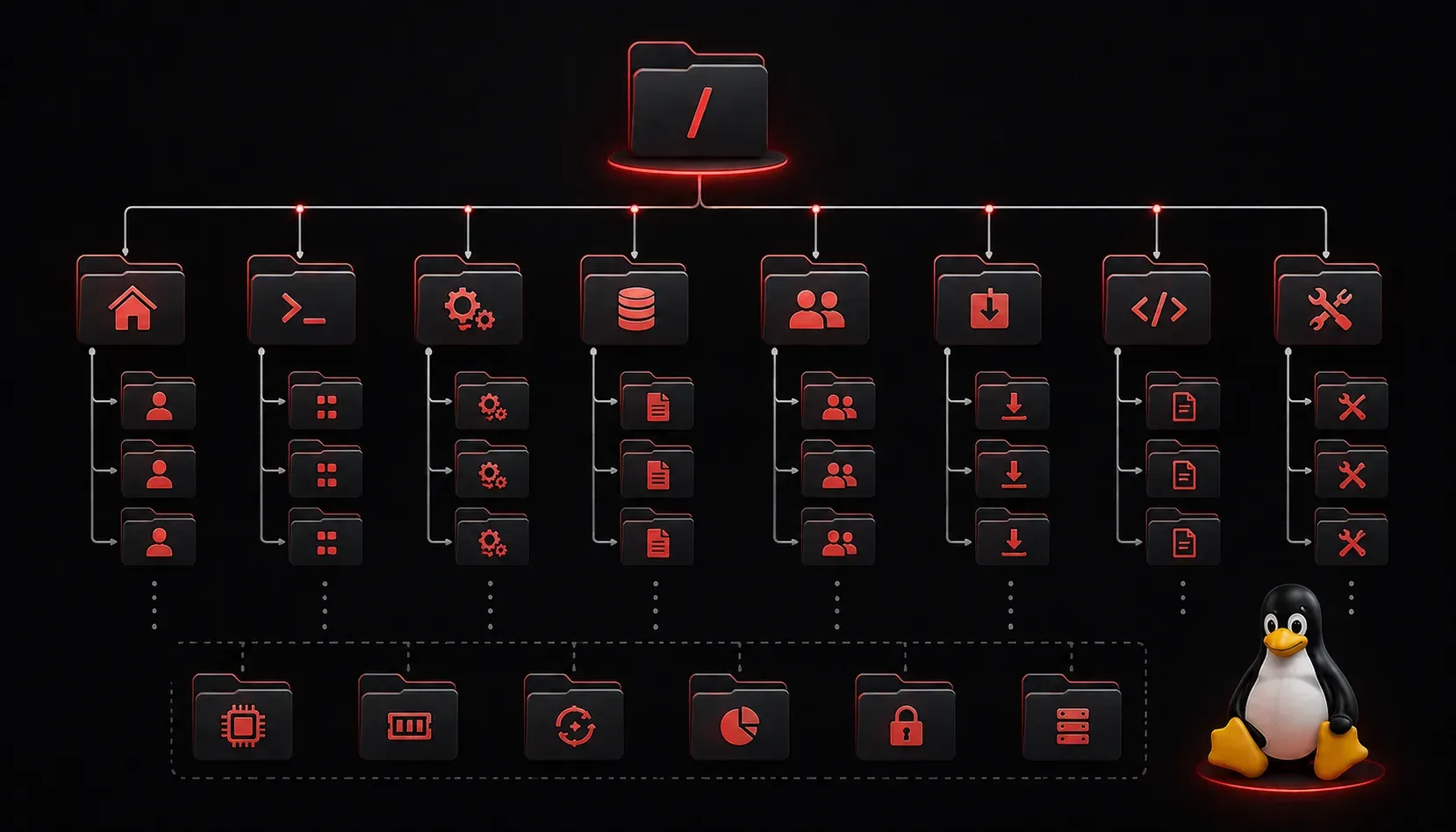
When you first start using Linux, the filesystem structure can feel overwhelming. Unlike Windows with its familiar C:\ drive, Linux organizes everything under a single root directory called / (forward slash). Understanding this structure is crucial for navigating the system efficiently and knowing where to find what you need.
The Root Directory: Everything Starts Here
In Linux, everything begins at the root directory /. This is the top-level directory that contains all other directories and files on your system. Think of it as the foundation of your entire filesystem tree.
To see what's in your root directory, open a terminal and type:
ls /You'll see several directories with cryptic names like bin, etc, home, and usr. Each serves a specific purpose that follows decades of Unix tradition.
Essential Directories You Need to Know
/home - Your Personal Space
The /home directory contains personal directories for all users on the system. Your personal files, documents, and configurations live in /home/username. When you open a terminal, you typically start in your home directory, which you can reference with the tilde symbol ~.
cd ~
pwd
This will show you're in /home/yourusername.
/bin and /usr/bin - Essential Commands
These directories contain executable programs (binaries). The /bin directory holds essential system commands like ls, cp, and mv that are needed for basic system operation. The /usr/bin directory contains user commands and applications.
You can see where a command is located using:
which ls/etc - System Configuration
The /etc directory contains system-wide configuration files. This includes network settings, user account information, and service configurations. For example, /etc/passwd contains user account details, and /etc/hosts contains hostname mappings.
/var - Variable Data
The /var directory holds variable data that changes during system operation. This includes log files in /var/log, temporary files, and databases. When troubleshooting system issues, you'll often check log files here:
ls /var/log/tmp - Temporary Files
The /tmp directory is where programs store temporary files. This directory is typically cleared on system reboot, so don't store anything important here permanently.
Understanding Path Types
Linux uses two types of paths to navigate the filesystem:
Absolute paths start from the root directory and begin with /. For example: /home/user/documents/file.txt
Relative paths are relative to your current location and don't start with /. If you're in your home directory, documents/file.txt refers to the same file.
You can use pwd (print working directory) to see where you currently are:
pwdNavigating the Filesystem
The cd command changes directories. Here are some essential navigation shortcuts:
cd ~or justcd- Go to your home directorycd /- Go to the root directorycd ..- Go up one directory levelcd -- Go back to the previous directory
The ls command lists directory contents, and adding -la shows hidden files and detailed information:
ls -laHidden Files and Directories
Files and directories that start with a dot . are hidden in Linux. Your home directory contains many hidden configuration files like .bashrc (bash shell configuration) and .profile (user environment settings). Use ls -a to see these hidden items.
What's Next
Now that you understand the basic filesystem structure, the next step is learning file permissions and ownership. Understanding how Linux controls access to files and directories is essential for system security and proper file management.