
Understanding the Root User in Linux
Learn about the root user in Linux, the ultimate administrator account with complete system control. Discover safe practices using sudo, security best practices, and when root privileges are necessary for system administration tasks.

What is the Root User?
In Linux, the root user is the ultimate administrator account with complete control over the system. Think of root as the master key that can unlock any door, modify any file, and perform any operation on your Linux machine. While this power makes root incredibly useful for system administration, it also makes it potentially dangerous if misused.
The root user has a User ID (UID) of 0, which the Linux kernel recognizes as having unlimited privileges. Unlike regular user accounts that have restrictions on what files they can access and what commands they can run, root can do anything without permission checks.
Why Does Root Exist?
Every Linux system needs someone with the authority to perform critical administrative tasks. These include:
- Installing and removing software packages
- Modifying system configuration files
- Managing user accounts and permissions
- Starting and stopping system services
- Mounting and unmounting filesystems
- Accessing any file on the system, regardless of ownership
Without root privileges, these essential maintenance tasks would be impossible, leaving your system vulnerable and unmaintainable.
Working with Root Safely
Most modern Linux distributions discourage logging in directly as root for daily activities. Instead, they promote safer practices using sudo (Super User Do). Let's explore both approaches:
The sudo Command
The sudo command allows authorized users to execute specific commands with root privileges without actually becoming root. Here's how it works:
# Install a package (requires root privileges)
sudo apt update
sudo apt install htop

# View system log files
sudo tail /var/log/syslog

# Edit system configuration
sudo nano /etc/hosts
When you run sudo, the system prompts for your user password (not root's password) and temporarily grants you the necessary privileges for that specific command.
Switching to Root
Sometimes you need to perform multiple administrative tasks. Rather than prefixing every command with sudo, you can temporarily become root:
# Become root using sudo
sudo su -

# Alternative method
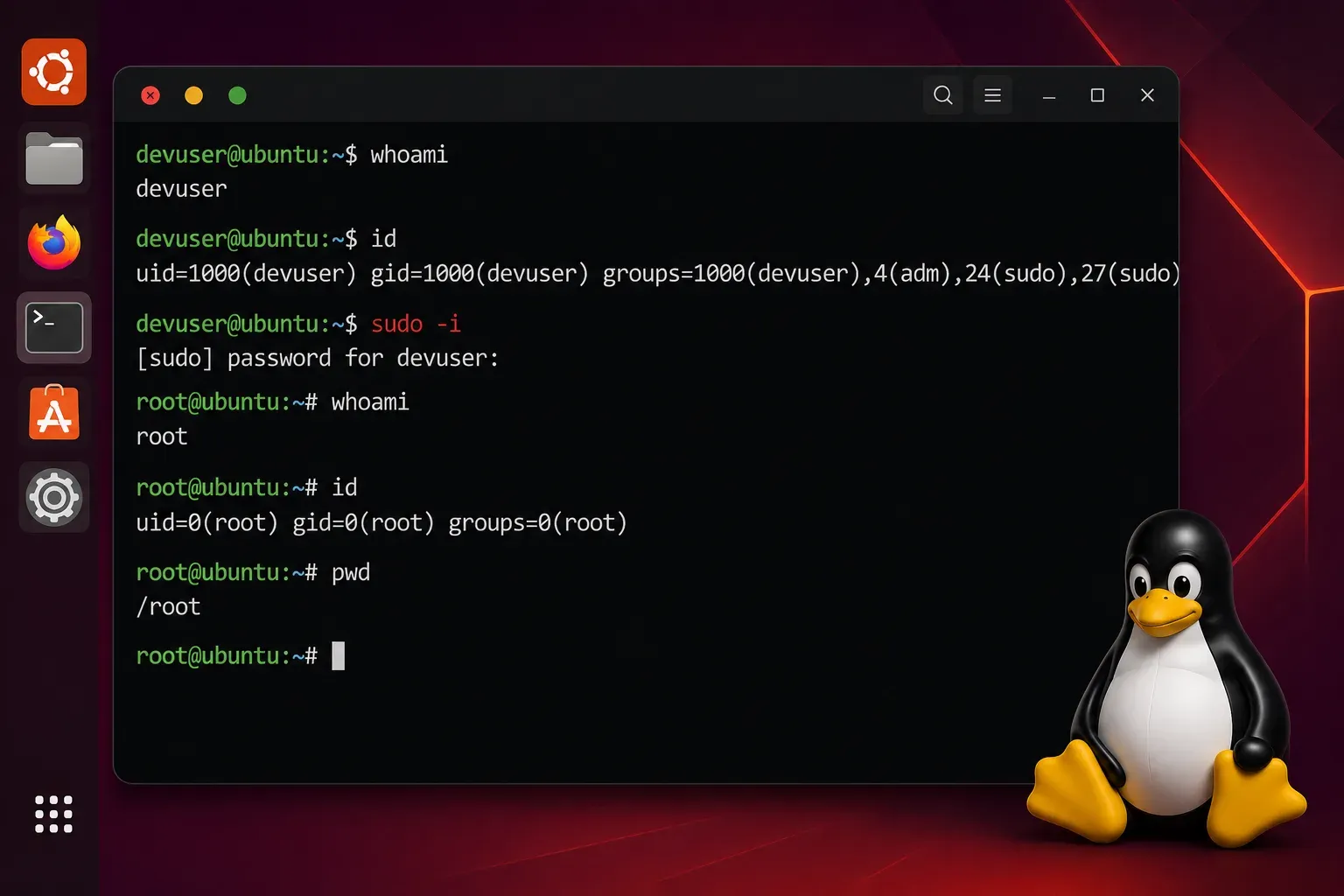
sudo -i
The prompt will change to indicate you're now root, typically showing a # symbol instead of $:
user@hostname:~$ sudo su -
root@hostname:~#
Always remember to exit the root session when finished:
root@hostname:~# exit
user@hostname:~$
Root's Home Directory and Environment
The root user has its own home directory at /root, separate from regular users who typically reside in /home/username. You can verify your current user identity and location with these commands:
# Check current user
whoami

# Check current directory
pwd

# View user information
id
When you're root, these commands will show:
root@hostname:~# whoami
root
root@hostname:~# pwd
/root
root@hostname:~# id
uid=0(root) gid=0(root) groups=0(root)
Security Best Practices
Understanding root privileges comes with responsibility. Here are essential security practices:
- Use sudo instead of direct root login for most tasks
- Never run graphical applications as root unless absolutely necessary
- Double-check commands before pressing Enter when you have root privileges
- Exit root sessions immediately after completing administrative tasks
- Be especially careful with commands like
rm,chmod, andchownwhen running as root
Remember: with great power comes great responsibility. A simple typo while running as root could damage your entire system.
What's Next
Now that you understand the root user and its importance, the next step is learning about file permissions and ownership in Linux. Understanding how Linux controls access to files and directories will help you work more effectively with both regular user accounts and root privileges, ensuring your system remains secure while allowing necessary administrative access.