
Writing Your First Bash Script
Learn to write your first Bash script with practical examples covering shebangs, variables, user input, and basic conditionals. Includes working code examples and best practices for beginners.

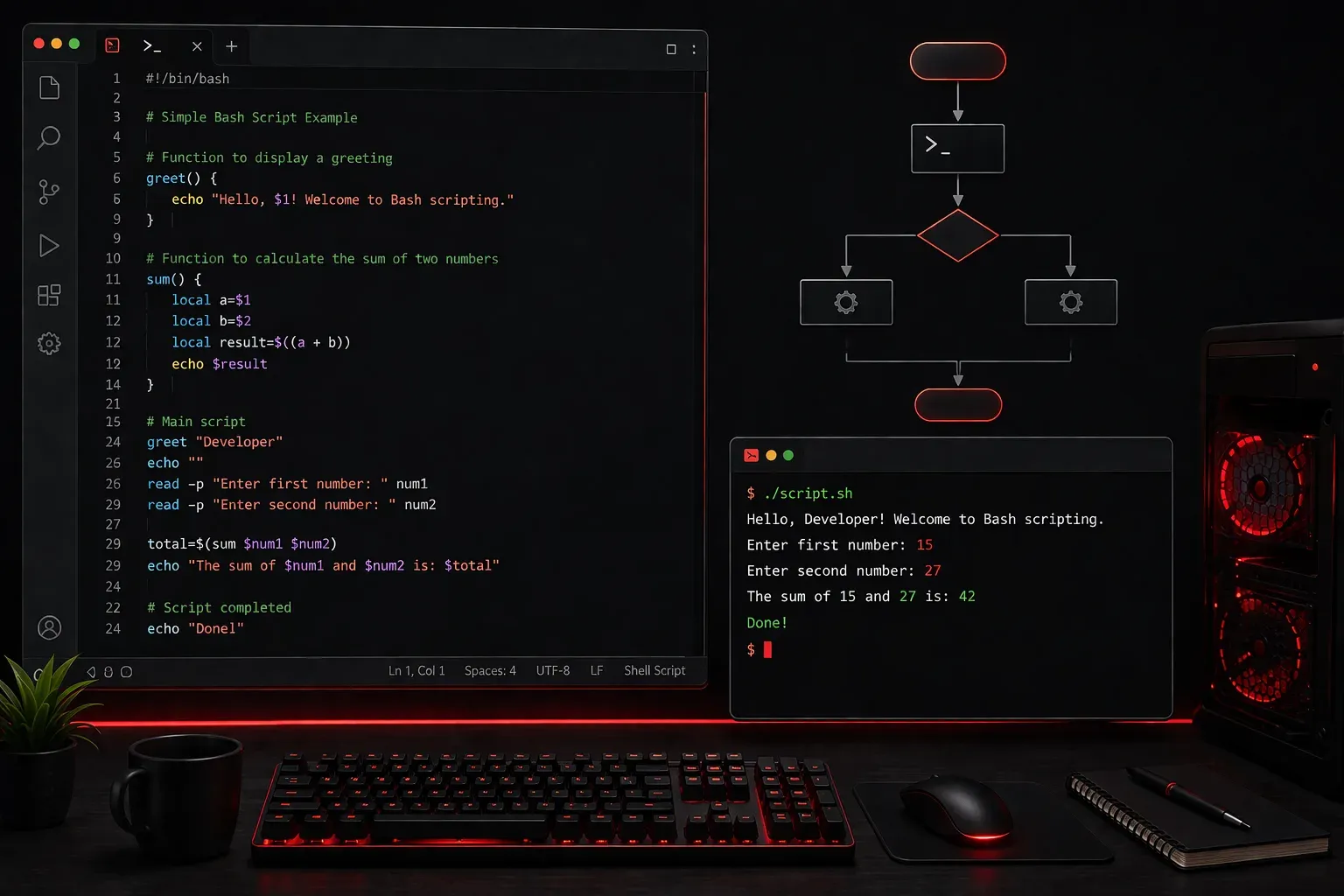
Bash scripting is one of the most powerful skills you can develop as you begin your journey into programming and system administration. A Bash script is simply a text file containing a series of commands that your Linux or Unix shell can execute automatically. Think of it as writing a recipe that your computer can follow step by step.
What Makes a File a Bash Script
Every Bash script starts with a special line called a "shebang" that tells the system which interpreter to use. Here's the basic structure:
#!/bin/bash
# This is a comment - anything after # is ignored
echo "Hello, World!"
The #!/bin/bash line at the top is crucial. It tells your system to use the Bash interpreter to run this script. Without it, your system might not know how to execute your commands properly.
Creating Your First Script
Let's create a simple script that demonstrates basic concepts. Open your favorite text editor and create a file called my_first_script.sh:
#!/bin/bash

# Script: my_first_script.sh
# Purpose: Demonstrate basic Bash scripting concepts

echo "Welcome to Bash scripting!"
echo "Today's date is: $(date)"
echo "You are logged in as: $(whoami)"
echo "Your current directory is: $(pwd)"
This script introduces several important concepts. The echo command prints text to the screen. The $(command) syntax executes a command and includes its output in the text. This is called command substitution.
Making Your Script Executable
Before you can run your script, you need to make it executable. Use the chmod command:
chmod +x my_first_script.shNow you can run your script in several ways:
./my_first_script.sh
# or
bash my_first_script.sh
The first method uses the shebang line to determine the interpreter, while the second explicitly calls bash to run the script.
Adding Variables and User Input
Let's enhance our script with variables and user interaction:
#!/bin/bash

# Get user's name
echo "What's your name?"
read username

# Create a variable
greeting="Hello"
current_time=$(date +"%H:%M")

# Use the variables
echo "$greeting, $username!"
echo "The current time is $current_time"

# Simple calculation
echo "Enter two numbers to add:"
read num1
read num2
result=$((num1 + num2))
echo "$num1 + $num2 = $result"
This script demonstrates several key concepts: the read command captures user input, variables store information, and $((...)) performs arithmetic calculations.
Adding Logic with Conditionals
Scripts become powerful when they can make decisions. Here's how to add basic logic:
#!/bin/bash

echo "Enter a number:"
read number

if [ $number -gt 10 ]; then
    echo "Your number is greater than 10"
elif [ $number -eq 10 ]; then
    echo "Your number is exactly 10"
else
    echo "Your number is less than 10"
fi
The if statement checks conditions. Common comparison operators include -gt (greater than), -lt (less than), -eq (equal), and -ne (not equal).
Best Practices for Beginners
As you start writing scripts, follow these essential practices:
- Always include the shebang line at the top of your scripts
- Use meaningful variable names like
usernameinstead ofu - Add comments to explain what your script does
- Quote your variables like
"$username"to handle spaces properly - Test your scripts with different inputs before using them in production
Start small and gradually add complexity. Each script you write teaches you something new about how systems work and how to automate repetitive tasks.
What's Next
Now that you've written your first Bash script, you're ready to explore loops and functions, which will let you create more sophisticated automation tools. We'll cover how to process multiple files, create reusable code blocks, and handle errors gracefully in upcoming posts.