
Bash For Loops
Learn how to use Bash for loops to iterate through lists, files, arrays, and command output. Covers basic syntax, practical examples, and best practices for automating repetitive tasks in shell scripts.

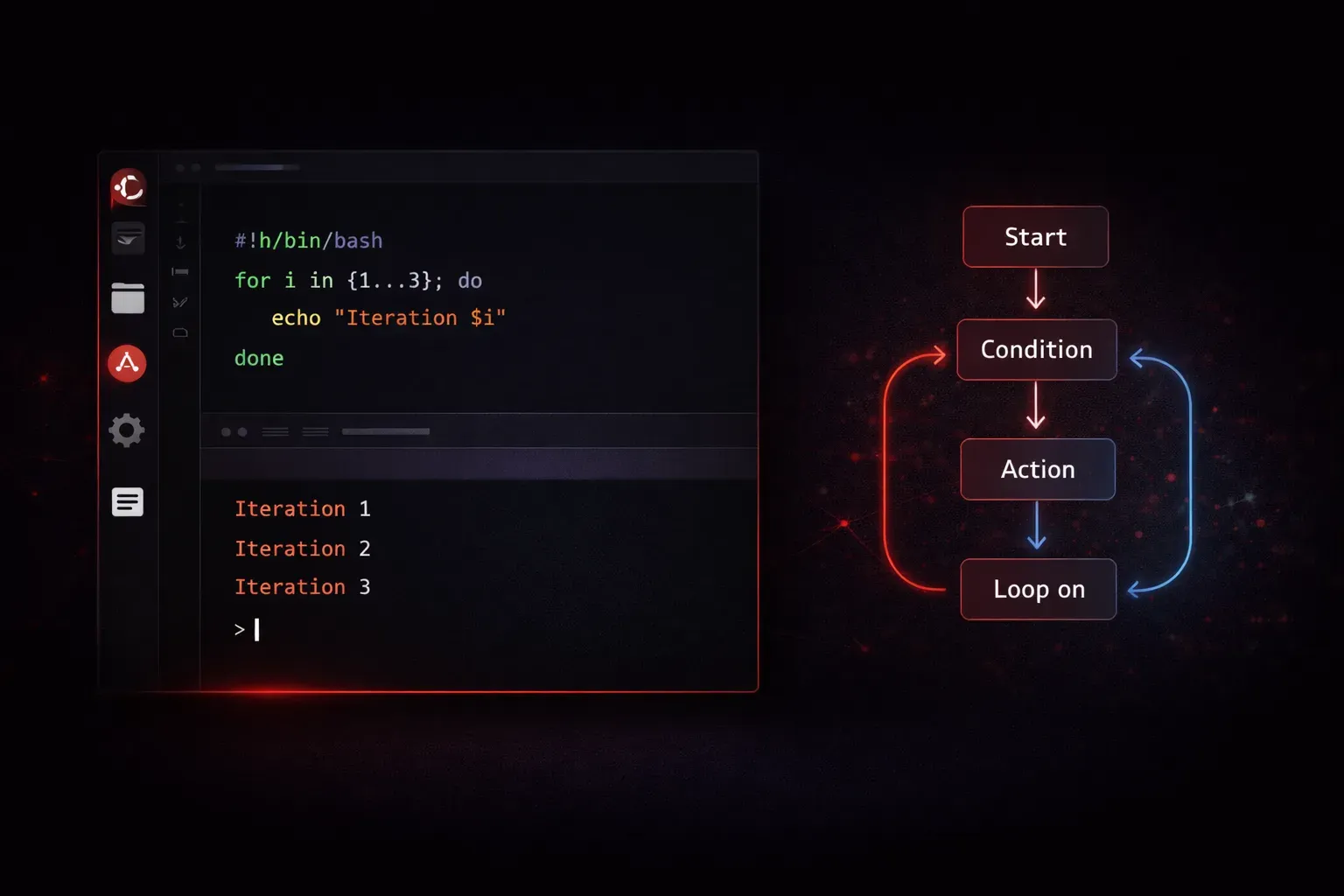
Loops are fundamental programming constructs that let you execute code repeatedly. In Bash scripting, the for loop is one of the most versatile and commonly used loops. Whether you're processing files, iterating through lists, or automating repetitive tasks, mastering for loops will significantly boost your scripting capabilities.
Basic For Loop Syntax
The most common Bash for loop iterates through a list of items. Here's the basic syntax:
for variable in list
do
    commands
done
Let's start with a simple example that prints each item in a list:
#!/bin/bash
for fruit in apple banana cherry
do
    echo "I like $fruit"
done
When you run this script, you'll see:
I like apple
I like banana
I like cherry
The loop variable fruit takes on each value in the list sequentially, and the commands inside the do...done block execute for each iteration.
Looping Through Files and Directories
One of the most practical uses of for loops is processing files. You can use wildcards to iterate through files matching a pattern:
#!/bin/bash
for file in *.txt
do
    echo "Processing file: $file"
    wc -l "$file"
done
This script processes all .txt files in the current directory, displaying the filename and line count for each. The wc -l command counts the number of lines in a file. Notice how we quote "$file" to handle filenames with spaces properly.
You can also loop through directories:
for dir in */
do
    echo "Directory: $dir"
    ls -la "$dir"
done
The ls -la command lists directory contents in long format, showing detailed information including permissions, ownership, size, and timestamps.
Using Ranges with For Loops
Bash supports C-style for loops when you need to iterate through numerical ranges. This syntax is perfect for counting operations:
#!/bin/bash
for ((i=1; i<=5; i++))
do
    echo "Count: $i"
done
You can also use the seq command to generate number sequences. This approach uses command substitution to create a list:
for num in $(seq 1 10)
do
    echo "Number: $num"
done
Or use brace expansion for simple ranges, which is more efficient than seq for basic counting:
for num in {1..10}
do
    echo "Number: $num"
done
The C-style syntax offers the most control with custom increment values, while brace expansion is fastest for simple sequences, and seq provides the most flexibility for complex numeric patterns.
Reading from Arrays
For loops work excellently with arrays. First, declare an array, then iterate through its elements:
#!/bin/bash
servers=("web01" "web02" "db01" "cache01")

for server in "${servers[@]}"
do
    echo "Checking server: $server"
    ping -c 1 "$server"
done
The "${servers[@]}" syntax expands to all array elements, and the quotes ensure each element is treated as a separate item even if it contains spaces.
Processing Command Output
You can loop through the output of commands by using command substitution:
#!/bin/bash
for user in $(cut -d: -f1 /etc/passwd)
do
    echo "User: $user"
done
This example extracts usernames from /etc/passwd and processes each one. However, be cautious with this approach if the output might contain spaces or special characters, as they can cause unexpected word splitting. For more robust handling of complex data, consider using a while loop with proper input parsing:
# More robust approach for data with potential spaces
while IFS=: read -r username _; do
    echo "User: $username"
done < /etc/passwd
The command substitution method works well when you're certain the data doesn't contain problematic characters, but always test with your specific data set.
Practical Example: Log File Analysis
Here's a real-world example that demonstrates the power of for loops in system administration:
#!/bin/bash
log_dir="/var/log"

for log_file in "$log_dir"/*.log
do
    if [[ -f "$log_file" ]]; then
        echo "Analyzing: $(basename "$log_file")"
        echo "Size: $(du -h "$log_file" | cut -f1)"
        echo "Last modified: $(stat -c %y "$log_file")"
        echo "---"
    fi
done
This script analyzes all log files in /var/log, displaying their size and modification time.
Best Practices
Always quote your variables when using them in for loops to handle filenames with spaces. Use descriptive variable names that make your loop's purpose clear. When processing files, check if they exist using conditional statements to avoid errors.
What's Next
Now that you understand for loops, you're ready to explore while loops and conditional statements in Bash. These constructs will give you even more control over your script's flow and decision-making capabilities.