
Bash User Input with the Read Command
Learn how to capture user input in bash scripts using the read command. This beginner-friendly guide covers basic input capture, prompts, silent input for passwords, timeouts, and practical examples for interactive scripts.

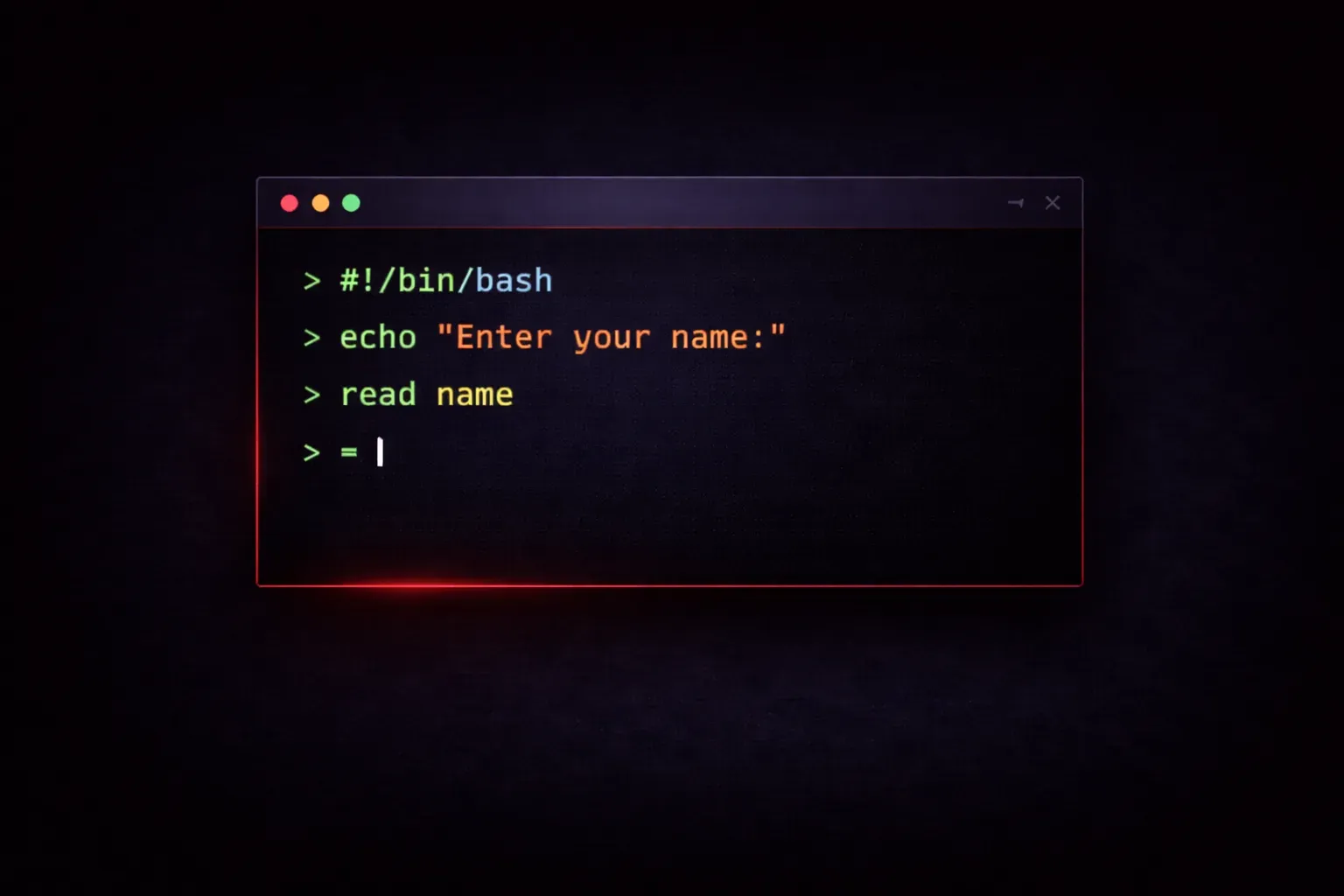
Getting user input is one of the most fundamental skills in bash scripting. Whether you're creating installation scripts, configuration tools, or interactive utilities, the read command is your gateway to making scripts that respond to user needs rather than just running predetermined actions.
The read command pauses script execution and waits for the user to type something, then stores that input in a variable for later use. Let's start with the simplest example:
#!/bin/bash
echo "What's your name?"
read name
echo "Hello, $name!"
When you run this script, it displays the prompt, waits for you to type your name and press Enter, then greets you personally. The magic happens in that read name line - it captures whatever you type and stores it in the variable called name.
Adding Prompts with the -p Option
Instead of using a separate echo command, you can include the prompt directly in the read command using the -p option:
#!/bin/bash
read -p "Enter your favorite color: " color
echo "You chose $color - excellent choice!"
This approach is cleaner and ensures your prompt appears on the same line where the user will type their response.
Reading Multiple Values at Once
The read command can capture multiple values in a single line by specifying multiple variable names:
#!/bin/bash
read -p "Enter your first and last name: " first_name last_name
echo "First name: $first_name"
echo "Last name: $last_name"
If the user types "John Smith", the first word goes to first_name and the second word goes to last_name. If they enter more than two words, everything after the first word gets stored in the last variable.
Silent Input for Passwords
When asking for sensitive information like passwords, use the -s option to hide the user's input:
#!/bin/bash
read -sp "Enter your password: " password
echo # This creates a new line after the hidden input
echo "Password received (length: ${#password} characters)"
The -s flag makes the input silent - characters don't appear on screen as the user types. The ${#password} syntax shows the length of the password variable.
Setting Default Values and Timeouts
Sometimes you want to provide a default value or prevent your script from waiting forever. The -t option sets a timeout in seconds:
#!/bin/bash
read -t 10 -p "Enter server name (default: localhost): " server
server=${server:-localhost}
echo "Connecting to $server..."
This script waits 10 seconds for input. The line server=${server:-localhost} uses bash parameter expansion to set a default value - if server is empty, it becomes "localhost".
Reading Arrays from User Input
For more advanced scenarios, you can read input into an array using the -a option:
#!/bin/bash
read -a fruits -p "Enter your favorite fruits (separated by spaces): "
echo "You entered ${#fruits[@]} fruits:"
for fruit in "${fruits[@]}"; do
    echo "- $fruit"
done
This creates an array where each space-separated word becomes an array element.
Practical Example: System Information Script
Here's a complete example that demonstrates several read techniques in a useful system information gathering script:
#!/bin/bash
echo "=== System Setup Information ==="
read -p "Enter your username: " username
read -p "Enter your email: " email
read -sp "Create a password: " password
echo
read -p "Install development tools? (y/n): " install_dev

echo
echo "Configuration Summary:"
echo "Username: $username"
echo "Email: $email"
echo "Password: [HIDDEN]"
echo "Install dev tools: $install_dev"

read -p "Proceed with these settings? (y/n): " confirm
if [[ $confirm == "y" || $confirm == "Y" ]]; then
    echo "Setup would continue here..."
else
    echo "Setup cancelled."
fi
What's Next
Now that you can capture user input, the next logical step is learning how to validate that input and handle different types of responses. In our next post, we'll explore conditional statements in bash, showing you how to check user input and make your scripts respond intelligently to different choices.