
Bash While Loops
Learn how to use while loops in bash scripting to repeat commands based on conditions. Covers basic syntax, common patterns like file processing and menu systems, and practical examples including infinite loop prevention.

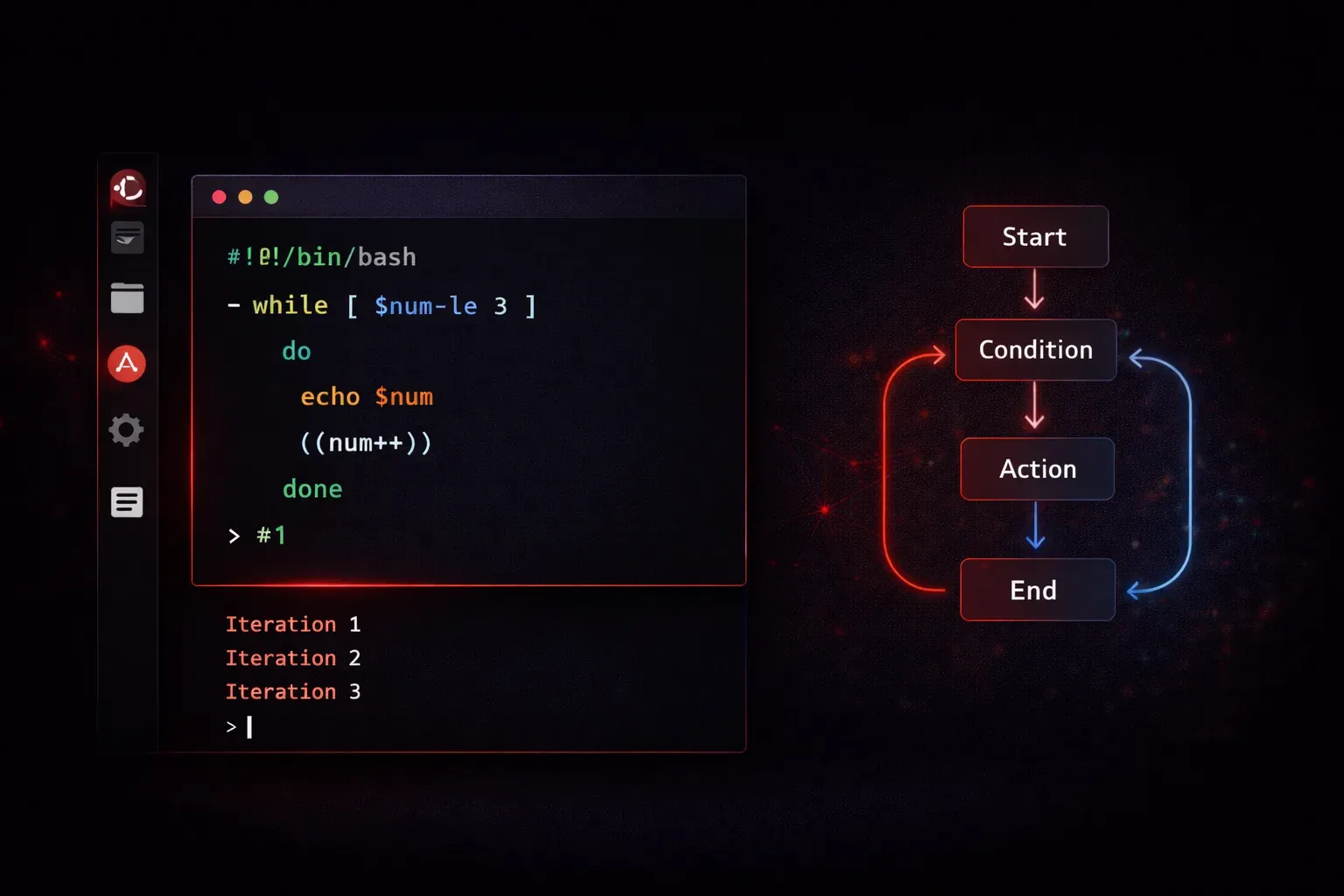
Understanding While Loops in Bash
While loops are one of the fundamental control structures in bash scripting that allow you to repeat commands as long as a specific condition remains true. Think of them as your script's way of saying "keep doing this until something changes." Whether you're monitoring system resources, processing files, or waiting for user input, while loops provide the repetitive power your scripts need.
Basic While Loop Syntax
The basic structure of a bash while loop follows this pattern:
while [ condition ]
do
    # commands to execute
done
Let's start with a simple example that counts from 1 to 5:
#!/bin/bash
counter=1
while [ $counter -le 5 ]
do
    echo "Count: $counter"
    counter=$((counter + 1))
done
When you run this script, it will output:
Count: 1
Count: 2
Count: 3
Count: 4
Count: 5
The loop continues executing as long as the condition [ $counter -le 5 ] (counter less than or equal to 5) evaluates to true. Once counter reaches 6, the condition becomes false and the loop exits.
Common While Loop Patterns
Reading Files Line by Line
One of the most practical uses of while loops is processing files line by line. First, let's create a sample input file:
# Create a sample file to work with
cat > sample_data.txt << EOF
apple
banana
cherry
date
elderberry
EOF
Now we can process this file line by line:
#!/bin/bash
while IFS= read -r line
do
    echo "Processing: $line"
done < sample_data.txt
This pattern reads each line from sample_data.txt into the variable line and processes it. The IFS= (Internal Field Separator) prevents leading and trailing whitespace from being trimmed - it temporarily sets the field separator to nothing, preserving the original formatting of each line. The -r option prevents backslashes from being interpreted as escape characters, ensuring that literal backslashes in your data are preserved rather than being processed as escape sequences.
Menu Systems
While loops excel at creating interactive menu systems:
#!/bin/bash
choice=""
while [ "$choice" != "quit" ]
do
    echo "1) List files"
    echo "2) Show date"
    echo "Type 'quit' to exit"
    read -p "Enter choice: " choice

    case $choice in
        1) ls -la ;;
        2) date ;;
        quit) echo "Goodbye!" ;;
        *) echo "Invalid choice" ;;
    esac
done
Monitoring and Waiting
While loops are perfect for monitoring conditions or waiting for events:
#!/bin/bash
while [ ! -f "important_file.txt" ]
do
    echo "Waiting for important_file.txt to appear..."
    sleep 2
done
echo "File found! Continuing..."
Important Considerations
Avoiding Infinite Loops
Always ensure your loop has a way to exit. The condition must eventually become false, or you need a break statement:
#!/bin/bash
while true
do
    read -p "Enter 'exit' to quit: " input
    if [ "$input" = "exit" ]; then
        break
    fi
    echo "You entered: $input"
done
Exit Codes and Conditions
While loops can test command exit codes directly. In bash, every command returns an exit code when it finishes: 0 means success (true condition), and any non-zero value means failure (false condition). A command that succeeds (exit code 0) makes the while condition true and continues the loop:
#!/bin/bash
while ping -c 1 google.com > /dev/null 2>&1
do
    echo "Internet connection is active"
    sleep 5
done
echo "Connection lost!"
In this example, the ping command returns 0 when successful (host is reachable) and non-zero when it fails, making it perfect for loop conditions.
Practical Example: Log File Monitor
Here's a complete real-world example that monitors a log file for new entries. This script continuously watches for changes and displays new content as it appears:
#!/bin/bash

# Define the log file to monitor (adjust path as needed)
logfile="/var/log/messages"

# Alternative log file if /var/log/messages doesn't exist
if [ ! -f "$logfile" ]; then
    logfile="/var/log/system.log"  # macOS alternative
fi

# Create a test log file if neither exists
if [ ! -f "$logfile" ]; then
    logfile="./test.log"
    echo "Creating test log file: $logfile"
    echo "$(date): Log monitoring started" > "$logfile"
fi

# Get initial line count
last_line_count=$(wc -l < "$logfile" 2>/dev/null || echo "0")

echo "Monitoring $logfile for changes (Press Ctrl+C to stop)..."

while true
do
    # Get current line count
    current_line_count=$(wc -l < "$logfile" 2>/dev/null || echo "0")

    # Check if new lines were added
    if [ $current_line_count -gt $last_line_count ]; then
        echo "New log entries detected!"
        # Display only the new lines
        tail -n $((current_line_count - last_line_count)) "$logfile"
        last_line_count=$current_line_count
    fi

    # Wait before checking again
    sleep 2
done
This enhanced version includes error handling, file existence checks, and creates a test log file if needed. You can test it by running the script in one terminal and adding lines to the log file from another terminal using echo "Test entry" >> test.log.
What's Next
Now that you understand while loops, you're ready to explore for loops, which provide a different approach to iteration in bash. For loops excel when you know in advance what you want to iterate over, such as files in a directory or items in a list. Combined with while loops, you'll have all the repetitive control structures needed for sophisticated bash scripting.