
Choosing the Right Compression Tool: 7-Zip, Bzip2, Gzip, Unzip, and Xz
A comprehensive comparison of Linux compression tools including gzip, bzip2, xz, 7-Zip, and unzip, covering their strengths, use cases, and command examples to help administrators choose the right tool for different scenarios.

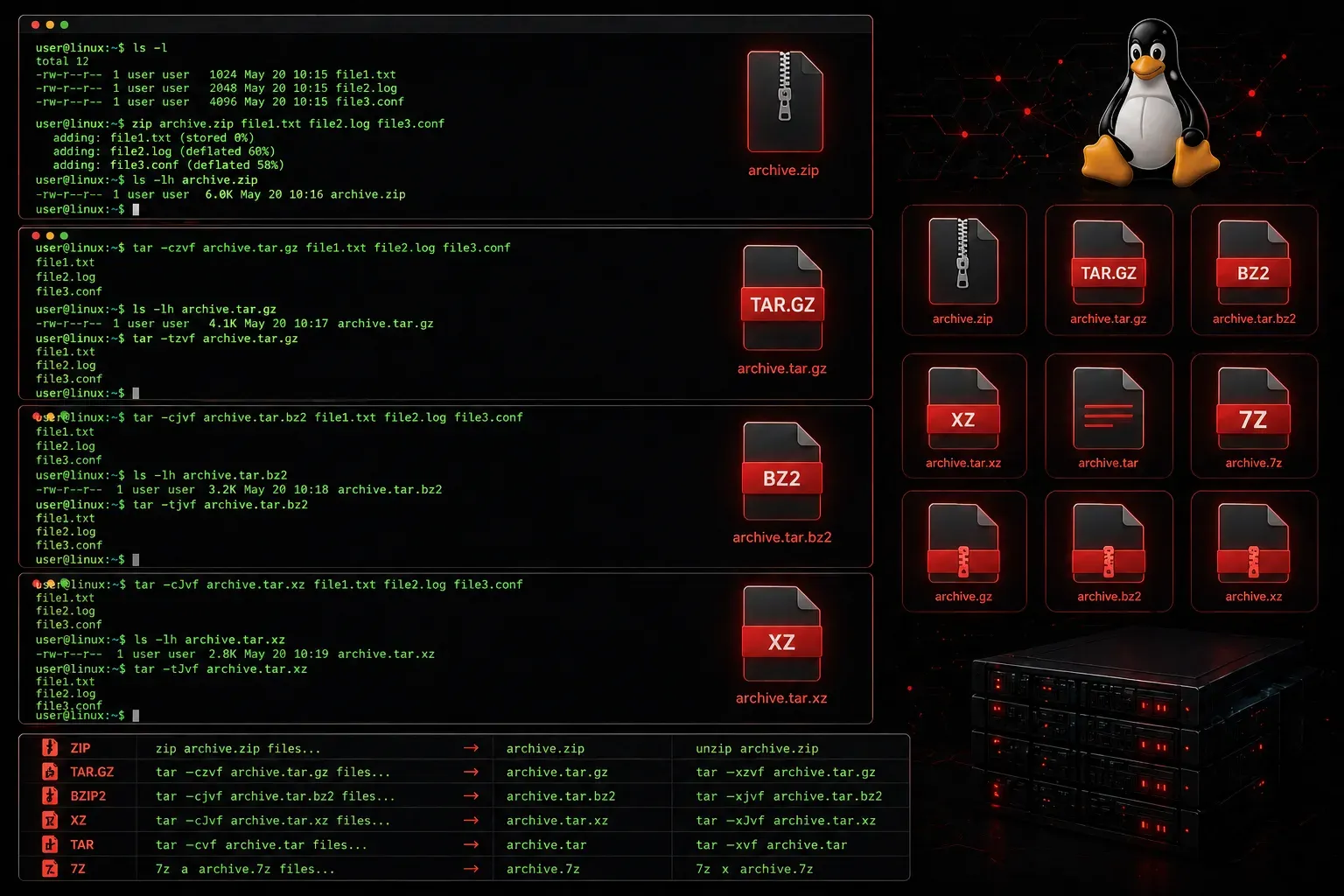
Linux provides several compression tools, each with unique strengths and use cases. Understanding when to use gzip, bzip2, xz, 7zip, or unzip can significantly impact your file management efficiency and backup operations. Let's explore these compression tools Linux administrators rely on daily.
Understanding Compression Basics
Compression reduces file size by eliminating data redundancy. Linux compression tools fall into two categories: those that compress single files (like gzip, bzip2, xz) and those that handle archives containing multiple files (like 7zip). However, single-file compression tools are commonly combined with tar to compress multiple files and directories together.
The tar utility creates archives by bundling files and directories into a single file, which can then be compressed using gzip, bzip2, or xz. This combination is fundamental to Linux file management and creates the familiar .tar.gz, .tar.bz2, and .tar.xz formats.
Most Linux distributions include these tools by default, making file compression an essential skill for system administrators managing backups, logs, and data transfers.
Gzip: The Speed Champion
Gzip is the most commonly used compression tool on Linux systems. It provides excellent speed with decent compression ratios, making it ideal for everyday tasks. While gzip compresses single files, it's frequently used with tar for multi-file archives.
# Compress a single file
gzip filename.txt
# Creates filename.txt.gz

# Decompress
gunzip filename.txt.gz

# View compressed file contents without extracting
zcat filename.txt.gz

# Compress with maximum compression
gzip -9 filename.txt

# Create compressed tar archive (multiple files)
tar czf archive.tar.gz directory/ file1.txt file2.txt
Best for: Log files, text documents, quick daily backups, and situations where speed matters more than maximum compression.
Bzip2: The Balance Option
When comparing gzip vs bzip2, bzip2 offers better compression ratios at the cost of slower processing speeds. It's particularly effective on text files and source code, and like gzip, it is commonly paired with tar for archiving multiple files.
# Compress a file
bzip2 filename.txt
# Creates filename.txt.bz2

# Decompress
bunzip2 filename.txt.bz2

# Keep original file while compressing
bzip2 -k filename.txt

# View contents without extracting
bzcat filename.txt.bz2

# Create compressed tar archive (multiple files)
tar cjf archive.tar.bz2 directory/ file1.txt file2.txt
Best for: Archive storage, source code repositories, and situations where storage space is more important than compression time.
Xz: Maximum Compression
Xz provides the highest compression ratios among standard Linux tools, but requires more CPU time and memory. It's become increasingly popular for software distribution and works seamlessly with tar for multi-file compression.
# Compress with xz
xz filename.txt
# Creates filename.txt.xz

# Decompress
unxz filename.txt.xz

# Extreme compression (slow but maximum ratio)
xz -9e filename.txt

# Check compression ratio
xz -l filename.txt.xz

# Create compressed tar archive (multiple files)
tar cJf archive.tar.xz directory/ file1.txt file2.txt
Best for: Long-term archival, software packages, and when minimizing storage costs is critical.
7-Zip: The Archive Powerhouse
7-Zip is available on Linux through the p7zip package, which must be installed separately on most distributions. It provides excellent compression and handles various archive formats, making it ideal for cross-platform compatibility.
# Install p7zip on Ubuntu/Debian
sudo apt install p7zip-full

# Install on RHEL/CentOS/Fedora
sudo yum install p7zip  # or dnf install p7zip

# Create a 7z archive
7z a archive.7z file1.txt file2.txt directory/

# Extract archive
7z x archive.7z

# List archive contents
7z l archive.7z

# Create password-protected archive
7z a -p archive.7z files/
Best for: Cross-platform compatibility, password protection, and handling multiple archive formats, including RAR, ZIP, and CAB.
Unzip: Handling ZIP Archives
The unzip command specifically handles ZIP archives, commonly used for file sharing across different operating systems.
# Extract ZIP archive
unzip archive.zip

# Extract to specific directory
unzip archive.zip -d /target/directory

# List contents without extracting
unzip -l archive.zip

# Extract specific file
unzip archive.zip filename.txt
Best for: Working with ZIP files from Windows systems, web downloads, and email attachments.
Choosing the Right Tool
Here's a quick decision guide for selecting compression tools for Linux environments:
- Quick daily tasks: Use
gzipwith tar (tar czf) for speed - Backup storage: Choose
bzip2with tar (tar cjf) for balanced compression - Long-term archives: Select
xzwith tar (tar cJf) for maximum space savings - Cross-platform sharing: Use
7zipor standard ZIP - Received ZIP files: Use
unzipfor extraction
Most Linux backup scripts combine these compression tools with tar to create compressed archives: tar czf backup.tar.gz (gzip), tar cjf backup.tar.bz2 (bzip2), or tar cJf backup.tar.xz (xz). This approach allows you to compress entire directory structures efficiently.
What's Next
Now that you understand the different compression tools available, the next step is to learn how to integrate these tools into automated backup scripts and to understand tar archives for comprehensive file management strategies.
Tools and resources for this topic
- CompTIA Linux+ Study Guide — Comprehensive Linux+ exam preparation covering system administration, security, and scripting.