
Troubleshooting Common IPv4 and IPv6 Network Issues
Learn systematic approaches to troubleshoot common IPv4 and IPv6 network connectivity issues. This guide covers essential commands, step-by-step procedures, and protocol-specific troubleshooting techniques for network problems.

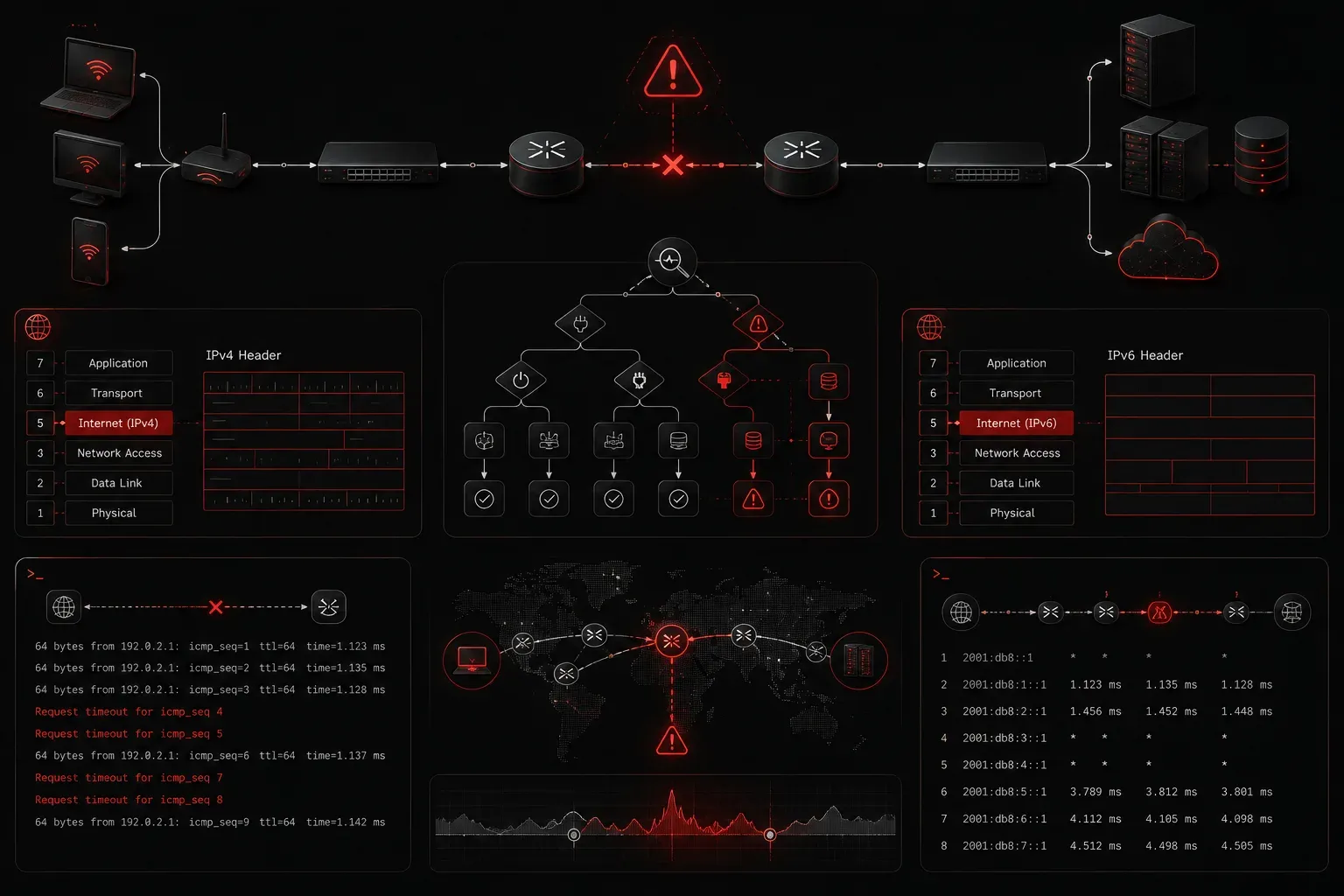
When network connectivity fails, knowing how to troubleshoot IP network issues is essential for any IT professional. Whether you're dealing with IPv4 or IPv6 environments, a systematic approach will help you identify and resolve network problems quickly.
Understanding Common IP Network Problems
Network problems typically fall into several categories. The most frequent issues include connectivity failures, slow performance, DNS resolution problems, and configuration errors. Before diving into complex diagnostics, always verify the basics: physical connections, power, and cable integrity. IPv4 networks often suffer from address conflicts, subnet misconfigurations, and DHCP exhaustion. IPv6 introduces additional complexity with its dual-stack implementations and different addressing schemes, but the fundamental troubleshooting principles remain the same.
Essential Troubleshooting Tools and Commands
Your troubleshooting toolkit should include several key utilities. The ping command tests basic connectivity and measures round-trip time. For IPv4, use ping 8.8.8.8 to test internet connectivity. For IPv6, try ping6 2001:4860:4860::8888. The tracert (Windows) or traceroute (Linux/Mac) command reveals the path packets take to their destination. This helps identify where connectivity breaks down:
tracert google.com
traceroute -6 ipv6.google.com
Use ipconfig on Windows or ifconfig/ip addr show on Linux to verify your IP configuration. Check for correct IP addresses, subnet masks, and default gateways.
Step-by-Step IP Troubleshooting Process
Start with the OSI model's bottom layers and work your way up. First, verify physical connectivity. Check cable connections, link lights, and port status. Many network problems stem from loose cables or failed hardware. Next, examine the network configuration. Verify that your device has received a valid IP address. Look for APIPA addresses (169.254.x.x) in IPv4, which indicate DHCP failure. In IPv6, check for link-local addresses starting with fe80::. Test connectivity systematically: 1. Ping the loopback address (127.0.0.1 or ::1) 2. Ping your default gateway 3. Ping a known external IP address 4. Test DNS resolution with nslookup or dig
IPv4-Specific Troubleshooting
IPv4 networks commonly experience address conflicts. When two devices share the same IP address, intermittent connectivity occurs. Check DHCP reservations and static IP assignments to prevent conflicts. Subnet mask errors cause devices to misunderstand their local network boundaries. A device with an incorrect subnet mask might try to route local traffic through the gateway unnecessarily. Verify that all devices in the same subnet use identical subnet masks. DHCP scope exhaustion prevents new devices from obtaining IP addresses. Check your DHCP server's lease pool and extend the range if necessary. Also verify DHCP relay agents are configured correctly in multi-subnet environments.
IPv6-Specific Considerations
IPv6 troubleshooting requires understanding its unique features. Stateless Address Autoconfiguration (SLAAC) can fail if Router Advertisement messages aren't propagating correctly. Use rdisc6 to verify router advertisements on the network. Dual-stack environments add complexity because applications might prefer one protocol over another. Test both IPv4 and IPv6 connectivity separately. Some applications default to IPv6 when available, which can cause issues if IPv6 connectivity is incomplete. IPv6's larger address space reduces conflicts, but prefix length misconfigurations still occur. Verify that devices receive consistent prefix lengths in their network configuration.
Advanced Troubleshooting Techniques
When basic commands don't reveal the issue, use packet capture tools like Wireshark to analyze network traffic. Look for patterns in dropped packets, unusual traffic flows, or protocol errors. Network scanning tools help identify active devices and open ports. Use nmap to discover devices and verify service availability across your network segments. Document your findings and solutions. Many network problems are recurring issues that benefit from consistent troubleshooting procedures and known-good configurations.
What's Next
Now that you understand basic IP troubleshooting, you're ready to explore more advanced network diagnostics. The next post will cover troubleshooting specific network services like DHCP, DNS, and routing protocols, building on these fundamental skills.
Tools and resources for this topic
- CompTIA Network+ Study Guide — Comprehensive N10-009 exam preparation covering all five domains.