
Saving and Opening Packet Capture Files in Wireshark
Learn the essential Wireshark file management skills of saving and opening packet capture files. This guide covers saving all packets, selected packets, and filtered packets, plus best practices for organizing your network analysis files.

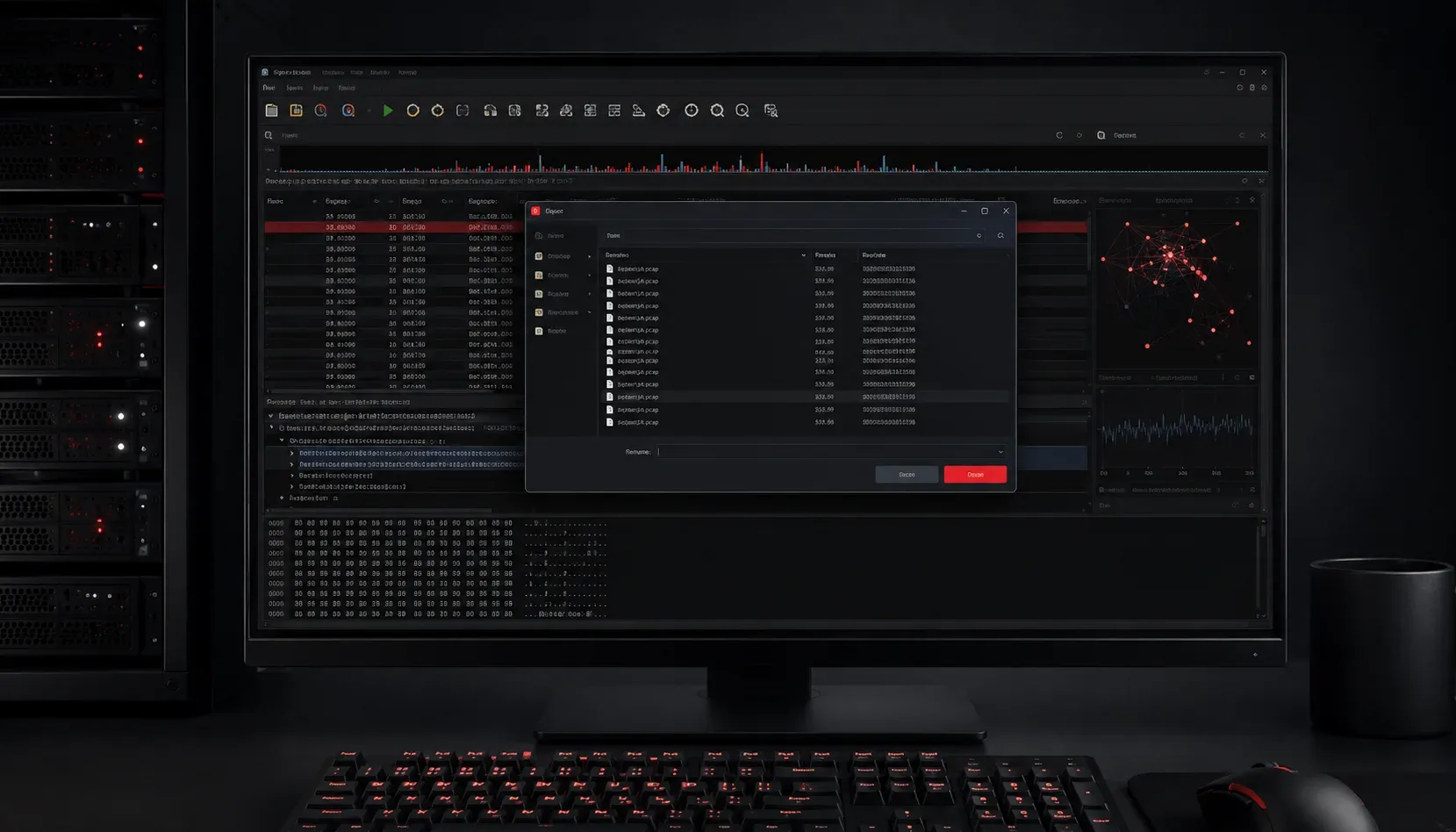
When you're analyzing network traffic with Wireshark, you'll often need to save your packet captures for later analysis or share them with colleagues. Understanding how to save open Wireshark pcap files is a fundamental skill for network troubleshooting and analysis.
Packet capture files, commonly called .pcap files, are standardized formats that store network packet data. Think of them as recordings of network conversations that you can replay and analyze at any time. This Wireshark file management capability makes it possible to collect data in one location and analyze it elsewhere, or to build a library of network issues for future reference.
Saving Packet Captures in Wireshark
There are several ways to save your packet capture data, depending on your needs:
Save All Captured Packets
To save everything you've captured:
- Go to File > Save As (or press
Ctrl+Shift+S) - Choose your file location and name
- Select the file format (pcap is most common)
- Click Save
Save Selected Packets
Sometimes you only want to save specific packets for focused analysis:
- Select the packets you want to save (hold
Ctrlto select multiple) - Go to File > Export Specified Packets
- In the dialog box, choose "Selected packets only"
- Choose your location and filename
- Click Save
Save Filtered Packets
If you've applied a display filter and want to save only those visible packets:
- Apply your display filter (for example,
tcp.port == 80) - Go to File > Export Specified Packets
- Select "Displayed packets only"
- Save the file
Opening Packet Capture Files
Opening existing pcap files for network data analysis is straightforward:
Basic File Opening
- Launch Wireshark
- Go to File > Open (or press
Ctrl+O) - Navigate to your
.pcapfile - Select the file and click Open
Drag and Drop
For quick access, you can simply drag a .pcap file from your file manager directly into the Wireshark window. This instantly opens the file for analysis.
Recent Files Menu
Wireshark keeps track of recently opened files. Access them through File > Open Recent to quickly reopen files you've worked with previously.
File Format Considerations
While .pcap is the most common format, Wireshark supports several others:
- pcap - Standard format, widely compatible
- pcapng - Enhanced format with additional metadata
- cap - Microsoft Network Monitor format
For CCST Networking purposes, stick with .pcap format as it's universally supported and perfect for learning network analysis fundamentals.
Best Practices for File Management
Develop good habits early in your networking journey:
- Use descriptive filenames - Include date, network issue, or purpose (e.g., "webserver_slow_response_2024-01-15.pcap")
- Organize by project or issue type - Create folders for different network problems or time periods
- Save before filtering - Always save your complete capture first, then create filtered versions if needed
- Document your captures - Keep notes about what you were investigating and any findings
What's Next
Now that you can save and open pcap files, the next step is learning how to effectively filter and analyze the packet data within those files. Understanding Wireshark's display filters will help you quickly find the specific network traffic you need to investigate, making your troubleshooting much more efficient.