
Copying and Moving Files in Bash
Learn the essential bash commands cp and mv for copying and moving files in Linux. Covers basic syntax, directory operations, safety options, and practical examples for effective file management.

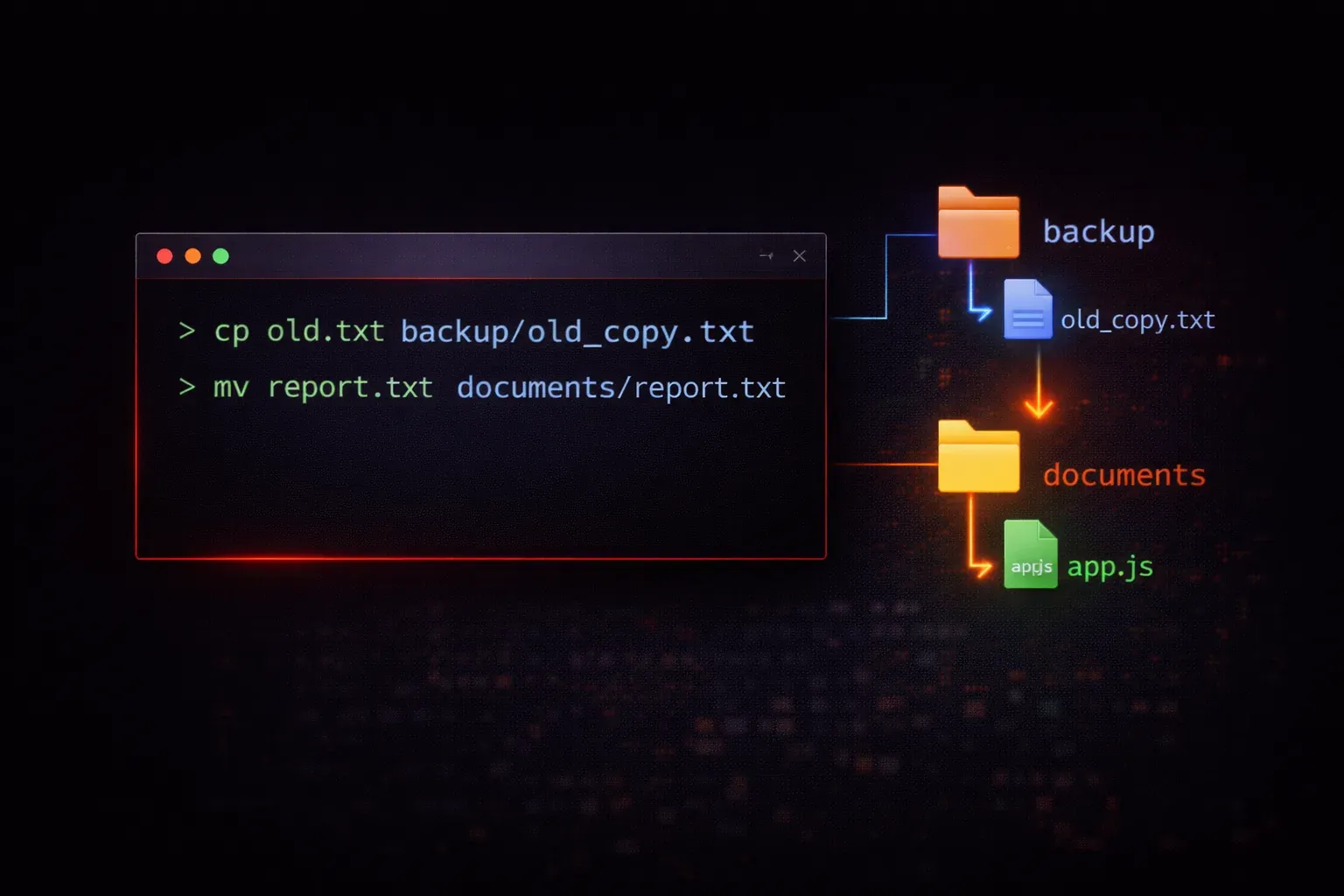
Managing files efficiently is one of the most fundamental skills you'll need when working with Linux systems. Whether you're organizing configuration files, backing up scripts, or restructuring directories, mastering the cp and mv commands will save you countless hours and prevent costly mistakes.
Let's explore these essential file manipulation commands with practical examples you can try right away.
The Copy Command (cp)
The cp command creates exact duplicates of files and directories. Think of it as the command-line equivalent of Ctrl+C and Ctrl+V, but with much more power and flexibility.
Basic File Copying
The simplest syntax is straightforward:
cp source_file destination_fileLet's see this in action:
$ echo "Hello World" > original.txt
$ cp original.txt backup.txt
$ ls -l
-rw-r--r-- 1 user user 12 Nov 15 10:30 backup.txt
-rw-r--r-- 1 user user 12 Nov 15 10:30 original.txt
Notice how both files now exist with identical content and timestamps.
Copying to Directories
You can copy files into existing directories by specifying the directory as the destination:
$ mkdir documents
$ cp original.txt documents/
$ ls documents/
original.txt
When copying to a directory, bash automatically uses the original filename unless you specify otherwise:
$ cp original.txt documents/renamed_copy.txtEssential Copy Options
The -r (recursive) flag copies entire directory trees:
$ mkdir -p project/{src,docs,tests}
$ echo "main code" > project/src/main.py
$ cp -r project project_backup
$ tree project_backup/
project_backup/
├── docs
├── src
│   └── main.py
└── tests
The -v (verbose) flag shows you exactly what's being copied:
$ cp -v original.txt another_copy.txt
'original.txt' -> 'another_copy.txt'
The Move Command (mv)
The mv command serves dual purposes: moving files to new locations and renaming them. Unlike copying, moving transfers the file rather than duplicating it.
Moving Files
Moving follows the same syntax pattern as copying:
$ mv backup.txt documents/
$ ls documents/
backup.txt  original.txt
The original backup.txt no longer exists in the current directory—it has been moved, not copied.
Renaming Files
To rename a file, move it to a new name in the same directory:
$ mv documents/backup.txt documents/archive.txt
$ ls documents/
archive.txt  original.txt
Moving Multiple Files
You can move multiple files to a directory in one command:
$ touch file1.txt file2.txt file3.txt
$ mkdir archive
$ mv file1.txt file2.txt file3.txt archive/
$ ls archive/
file1.txt  file2.txt  file3.txt
Safety First: Avoiding Common Mistakes
Both commands can overwrite existing files without warning by default. Use the -i (interactive) flag to prompt before overwriting:
$ cp -i original.txt documents/original.txt
cp: overwrite 'documents/original.txt'? y
The -n flag prevents overwriting entirely:
$ cp -n original.txt documents/original.txt
# No action taken if file exists
Practical Examples
Here's a real-world scenario: backing up configuration files before making changes:
$ sudo cp /etc/nginx/nginx.conf /etc/nginx/nginx.conf.backup
$ sudo cp -r /etc/nginx/sites-available/ /etc/nginx/sites-available.backup/
And organizing downloaded files:
$ mkdir ~/Downloads/{images,documents,archives}
$ mv ~/Downloads/*.jpg ~/Downloads/images/
$ mv ~/Downloads/*.pdf ~/Downloads/documents/
$ mv ~/Downloads/*.zip ~/Downloads/archives/
What's Next
Now that you can confidently copy and move files, the next logical step is mastering file permissions and ownership. Understanding chmod, chown, and file permission modes will help you control who can access and modify your files—a crucial skill for system administration and security.