
Creating and Deleting Files and Folders in Bash
Learn essential Bash commands for creating and deleting files and folders. Covers touch, mkdir, rm, and rmdir commands with practical examples and safety tips for managing your filesystem efficiently.

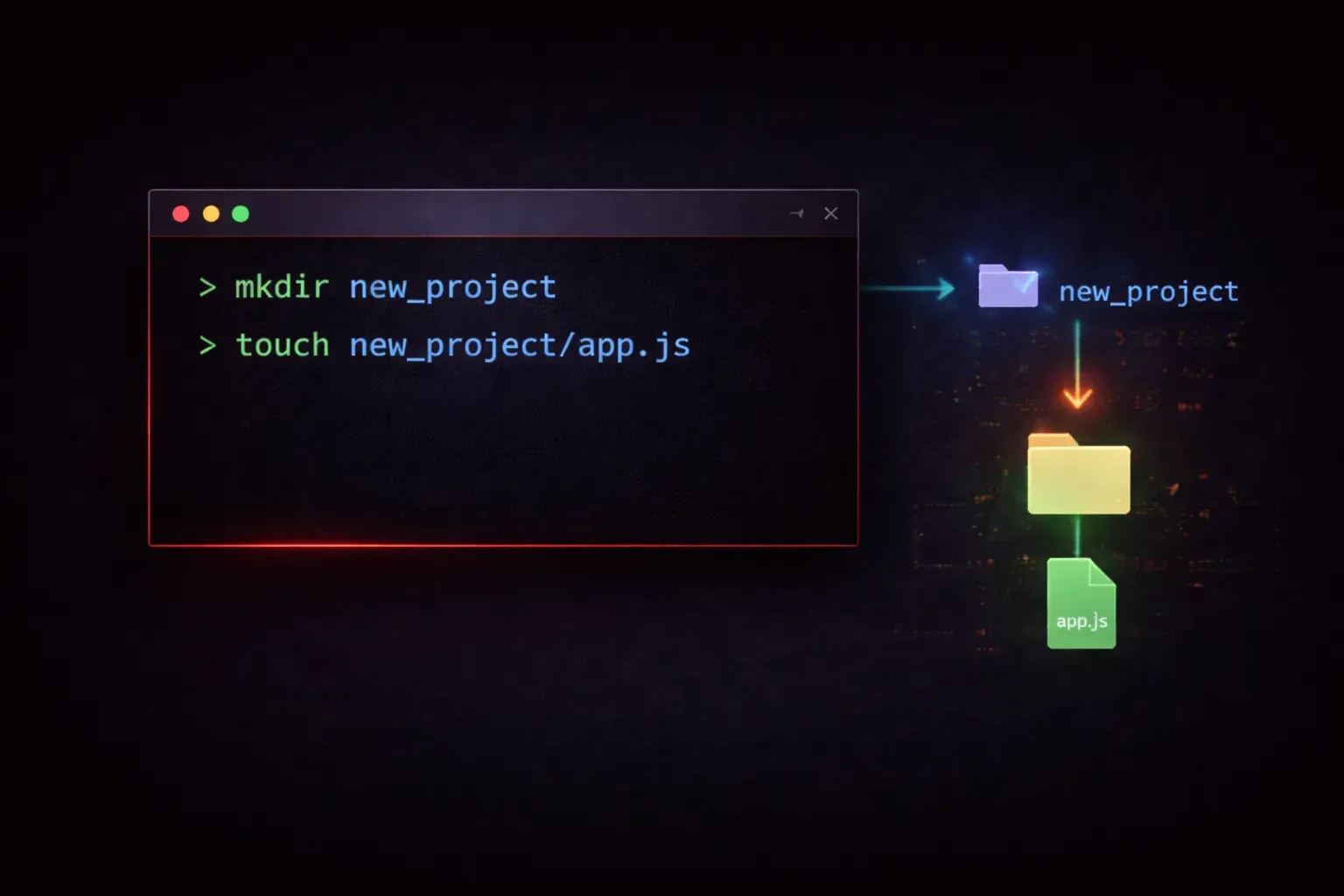
Working with files and folders is one of the most fundamental skills you'll need when using the Bash shell. Whether you're managing configuration files, organizing your projects, or cleaning up your system, knowing how to create and delete files and directories efficiently will make you much more productive on the command line.
Let's start with the basics and work our way up to more advanced techniques that will help you manage your filesystem like a pro.
Creating Files in Bash
There are several ways to create files in Bash, each with its own use case. The most common method is using the touch command:
touch myfile.txtThis creates an empty file called myfile.txt in your current directory. You can create multiple files at once by listing them:
touch file1.txt file2.txt file3.txtAnother way to create files is by redirecting output using the > operator:
echo "Hello, World!" > greeting.txtThis creates a file with content immediately. If the file already exists, > will overwrite it. To append to an existing file instead, use >>:
echo "Another line" >> greeting.txtCreating Directories
To create directories, use the mkdir command:
mkdir my-projectYou can create multiple directories at once:
mkdir docs scripts configTo create a directory structure with parent directories that don't exist yet, use the -p flag:
mkdir -p projects/web-app/frontend/srcThis creates the entire directory path, even if projects, web-app, and frontend don't exist yet.
Deleting Files
To delete files, use the rm command:
rm myfile.txtYou can delete multiple files at once:
rm file1.txt file2.txt file3.txtBe careful with wildcards. This command deletes all .txt files in the current directory:
rm *.txtWarning: The rm command permanently deletes files. There's no "recycle bin" on the command line, so double-check your commands before executing them.
Deleting Directories
For empty directories, use rmdir:
rmdir empty-folderTo delete directories that contain files, use rm with the -r (recursive) flag:
rm -r my-projectFor extra safety, add the -i flag to prompt for confirmation before each deletion:
rm -ri my-projectPractical Examples
Let's put it all together with a real-world scenario. Say you're setting up a new project structure:
# Create project structure
mkdir -p my-app/{src,tests,docs}

# Create some initial files
touch my-app/README.md
touch my-app/src/main.py
touch my-app/tests/test_main.py

# Add content to README
echo "# My Application" > my-app/README.md
echo "This is my awesome project!" >> my-app/README.md
Later, if you want to clean up some temporary files:
# Remove all .tmp files
rm *.tmp

# Remove an entire directory and its contents
rm -r old-project
Safety Tips
Always be cautious when deleting files and directories. Here are some safety practices:
- Use
lsto list files before deleting to verify what you're about to remove - Use the
-iflag withrmfor interactive confirmation - Consider using
mvto move files to a "trash" directory instead of immediate deletion - Be extra careful with wildcards and recursive deletions
What's Next
Now that you can create and delete files and directories, you're ready to learn about viewing and editing file contents. In the next post, we'll explore commands like cat, less, and nano to help you work with the content inside your files.