
Creating and Managing Users in Linux
Learn the essential commands and best practices for creating, modifying, and managing user accounts in Linux. Covers useradd, usermod, userdel, groups, and security considerations for proper user administration.

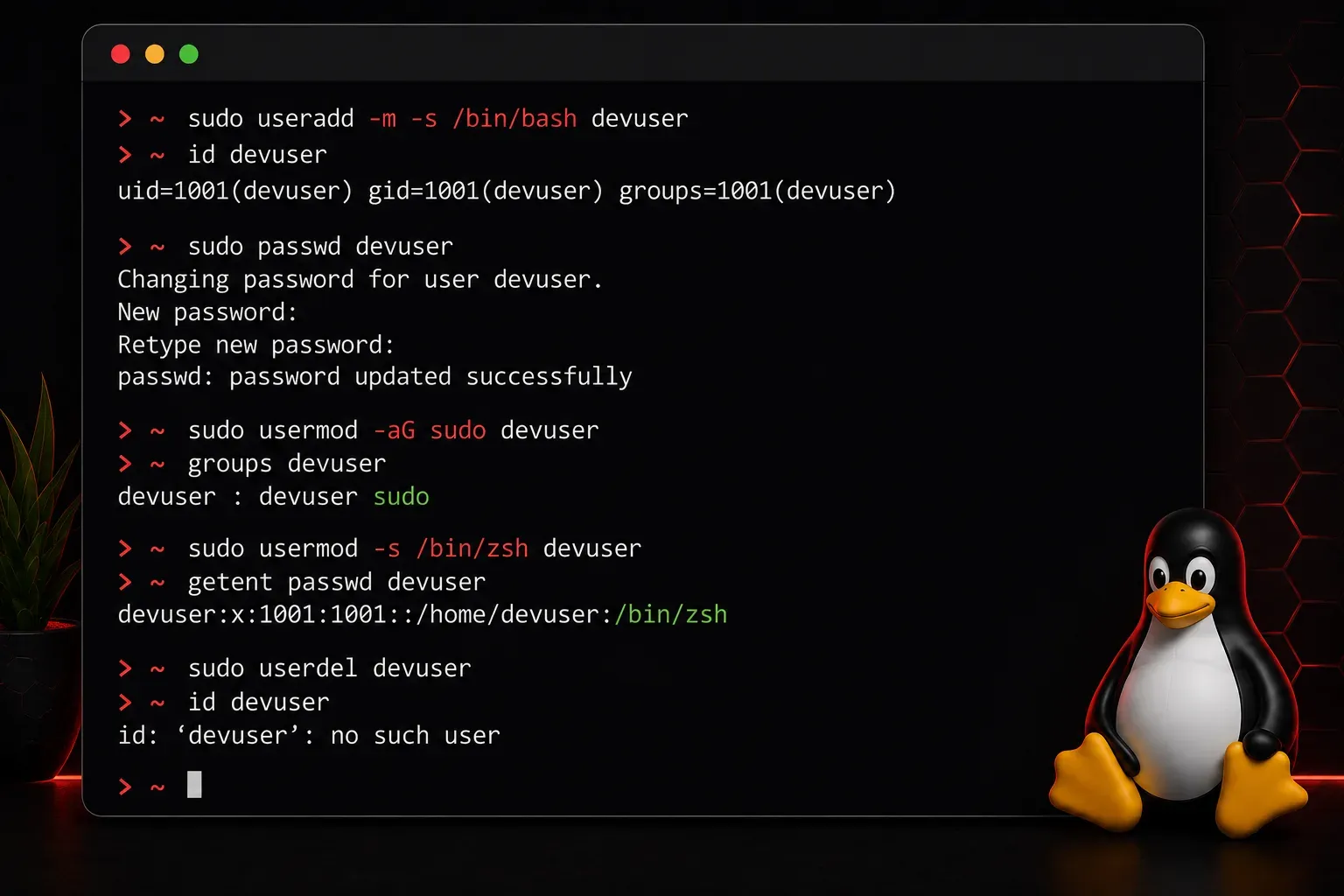
Understanding User Management in Linux
One of the fundamental skills every Linux administrator needs is creating and managing user accounts. Whether you're setting up a home server or managing a corporate environment, understanding how to properly handle users and their permissions is essential for system security and organization.
In Linux, every user has a unique identifier called a User ID (UID) and belongs to one or more groups, each with a Group ID (GID). UIDs and GIDs are numeric identifiers that the system uses internally to track ownership and permissions—typically, regular users have UIDs starting from 1000, while system users use lower numbers. This system allows fine-grained control over who can access what resources on your system.
Creating New Users
The primary command for creating users in Linux is useradd. Let's start with a basic example:
sudo useradd johnImportant note: The sudo command allows you to run commands with administrator privileges, which is required for user management tasks. The basic useradd command above creates a user account but does not create a home directory by default.
For a more complete setup, you'll typically want to use additional options:
sudo useradd -m -s /bin/bash -G sudo johnLet's break down these options:
-m: Creates a home directory for the user (crucial for most users)-s /bin/bash: Sets the default shell to bash-G sudo: Adds the user to the sudo group for administrative privileges
After creating the user, you need to set a password:
sudo passwd johnMany Linux distributions also include the adduser command, which is a more user-friendly, interactive wrapper around useradd. Unlike useradd, adduser automatically creates a home directory and prompts you for additional information:
sudo adduser janeThe adduser command guides you through setting a password and entering user details, making it ideal for beginners.
Viewing User Information
To see information about users on your system, you can examine the /etc/passwd file:
cat /etc/passwdEach line represents a user with fields separated by colons: username, password placeholder, UID, GID, description, home directory, and default shell. Note that the second field is just a placeholder (usually an "x"), actual password hashes are stored securely in the /etc/shadow file, which is only readable by root.
For current user information, use the id command:
id johnThis shows the user's UID, primary group GID, and all groups they belong to.
Modifying User Accounts
The usermod command allows you to modify existing user accounts. Here are common modifications:
Adding a user to additional groups:
sudo usermod -aG developers johnThe -a flag appends the user to the group without removing them from existing groups.
Changing the user's home directory:
sudo usermod -d /home/newlocation -m johnChanging the default shell:
sudo usermod -s /bin/zsh johnLocking a user account:
sudo usermod -L johnTo unlock, use -U instead of -L.
Managing Groups
Groups are essential for organizing users and managing permissions. Create a new group with:
sudo groupadd developersView all groups in the system:
cat /etc/groupTo see which groups a user belongs to:
groups johnRemoving Users
When you need to remove a user account, use the userdel command:
sudo userdel johnThis removes the user account but keeps their home directory. To remove everything, including the home directory:
sudo userdel -r johnImportant: Always backup important data before removing user accounts, as the -r option permanently deletes the user's files.
Best Practices
When managing users in Linux, follow these guidelines:
- Use strong passwords and consider enforcing password policies
- Assign users to appropriate groups rather than giving individual permissions
- Regularly audit user accounts and remove unused ones
- Use descriptive comments in the user description field
- Be cautious with sudo privileges—only grant them when necessary
What's Next
Now that you understand user creation and management, the next logical step is diving deeper into Linux file permissions and ownership. Understanding how user accounts interact with file system permissions will complete your foundation in Linux security and access control.