
Deleting Files and Folders in Linux
Learn how to safely delete files and folders in Linux using the rm and rmdir commands. Covers essential safety practices, wildcards, and common mistakes to avoid when removing files from the command line.

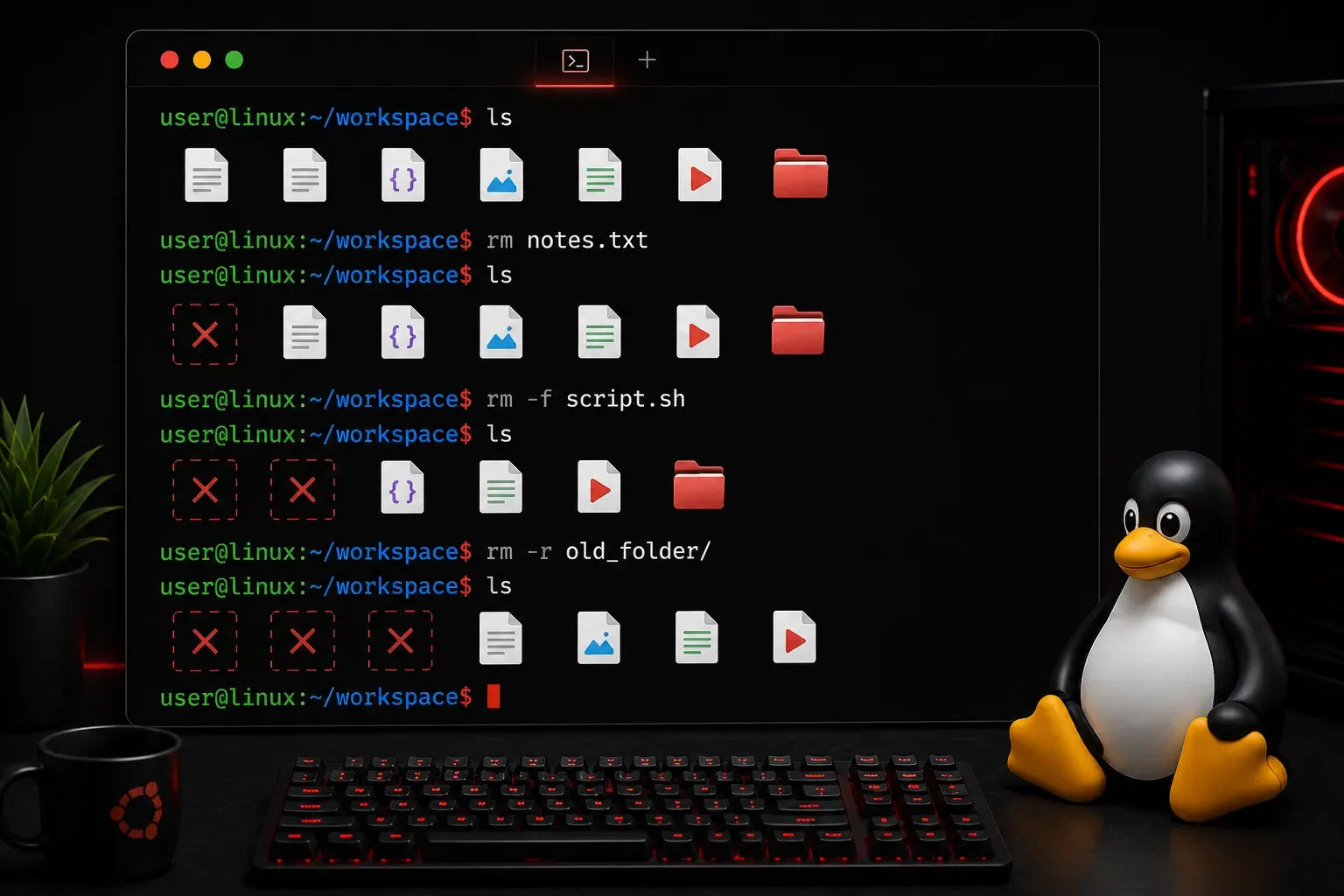
Learning how to safely delete files and folders in Linux is an essential skill that every user needs to master. Unlike graphical file managers where you can simply drag items to the trash, the Linux command line requires specific commands and careful attention to avoid accidental data loss.
Understanding Linux File Deletion
In Linux, deletion is typically permanent by default. When you delete a file or folder using command-line tools, it's immediately removed from the filesystem rather than being moved to a trash folder. This makes understanding the proper commands and safety practices crucial.
Deleting Files with the rm Command
The rm (remove) command is the primary tool for deleting files in Linux. Here's the basic syntax:
rm filenameFor example, to delete a file called old_document.txt:
rm old_document.txtYou can delete multiple files at once by listing them:
rm file1.txt file2.txt file3.txtUsing Wildcards for Pattern Deletion
Linux supports wildcards to delete multiple files matching a pattern. The asterisk (*) represents any number of characters:
rm *.tmp        # Deletes all files ending with .tmp
rm backup_*     # Deletes all files starting with backup_
rm test?.txt    # Deletes test1.txt, test2.txt, etc.
Deleting Directories
Empty directories can be removed using the rmdir command:
rmdir empty_folderHowever, rmdir only works on empty directories. For directories containing files, you'll need to use rm with the recursive flag:
rm -r folder_nameThe -r (recursive) flag tells rm to delete the directory and all its contents, including subdirectories.
Important Safety Options
Interactive Mode (-i)
The -i flag prompts you before deleting each file, providing a safety net:
rm -i important_file.txtThis will display a prompt like:
rm: remove regular file 'important_file.txt'? yType 'y' to confirm or 'n' to cancel.
Force Deletion (-f)
The -f (force) flag suppresses prompts and error messages. Use this with extreme caution:
rm -f stubborn_file.txtCombining Options
You can combine flags for different behaviors. For example, to recursively delete with confirmation:
rm -ri old_project_folderBest Practices for Safe Deletion
Always double-check your command before pressing Enter, especially when using wildcards or the recursive flag. A simple typo can delete important files.
Use the ls command first to verify what files match your pattern:
ls *.log        # Check what .log files exist
rm *.log        # Then delete them
Start with interactive mode when you're learning or working with important files:
rm -ri old_data/Consider creating backups before bulk deletions, especially for important directories.
Common Mistakes to Avoid
Never run rm -rf / or similar commands that could delete system files. Be especially careful with spaces in commands - rm -rf / home/user/temp (with an accidental space) is very different from rm -rf /home/user/temp.
When using wildcards, be specific. rm * deletes everything in the current directory, which is rarely what you want.
What's Next
Now that you understand file and folder deletion, the next logical step is learning about file permissions in Linux. Understanding how to modify file permissions with commands like chmod and chown will give you complete control over your Linux filesystem management.