
Troubleshooting Common Issues in Virtual Machine Networking
A comprehensive guide to troubleshooting common virtual machine networking issues, covering virtual switch problems, connectivity challenges, and systematic troubleshooting methodologies for enterprise virtualized environments.

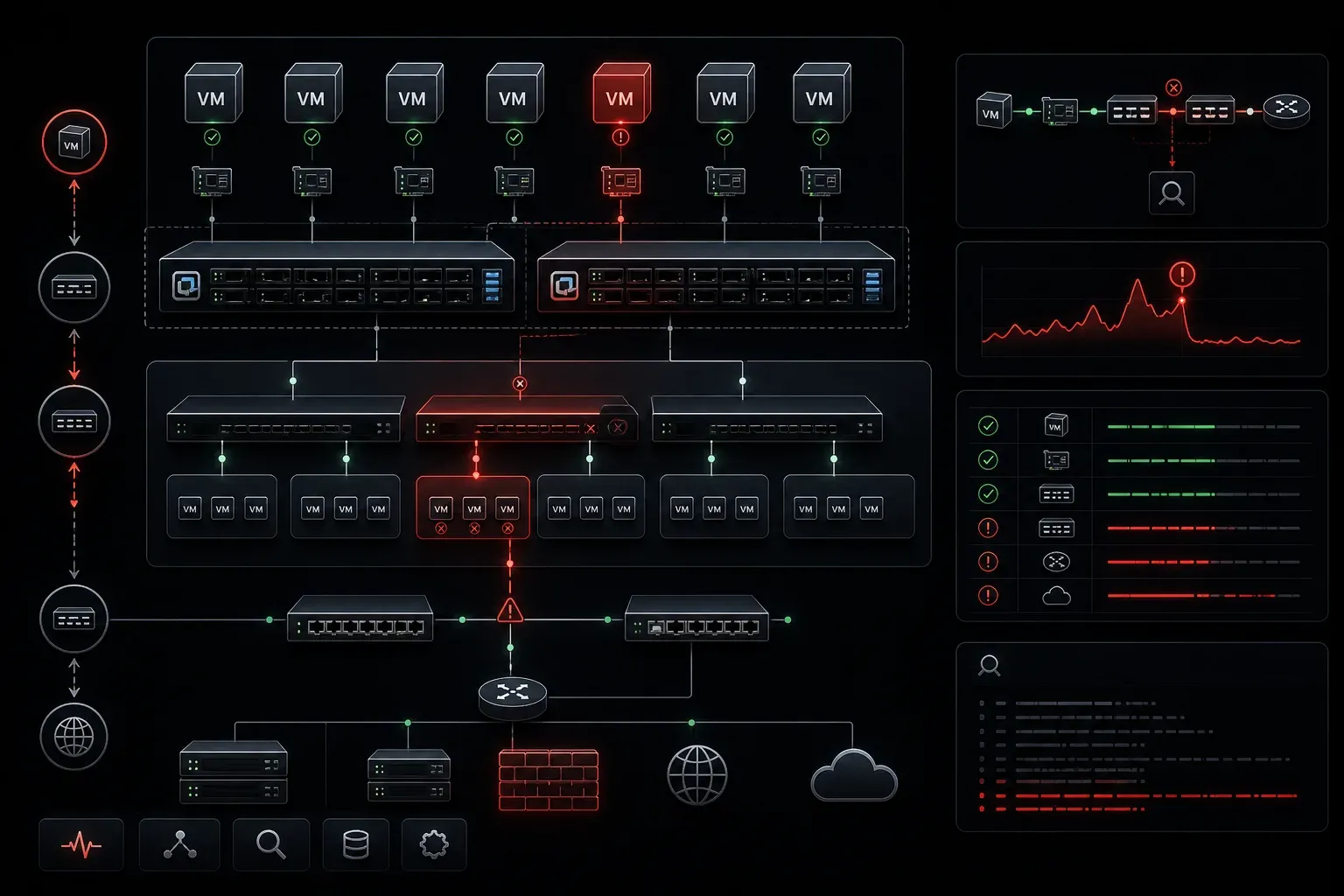
Virtual machine networking troubleshooting requires a systematic approach that spans multiple layers of abstraction. Unlike physical networking where you're dealing with cables, switches, and routers, VM environments introduce hypervisor networking layers, virtual switches, and software-defined networking constructs that can fail in unique ways.
Virtual Switch Connectivity Issues
The virtual switch is often the first point of failure in VM networking. When VMs lose connectivity, start by examining the virtual switch configuration and port group assignments.
In VMware environments, check the vSwitch configuration:
esxcli network vswitch standard list
esxcli network vswitch standard portgroup list
Common virtual switch problems include:
- Port group VLAN misconfigurations: VMs assigned to incorrect VLAN IDs
- Uplink failures: Physical NICs assigned to the vSwitch are experiencing hardware issues
- MAC address conflicts: Duplicate MAC addresses in the virtual environment
- Security policy violations: Promiscuous mode, MAC changes, or forged transmits blocked
To verify port group VLAN settings:
esxcli network vswitch standard portgroup get -p "VM Network"
Check for uplink status and verify physical connectivity:
esxcli network nic list
esxcli network vswitch standard uplink list
VM Network Adapter Configuration Problems
VM network adapter issues manifest as complete connectivity loss or performance degradation. The virtual network adapter type significantly impacts functionality and performance.
Common adapter-related issues include:
- Driver mismatches: Guest OS lacking proper drivers for the virtual NIC type
- Hardware acceleration conflicts: SR-IOV or DPDK configurations causing instability
- Resource contention: Insufficient CPU or memory affecting network performance
When troubleshooting adapter issues, verify that the virtual hardware version and network adapter type match the guest OS requirements. For Linux VMs, check network interface status:
ip link show
ethtool eth0
dmesg | grep -i network
For Windows VMs, examine Device Manager for network adapter errors and verify driver versions.
DHCP and IP Assignment Issues
IP addressing problems in VM environments often stem from DHCP relay configurations or IP pool exhaustion. Unlike physical environments, VMs can be rapidly provisioned, quickly consuming available IP addresses.
Troubleshoot DHCP issues by examining:
- DHCP scope utilization: Pool exhaustion preventing new assignments
- VLAN routing: Missing IP helper-address configurations on VLAN interfaces
- VM mobility: VMs moved between VLANs retaining old IP assignments
Check DHCP lease status and scope utilization:
# On Cisco switches
show ip dhcp binding
show ip dhcp pool POOL_NAME

# On Linux DHCP servers
dhcp-lease-list
tail -f /var/log/dhcp/dhcpd.log
Static IP Conflicts
VM templates and cloning operations frequently create static IP conflicts. Implement proper IP address management (IPAM) practices and use tools like nmap to detect conflicts:
nmap -sn 192.168.1.0/24 | grep -B2 "Host is up"
arp-scan -l
Virtual Network Segmentation Issues
Network segmentation in virtualized environments requires careful coordination between virtual and physical networking. Microsegmentation policies and distributed firewall rules can block legitimate traffic.
Common segmentation issues include:
- Inconsistent VLAN tagging: Mixed trunk and access port configurations
- Distributed firewall rules: NSX or similar SDN policies blocking traffic
- QoS misconfigurations: Traffic shaping policies causing drops
Verify VLAN configuration consistency between virtual and physical infrastructure:
# VMware vSphere
esxcli network vswitch standard policy security get -v vSwitch0
esxcli network vswitch standard policy failover get -v vSwitch0

# Physical switch verification
show vlan brief
show interfaces trunk
show spanning-tree vlan VLAN_ID
Performance and Latency Problems
VM networking performance issues often relate to resource contention, inefficient virtual switch configurations, or suboptimal traffic flows.
Key performance troubleshooting steps:
- CPU and memory allocation: Insufficient resources affecting network processing
- Virtual switch load balancing: Uneven traffic distribution across uplinks
- Jumbo frame mismatches: MTU inconsistencies causing fragmentation
Monitor network performance using built-in tools:
# ESXi network statistics
esxtop -n
# Select 'n' for network view

# VM-level monitoring
iperf3 -s # On destination VM
iperf3 -c TARGET_IP -t 30 # On source VM
Systematic Troubleshooting Methodology
Apply a layered approach when troubleshooting VM networking issues:
- Physical layer: Verify cable connectivity and port status on physical switches
- Virtual switch layer: Check vSwitch configuration, uplinks, and port groups
- VM configuration layer: Verify network adapter settings and driver versions
- Guest OS layer: Examine network interface configuration and routing tables
- Application layer: Test specific service connectivity and firewall rules
Document your findings and create runbooks for common failure scenarios. VM networking environments change rapidly, making consistent troubleshooting procedures essential for efficient problem resolution.
What's Next
With VM networking troubleshooting skills established, the next logical step is exploring network automation in virtualized environments. Understanding how to programmatically configure and monitor virtual networks using APIs and automation tools will significantly improve your operational efficiency and reduce manual configuration errors.
Tools and resources for this topic
- CCNP ENCOR 350-401 Official Cert Guide — The definitive ENCOR study resource by Brad Edgeworth. Covers enterprise infrastructure, virtualisation, and automation.