
Installing Ubuntu: VM, WSL, or Bare Metal
Compares three Ubuntu installation methods for network engineers: WSL2, VirtualBox VM, and bare metal. Recommends WSL2 for beginners due to its simplicity and seamless Windows integration.

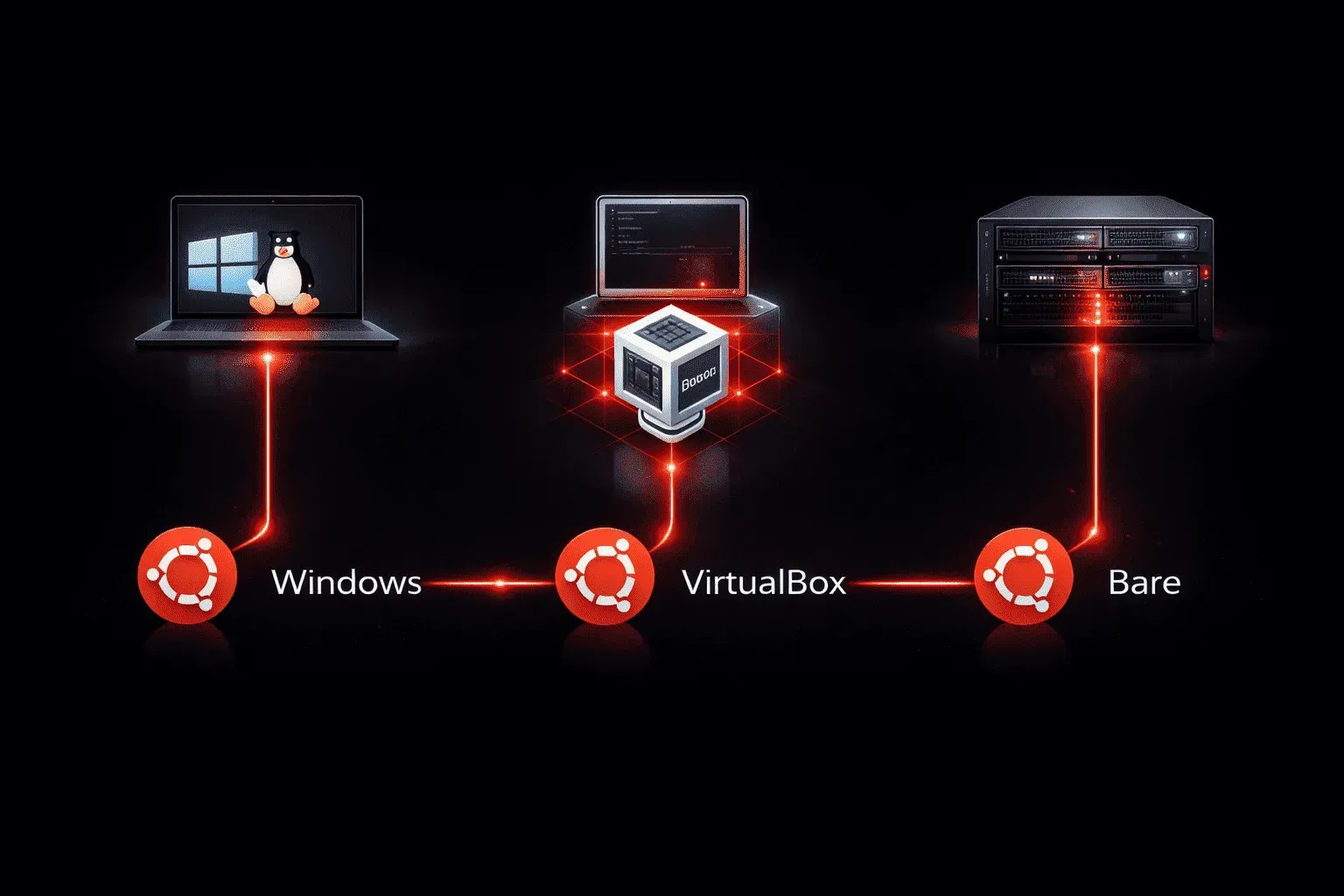
Getting started with Linux can feel overwhelming when you're faced with multiple installation options. As a network engineer, you need a Linux environment that's practical for learning and real work. Let's explore three popular ways to install Ubuntu and help you choose the best approach for your situation.
Why Ubuntu for Network Engineers?
Ubuntu is an excellent choice for network engineers because it has extensive community support, works well with networking tools like Python, Ansible, and network simulators, and provides a stable foundation for learning Linux fundamentals. The question isn't whether to use Ubuntu, but how to install it.
Option 1: WSL2 (Recommended for Beginners)
Windows Subsystem for Linux 2 (WSL2) is my top recommendation for network engineers starting their Linux journey. It provides a full Ubuntu environment that runs seamlessly alongside Windows, perfect for those who need both operating systems.
Installing WSL2
First, enable WSL2 on Windows 10/11. Open PowerShell as Administrator and run:
wsl --install -d UbuntuThis single command enables WSL2, installs Ubuntu, and sets it as your default distribution. After restarting your computer, you'll find Ubuntu in your Start menu. Launch it, create your user account, and you're ready to go.
WSL2 Advantages:
- No dual-boot complexity
- Access Windows and Linux files seamlessly
- Near-native Linux performance
- Perfect for network automation and scripting
- Easy to uninstall if needed
Option 2: VirtualBox Virtual Machine
A VirtualBox Linux setup gives you complete control over your Ubuntu environment and works on any host operating system. This approach is ideal if you want to experiment with different Linux distributions or need isolation between your learning environment and main system.
Setting Up Ubuntu in VirtualBox
Download VirtualBox from virtualbox.org and the Ubuntu ISO from ubuntu.com. Create a new VM with these recommended settings:
- Memory: 4GB minimum (8GB preferred)
- Storage: 25GB dynamic disk
- Network: NAT (default)
Mount the Ubuntu ISO and follow the installation wizard. The process takes about 20-30 minutes, and you'll have a complete Ubuntu desktop environment.
VirtualBox Advantages:
- Complete Ubuntu desktop experience
- Snapshots for easy recovery
- Works on Windows, Mac, and Linux hosts
- Multiple VMs for different projects
Option 3: Bare Metal Installation
Installing Ubuntu directly on hardware provides the best performance and full access to all system resources. This option works well if you have a dedicated machine for Linux or want to dual-boot with Windows.
Create a bootable USB drive using tools like Rufus (Windows) or Balena Etcher (cross-platform). Boot from the USB and follow Ubuntu's installer. For dual-boot setups, the installer can automatically partition your drive alongside Windows.
Bare Metal Advantages:
- Maximum performance
- Full hardware access
- Best for resource-intensive tasks
- Complete Linux experience
Which Option Should You Choose?
For network engineers just starting with Linux, WSL2 is the clear winner. It provides a genuine Linux environment without the complexity of dual-booting or the resource overhead of virtualization. You can run network automation scripts, practice Linux commands, and use tools like ssh, ping, and traceroute exactly as you would on any Linux system.
Choose VirtualBox if you need a graphical desktop environment for learning or want to experiment with network simulation tools that require GUI interfaces. Go with bare metal only if you're ready to commit to Linux as your primary operating system or have dedicated hardware for learning.
Getting Started After Installation
Regardless of your installation method, your first steps should be updating the system:
sudo apt update
sudo apt upgrade
Then install essential networking tools:
sudo apt install openssh-client net-tools curl wget python3-pipWhat's Next
Now that you have Ubuntu running, it's time to get familiar with the Linux file system. Understanding how Linux organizes files and directories is crucial for effective navigation and system administration. We'll explore the filesystem hierarchy and essential directory structures in the next post.