
Linux Channel Redirection Explained
Linux channel redirection manages input and output streams through stdin, stdout, and stderr. Learn to redirect output to files, pipe commands together, and handle error messages effectively for better system administration.

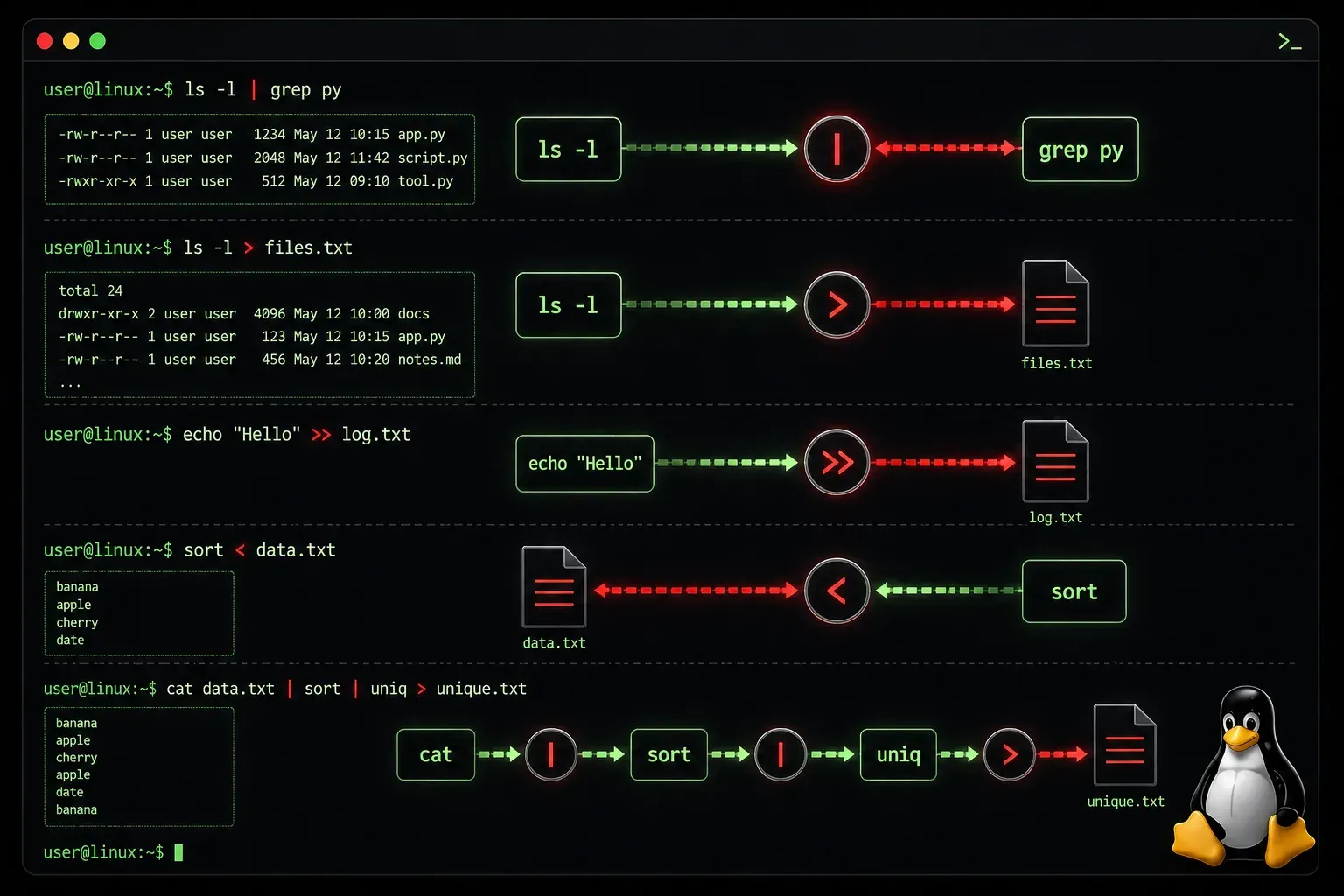
Channel redirection in Linux is one of those fundamental concepts that transforms how you work with the command line. Instead of commands just displaying output on your screen, you can redirect that output to files, send it to other commands, or even suppress it entirely. Understanding this concept will make you significantly more efficient at system administration tasks.
Understanding the Three Standard Channels
Every Linux process has three standard data streams that handle input and output:
- stdin (standard input) - File descriptor 0, where programs read input data
- stdout (standard output) - File descriptor 1, where programs write normal output
- stderr (standard error) - File descriptor 2, where programs write error messages
By default, stdin comes from your keyboard, while both stdout and stderr display on your terminal screen. Channel redirection lets you change these defaults.
Basic Output Redirection
The most common redirection operation sends stdout to a file using the > operator:
ls -l > file_list.txtThis command runs ls -l but instead of showing the output on screen, it writes the directory listing to file_list.txt. The file gets created if it doesn't exist, or completely overwritten if it does.
To append output to an existing file instead of overwriting it, use >>:
echo "New entry" >> logfile.txtInput Redirection
You can redirect stdin to read from a file instead of the keyboard using <:
sort < unsorted_names.txtThis feeds the contents of unsorted_names.txt to the sort command. You can also combine input and output redirection:
sort < unsorted_names.txt > sorted_names.txtError Redirection
Since error messages use stderr (file descriptor 2), they still appear on screen even when you redirect stdout. To redirect errors, specify the file descriptor number:
ls nonexistent_directory 2> error.logYou can redirect both stdout and stderr to the same file:
ls -l /home /nonexistent > output.log 2>&1The 2>&1 syntax means "redirect stderr to wherever stdout is going."
Pipes: Connecting Commands
Pipes (|) connect the stdout of one command directly to the stdin of another, creating powerful command chains:
ps aux | grep apache | wc -lThis pipeline counts how many Apache processes are running by:
- Listing all processes with
ps aux - Filtering for lines containing "apache" with
grep - Counting the resulting lines with
wc -l
Advanced Redirection Techniques
The tee command lets you both display output and save it to a file simultaneously:
ls -l | tee directory_listing.txtTo discard output entirely, redirect it to /dev/null, Linux's "black hole" device:
command > /dev/null 2>&1This runs command silently, discarding both normal output and error messages.
Practical Example
Here's a real-world scenario combining multiple redirection techniques. Let's create a system monitoring script that logs successful commands but captures errors separately:
#!/bin/bash
date >> system_log.txt
df -h >> system_log.txt 2>> error_log.txt
free -m >> system_log.txt 2>> error_log.txt
uptime >> system_log.txt 2>> error_log.txt
This script appends timestamps and system information to system_log.txt while capturing any errors in error_log.txt.
What's Next
Now that you understand channel redirection, the next logical step is exploring Linux text processing tools like grep, sed, and awk. These tools become incredibly powerful when combined with pipes and redirection to create sophisticated data processing pipelines.
Tools and resources for this topic
- CompTIA Linux+ Study Guide — Comprehensive Linux+ exam preparation covering system administration, security, and scripting.