
Mastering Paths in Linux: Absolute vs Relative
Learn the fundamental difference between absolute and relative paths in Linux file system navigation. This guide covers practical examples and when to use each type for effective system management.

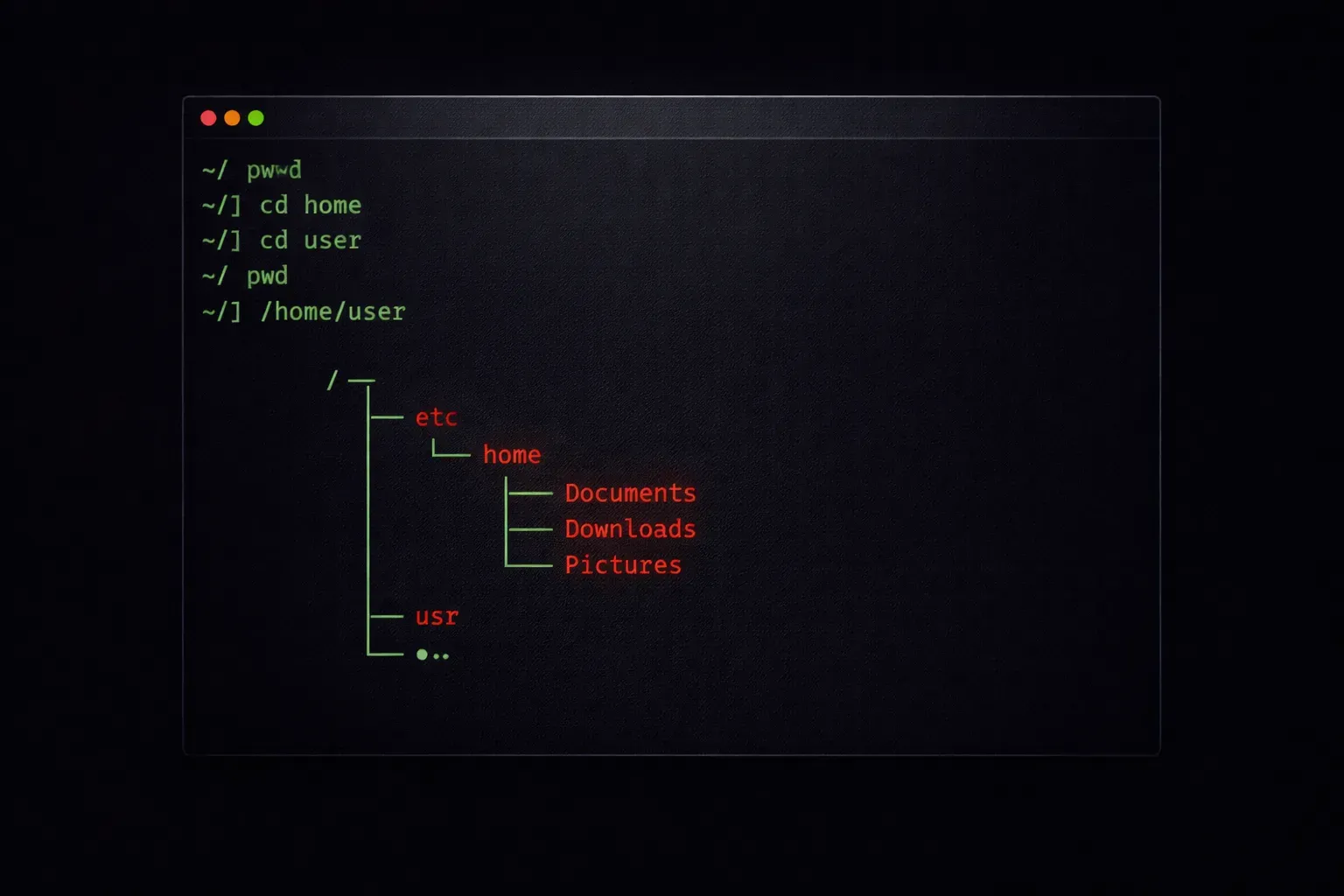
Understanding paths is fundamental to working with any Linux system. Every file and directory in Linux has an address (its path) that tells the system exactly where to find it. Mastering the difference between absolute and relative paths will make you more efficient at navigating and managing the Linux file system.
What Are Linux Paths?
A path in Linux is like a street address for files and directories. It describes the route through the file system hierarchy to reach a specific location. Linux uses forward slashes (/) to separate directories in paths, and everything starts from the root directory (/).
There are two types of paths you need to understand: absolute paths and relative paths.
Absolute Paths: The Complete Address
An absolute path always starts with a forward slash (/) and provides the complete route from the root directory to your target file or directory. Think of it as giving someone your full street address, including the country and postal code.
Here are some common absolute paths:
/home/john/documents/report.txt
/etc/passwd
/var/log/syslog
/usr/bin/python3
Let's see absolute paths in action. First, check your current location:
$ pwd
/home/john
Now navigate using an absolute path:
$ cd /var/log
$ pwd
/var/log
No matter where you are in the file system, /var/log will always take you to the same location because it's an absolute path.
Relative Paths: Navigation from Here
Relative paths don't start with a forward slash. Instead, they describe the route from your current location to the target. It's like giving directions from where you are now: "go two blocks north, then turn left."
Relative paths use special symbols:
.(single dot): current directory..(double dot): parent directory- No leading slash: path relative to current directory
Let's practice with relative paths. Starting from your home directory:
$ pwd
/home/john
$ cd documents
$ pwd
/home/john/documents
Here, documents is a relative path. Now let's go back up one level:
$ cd ..
$ pwd
/home/john
You can chain these together. To go up two levels and then into a different directory:
$ cd ../../var/log
$ pwd
/var/log
Practical Examples in File System Navigation
Let's explore some real scenarios. Imagine you're in /home/john/projects/website and need to access different locations:
$ pwd
/home/john/projects/website

# Relative path to a file in the same directory
$ ls index.html

# Relative path to parent directory
$ ls ../

# Relative path to a subdirectory
$ cd css/
$ pwd
/home/john/projects/website/css

# Go back to parent using relative path
$ cd ../

# Absolute path - works from anywhere
$ cd /etc
$ pwd
/etc
When to Use Each Type
Use absolute paths when:
- Writing scripts that need to work regardless of where they're run
- Referencing system directories like
/etc,/var, or/usr - You want to be absolutely certain about the location
Use relative paths when:
- Working within a project directory structure
- Moving between nearby directories
- Creating portable directory structures that can be moved as a unit
Common Path Shortcuts
Linux provides helpful shortcuts for common locations:
$ cd ~        # Go to your home directory
$ cd          # Same as above (cd with no arguments)
$ cd -        # Go back to previous directory
The tilde (~) expands to your home directory, so ~/documents is equivalent to /home/username/documents.
What's Next
Now that you understand absolute and relative paths, you're ready to explore file and directory operations. In our next post, we'll cover creating, copying, and moving files and directories using these path concepts, including the essential cp, mv, and mkdir commands.
Tools and resources for this topic
- CompTIA Linux+ Study Guide — Comprehensive Linux+ exam preparation covering system administration, security, and scripting.