
Malware Removal Steps: How to Clean Your Computer Safely
A comprehensive guide covering essential malware removal steps for beginners. Includes immediate response actions, systematic removal processes, scan log interpretation, and post-removal verification to ensure complete system cleaning.

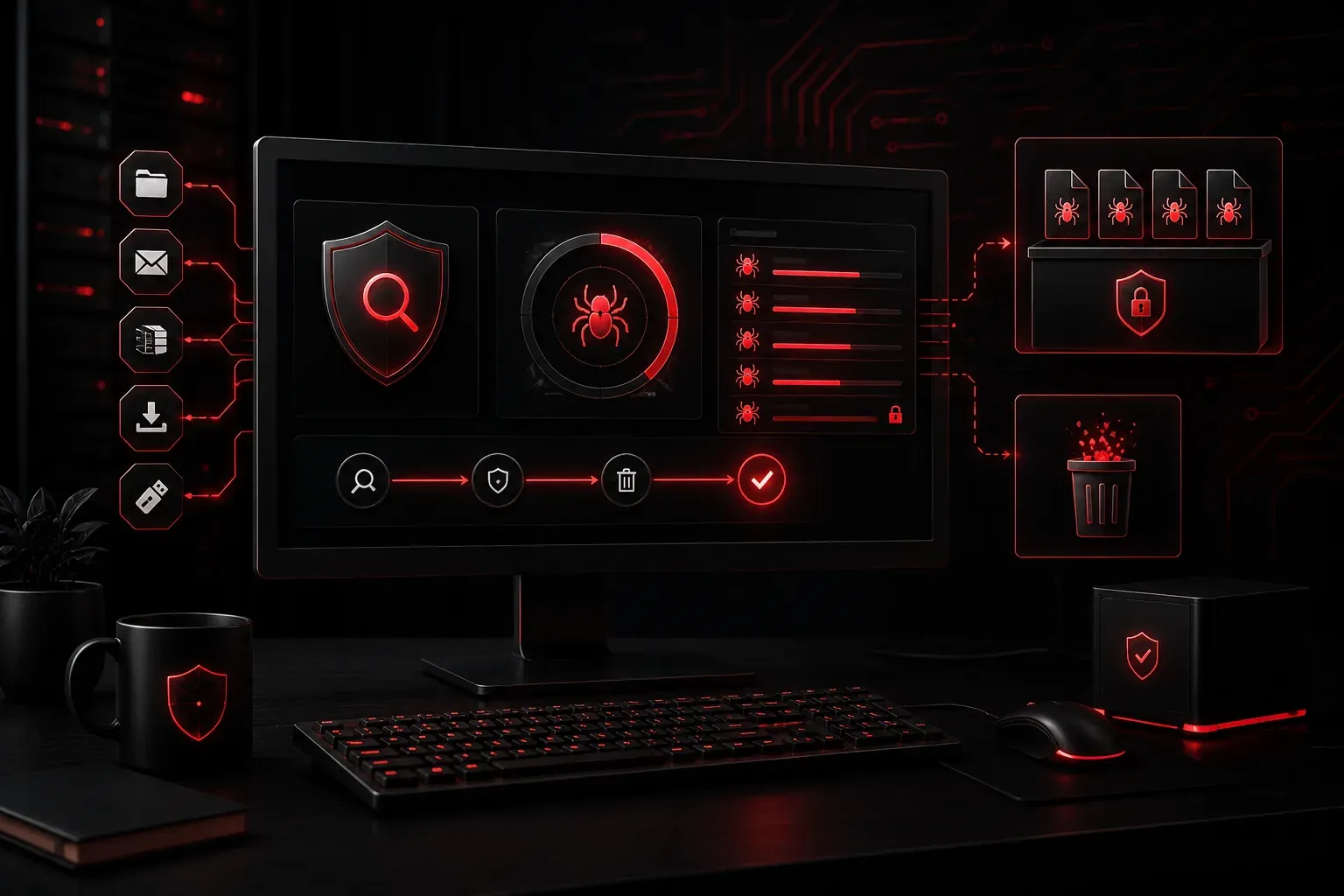
When your computer gets infected with malware, knowing the proper malware removal steps can mean the difference between a quick recovery and a complete system rebuild. This virus removal guide walks you through the essential process of safely cleaning your computer, whether you're dealing with viruses, trojans, or other malicious software.
Immediate Response Steps
The moment you suspect malware infection, take these critical first steps:
- Disconnect from the internet - Unplug your Ethernet cable or disable Wi-Fi to prevent data theft and further malware downloads
- Boot into Safe Mode - For Windows 10/11: Hold
Shiftwhile clicking Restart, then navigate to Troubleshoot > Advanced Options > Startup Settings > Restart > press4for Safe Mode. For older Windows versions: PressF8during startup - Document symptoms - Note unusual behavior like slow performance, pop-ups, or unknown programs
Safe Mode limits the malware's ability to operate while giving you access to removal tools. This controlled environment is crucial for effective computer cleaning.
Systematic Malware Removal Process
Step 1: Run Multiple Antivirus Scans
Use a layered approach with different scanning engines:
- Primary antivirus scan - Run your installed antivirus in full system scan mode
- Secondary scanner - Use tools like Malwarebytes or Windows Defender Offline
- Bootable antivirus - Create a rescue disk from vendors like Kaspersky or Bitdefender
Different antivirus engines detect different threats. What one misses, another might catch.
Step 2: Analyze Scan Results
Review scan logs carefully to understand the infection scope:
Threat detected: Trojan.Win32.Agent
Location: C:\Users\John\AppData\Local\Temp\malicious.exe
Action taken: Quarantined
Risk level: High
Pay attention to file locations, threat names, and whether quarantine was successful. Files in system directories or multiple detections indicate more serious infections.
Step 3: Manual Cleanup Tasks
After automated scanning, perform these manual computer cleaning tips:
- Check startup programs - Use Task Manager (Ctrl+Shift+Esc > Startup tab) to disable suspicious startup items. For older Windows versions, you can also use
msconfig - Review installed programs - Uninstall unfamiliar software through Control Panel or Settings > Apps
- Clear temporary files - Use Disk Cleanup or
%temp%folder cleanup - Reset browser settings - Remove malicious extensions and restore default homepage
Post-Removal Verification
System Health Checks
Verify your system is truly clean with these verification steps:
- Monitor system behavior - Watch for 24-48 hours for unusual activity
- Update all software - Patch operating system and applications
Check system integrity - This command repairs corrupted system files by downloading clean copies from Windows Update:
dism /online /cleanup-image /restorehealthRun Windows System File Checker:
sfc /scannowPassword Security
Change all important passwords after malware removal, especially:
- Banking and financial accounts
- Email accounts
- Work-related systems
- Social media profiles
Malware often steals stored passwords, making this step critical for maintaining security.
Prevention Best Practices
Implement these ongoing computer cleaning tips to prevent reinfection:
- Keep software updated - Enable automatic updates for OS and applications
- Use real-time protection - Ensure antivirus real-time scanning is active
- Regular system scans - Schedule weekly full system scans
- Backup important data - Maintain current backups separate from your main system
When to Seek Professional Help
Consider professional assistance when:
- Multiple scan attempts fail to remove malware
- System becomes completely unresponsive
- Critical business or personal data is at risk
- Advanced persistent threats (APTs) are suspected
Remember, the key to successful malware removal is patience and thoroughness. Rushing through these steps or skipping verification can leave your system vulnerable to reinfection.
What's Next
Now that you understand the malware removal process, our next post will cover advanced malware analysis techniques, including how to identify different malware types and understand their behavior patterns for more effective removal strategies.