
Partitioning in Linux: Tools and Techniques
Learn essential Linux partitioning tools including blkid for partition discovery, fdisk for MBR tables, gdisk for GPT schemes, and growpart for dynamic expansion. Master the fundamentals of disk management in Linux systems.

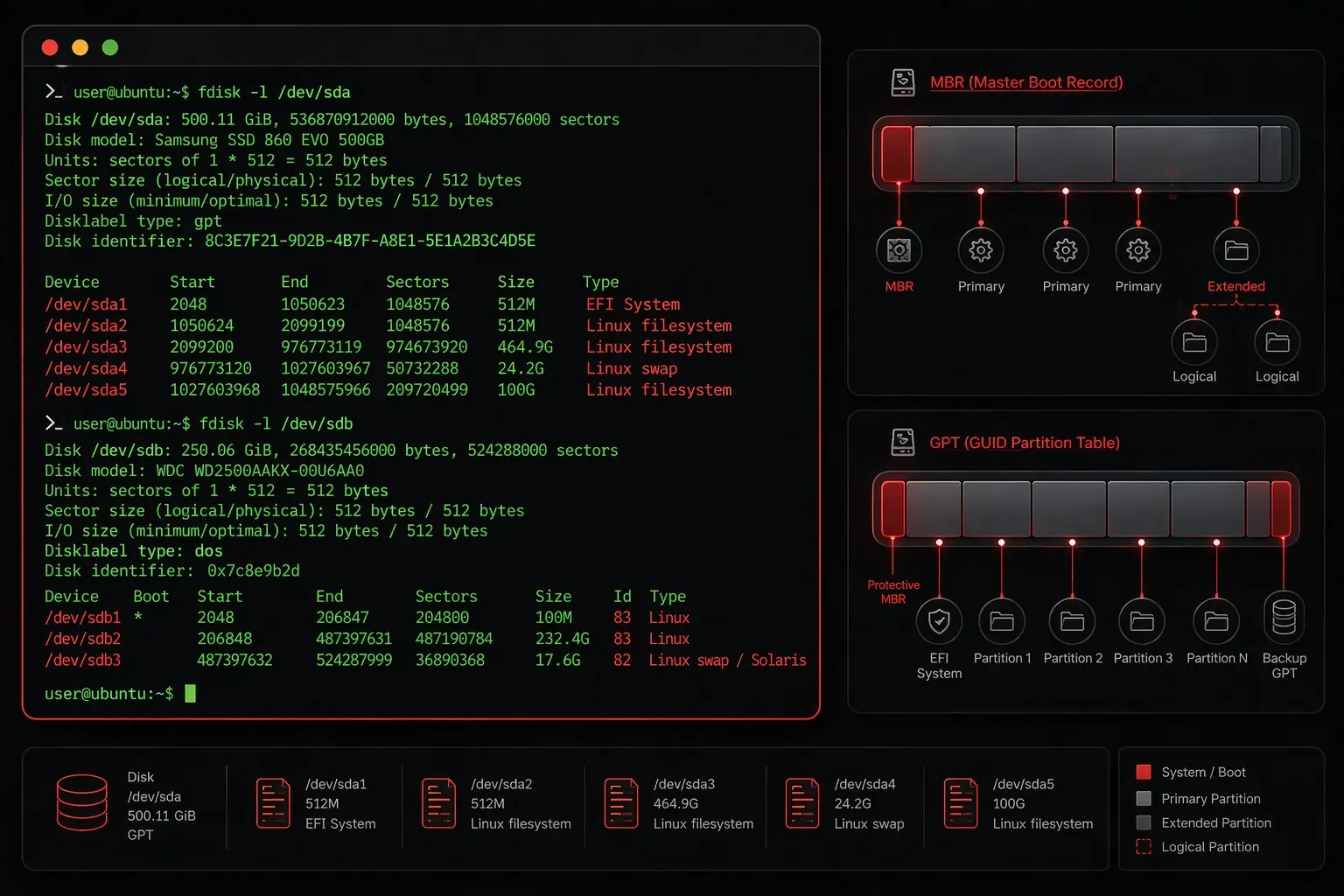
Understanding Linux Partitioning Tools
Disk partitioning is a fundamental skill for any Linux administrator. Whether you're setting up a new system or managing storage on existing servers, understanding the right tools for the job makes all the difference. Linux offers several powerful partitioning utilities, each with specific strengths and use cases.
Before diving into specific tools, it's important to understand that modern Linux systems typically use either MBR (Master Boot Record) or GPT (GUID Partition Table) partition schemes. MBR is the older standard with some limitations, while GPT is the modern approach that supports larger disks and more partitions.
Essential Partitioning Tools
blkid: Your Partition Detective
The blkid command is your first stop when examining existing partitions. It displays information about block devices, including their UUIDs, filesystem types, and labels.
sudo blkid
/dev/sda1: UUID="a1b2c3d4-e5f6-7890-abcd-ef1234567890" TYPE="ext4" PARTUUID="12345678-01"
/dev/sda2: UUID="b2c3d4e5-f6g7-8901-bcde-f23456789012" TYPE="swap" PARTUUID="12345678-02"
This output tells you exactly what's on each partition, which is crucial before making any changes. The UUID information is particularly valuable for updating /etc/fstab entries.
fdisk: The Traditional Workhorse
The fdisk command is the classic Linux partitioning tool, perfect for MBR partition tables and smaller disks. Here's a basic fdisk guide for common operations:
To examine a disk's partition table:
sudo fdisk -l /dev/sda
Disk /dev/sda: 20 GiB, 21474836480 bytes, 41943040 sectors
Units: sectors of 1 * 512 = 512 bytes
Sector size (logical/physical): 512 bytes / 512 bytes

Device     Boot   Start      End  Sectors  Size Id Type
/dev/sda1  *       2048 39845887 39843840   19G 83 Linux
/dev/sda2      39847934 41940991  2093058 1022M  5 Extended
To interactively partition a disk, use sudo fdisk /dev/sda. Within fdisk, key commands include:
p- print the partition tablen- create a new partitiond- delete a partitionw- write changes and exitq- quit without saving changes
gdisk: The Modern GPT Solution
For GPT partition tables, gdisk is your go-to tool. This gdisk tutorial covers the basics of working with modern partition schemes:
sudo gdisk /dev/sda
GPT fdisk (gdisk) version 1.0.5

Command (? for help): p
Disk /dev/sda: 41943040 sectors, 20.0 GiB
Number  Start (sector)    End (sector)  Size       Code  Name
   1            2048         1050623   512.0 MiB   EF00  EFI System
   2         1050624        41940991   19.5 GiB    8300  Linux filesystem
The gdisk interface is similar to fdisk, but it's specifically designed for GPT tables. It automatically handles GPT-specific features like protective MBR and backup partition tables.
growpart: Dynamic Partition Expansion
The growpart utility excels at expanding partitions to use available space, making growpart usage particularly valuable in cloud environments where disk space might be dynamically allocated:
sudo growpart /dev/sda 1
CHANGED: partition=1 start=2048 old: size=39843840 end=39845888 new: size=41940959,end=41942007
This command expands the first partition (/dev/sda1) to use all available space. After expanding the partition, you'll typically need to resize the filesystem using tools like resize2fs for ext4 or xfs_growfs for XFS.
Choosing the Right Tool
When working with Linux partitioning tools, consider these guidelines:
- Use
blkidfirst to understand your current setup - Choose
fdiskfor MBR partition tables or older systems - Prefer
gdiskfor GPT partition tables on modern systems - Use
growpartwhen you need to expand existing partitions
Always remember to backup important data before modifying partition tables, and use the -l flag with fdisk or gdisk to examine partitions safely before making changes.
What's Next
Now that you understand the essential partitioning tools, the next step is learning about Linux filesystem types and their specific characteristics. We'll explore ext4, XFS, Btrfs, and others, helping you choose the right filesystem for your storage needs.
Tools and resources for this topic
- CompTIA Linux+ Study Guide — Comprehensive Linux+ exam preparation covering system administration, security, and scripting.