
How to Set Up a Secure Wi-Fi Network at Home
A comprehensive guide to setting up a secure home Wi-Fi network, covering essential steps from changing default credentials to configuring WPA3 security and enabling advanced protection features.

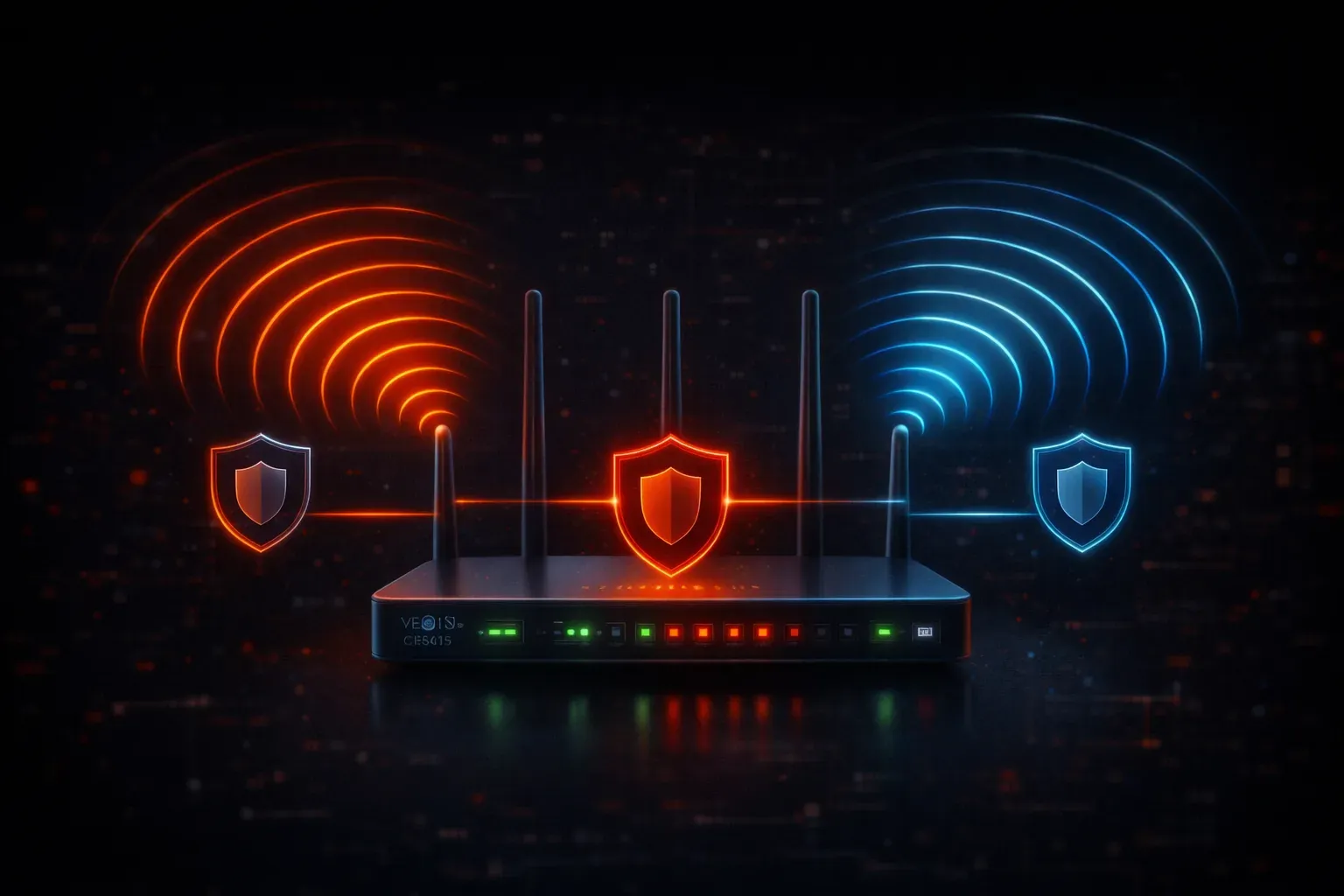
Setting up a secure Wi-Fi network at home is one of the most important cybersecurity steps you can take. Your wireless network is often the first line of defense against cyber threats, and a properly configured setup protects all your connected devices. Let's walk through the essential steps to create a robust wireless protection system for your home.
Step 1: Change Default Router Credentials
Your first task is replacing the default username and password on your router's admin interface. Most routers ship with credentials like admin/admin or admin/password, which attackers know by heart.
Access your router by typing its IP address into your web browser (commonly 192.168.1.1 or 192.168.0.1). Navigate to the administration or system settings and create a strong, unique password for the admin account. Use at least 12 characters with a mix of uppercase, lowercase, numbers, and symbols.
Step 2: Configure Strong Wi-Fi Security
The foundation of secure Wi-Fi home setup lies in choosing the right security protocol. Modern routers support several options, but you should always select WPA3 if available, or WPA2 as a fallback.
Note: While WPA3 offers the best security, not all devices support it yet. Check your device compatibility before enabling WPA3, and consider using WPA2/WPA3 mixed mode if your router supports it.
Never use WEP or leave your network open – these options provide no meaningful security. In your router's wireless settings, look for "Security Mode" or "Authentication Type" and select:
- WPA3-Personal (best option, if compatible)
- WPA2-Personal (widely compatible alternative)
- WPA2/WPA3 Mixed Mode (good compromise for mixed device environments)
Create a strong Wi-Fi password (also called a passphrase) with at least 15 characters. Consider using a memorable phrase with numbers and symbols, like MyHouse2024IsSecure!
Step 3: Update Your Network Name (SSID)
Change your network name from the default to something unique that doesn't reveal your router manufacturer or model. Avoid using personal information like your name or address. Good examples include HomeNetwork2024 or SecureWiFiZone.
Note about SSID broadcast: While you can disable SSID broadcast to hide your network name, this is not recommended as a primary security measure. It provides minimal security benefit since determined attackers can still discover hidden networks, and it complicates legitimate device connections.
Step 4: Enable Router Firmware Updates
Keeping your router's firmware current is crucial for wireless protection. Navigate to your router's administration panel and look for "Firmware Update," "Router Update," or "System Update" options.
Enable automatic updates if your router model supports this feature. However, note that not all routers offer automatic firmware updates; check your specific model's capabilities. If automatic updates aren't available, set a monthly reminder to check manually. Router manufacturers regularly release security patches that address newly discovered vulnerabilities.
Step 5: Configure Additional Security Features
Most modern routers include several advanced security features worth enabling:
- Guest Network: Create a separate network for visitors to keep them isolated from your main devices
- MAC Address Filtering: Allow only specific devices to connect. While this adds a layer of access control, note that it's not a strong security measure as MAC addresses can be spoofed by determined attackers
- Firewall: Ensure your router's built-in firewall is enabled
- WPS Disable: Turn off Wi-Fi Protected Setup, which has known security vulnerabilities
Step 6: Position Your Router Strategically
Physical security matters too. Place your router in a central location away from windows to minimize signal leakage outside your property. This reduces the risk of unauthorized users attempting to access your network from outside your home.
Testing Your Setup
After completing your home network setup, test the configuration by connecting a device and verifying it can access the internet. Use online tools like wifi-analyzer apps to check your signal strength and ensure you're using a less congested channel.
Document your settings, including the admin password and Wi-Fi passphrase, and store this information securely. Consider using a password manager to keep track of these credentials.
What's Next
Now that you've secured your wireless network, the next step is understanding how to monitor and maintain your Wi-Fi security over time. In our upcoming post, we'll explore how to detect unauthorized devices on your network and set up network monitoring to identify potential security threats.