
Troubleshooting Cisco Device Status Light Issues
A beginner-friendly guide to understanding and troubleshooting Cisco device status lights, covering what different colors mean and how to fix common issues like error-disabled ports and dark interfaces.

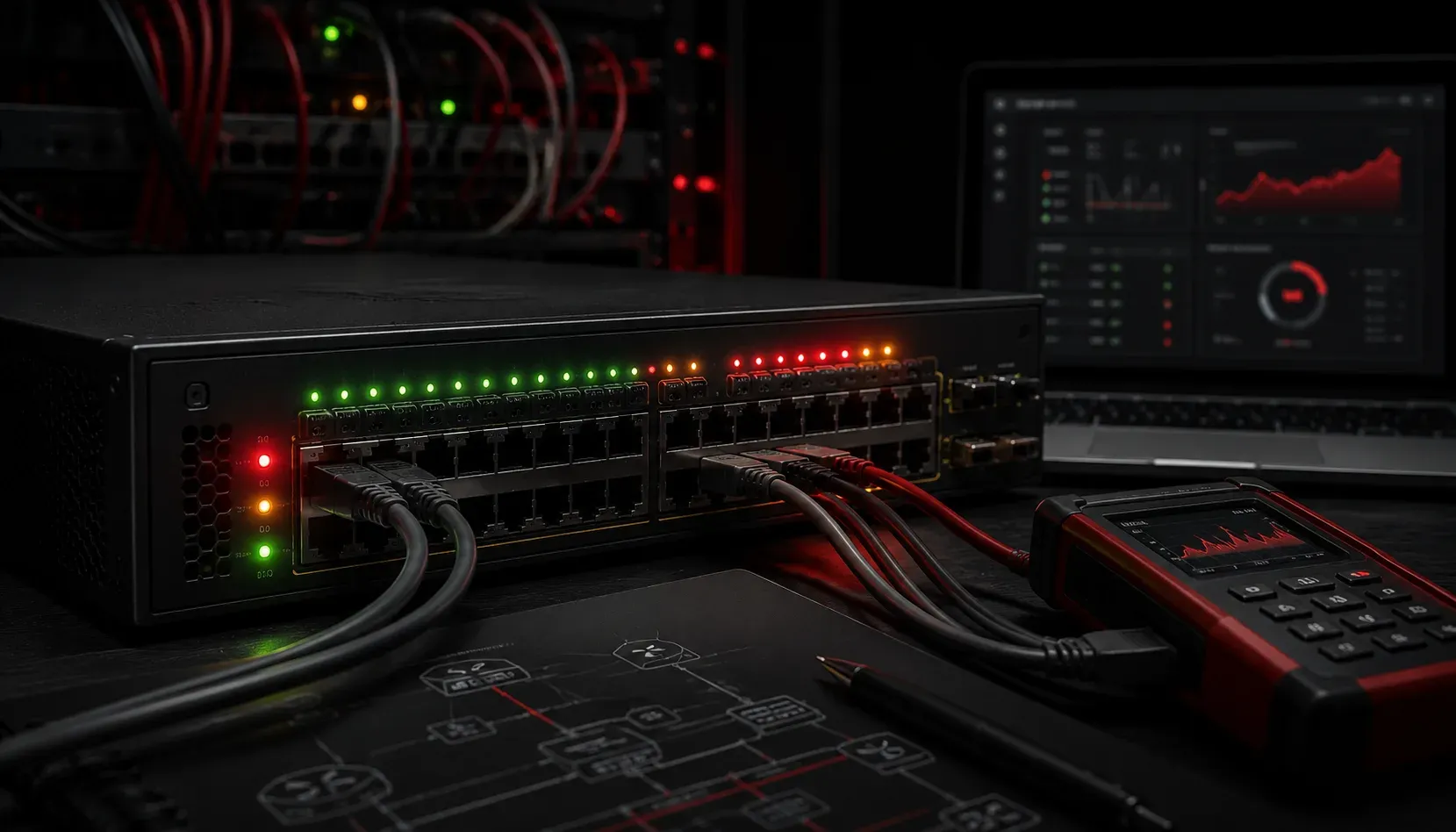
When you're new to networking, Cisco device status lights can feel like they're speaking a foreign language. That blinking amber light or solid red indicator isn't just decoration; it's your device trying to tell you something important. Understanding these visual cues is essential for effective network troubleshooting and can save you hours of guesswork.
Understanding Basic Status Light Colors
Before diving into Cisco status light troubleshooting, let's establish what the most common colors mean across Cisco devices:
- Green (solid): Normal operation, link established
- Green (blinking): Activity on the port or interface
- Amber/Orange (solid): Link established but at reduced speed, or device initializing
- Amber/Orange (blinking): Port disabled, error condition, or spanning tree blocking
- Red (solid): Hardware failure or critical error
- No light: No power, no link, or port administratively down
Common Status Light Issues and Solutions
Amber Blinking Port Lights
One of the most common issues beginners encounter is amber blinking lights on switch ports. This typically indicates a port that's been disabled due to an error condition. Here's how to troubleshoot:
Switch> enable
Switch# show interfaces status

Port      Name               Status       Vlan       Duplex  Speed Type
Fa0/1                        err-disabled routed       auto   auto 10/100BaseTX
Fa0/2                        connected    1            full   100  10/100BaseTX
If you see err-disabled status, check what caused the shutdown:
Switch# show errdisable recovery
Switch# show interfaces fa0/1 status err-disabled
To fix an error-disabled port, you'll need to shut it down and bring it back up:
Switch# configure terminal
Switch(config)# interface fastethernet 0/1
Switch(config-if)# shutdown
Switch(config-if)# no shutdown
Switch(config-if)# exit
No Link Lights (Dark Ports)
When a port shows no light at all, your device diagnostics should follow this sequence:
- Check physical connections: Ensure cables are properly seated
- Verify cable integrity: Try a known-good cable
- Check port status: The port might be administratively down
Switch# show interfaces fastethernet 0/1
FastEthernet0/1 is administratively down, line protocol is down
If the interface is administratively down, enable it:
Switch(config)# interface fastethernet 0/1
Switch(config-if)# no shutdown
Red Status Lights
Solid red lights usually indicate hardware problems and require more serious attention. Check the device's system status:
Switch# show version
Switch# show environment all
Switch# show diagnostic result module all
Red lights often indicate power supply issues, overheating, or hardware failure that may require professional service or component replacement.
Power and System Status Indicators
Don't forget about the main system status lights on your Cisco devices. The system LED typically shows:
- Green: System operating normally
- Amber: System starting up or minor fault
- Red: System failure
For power status, most Cisco devices have separate power LEDs that should show solid green during normal operation.
Best Practices for Light Issues Fix
When approaching light issues fix scenarios, follow this systematic approach:
- Document what you see: Note which lights are what colors and whether they're solid or blinking
- Check the obvious first: Power connections, cable seating, and administrative status
- Use show commands: Let the CLI tell you what the device thinks is happening
- Make one change at a time: This helps you identify what actually fixed the problem
Remember that different Cisco device models may have slight variations in their status light meanings, so always consult your device's documentation when in doubt.
What's Next
Now that you understand how to interpret and troubleshoot status lights, the next step is learning how to systematically diagnose connectivity issues using Cisco's built-in diagnostic tools and commands. We'll cover ping, traceroute, and other essential network testing commands in our next post.