
Understanding Backup and Restore for Linux Servers
Learn the fundamentals of backup and restore operations for Linux servers, including different backup strategies, essential tools like tar and rsync, and best practices for data protection and disaster recovery planning.

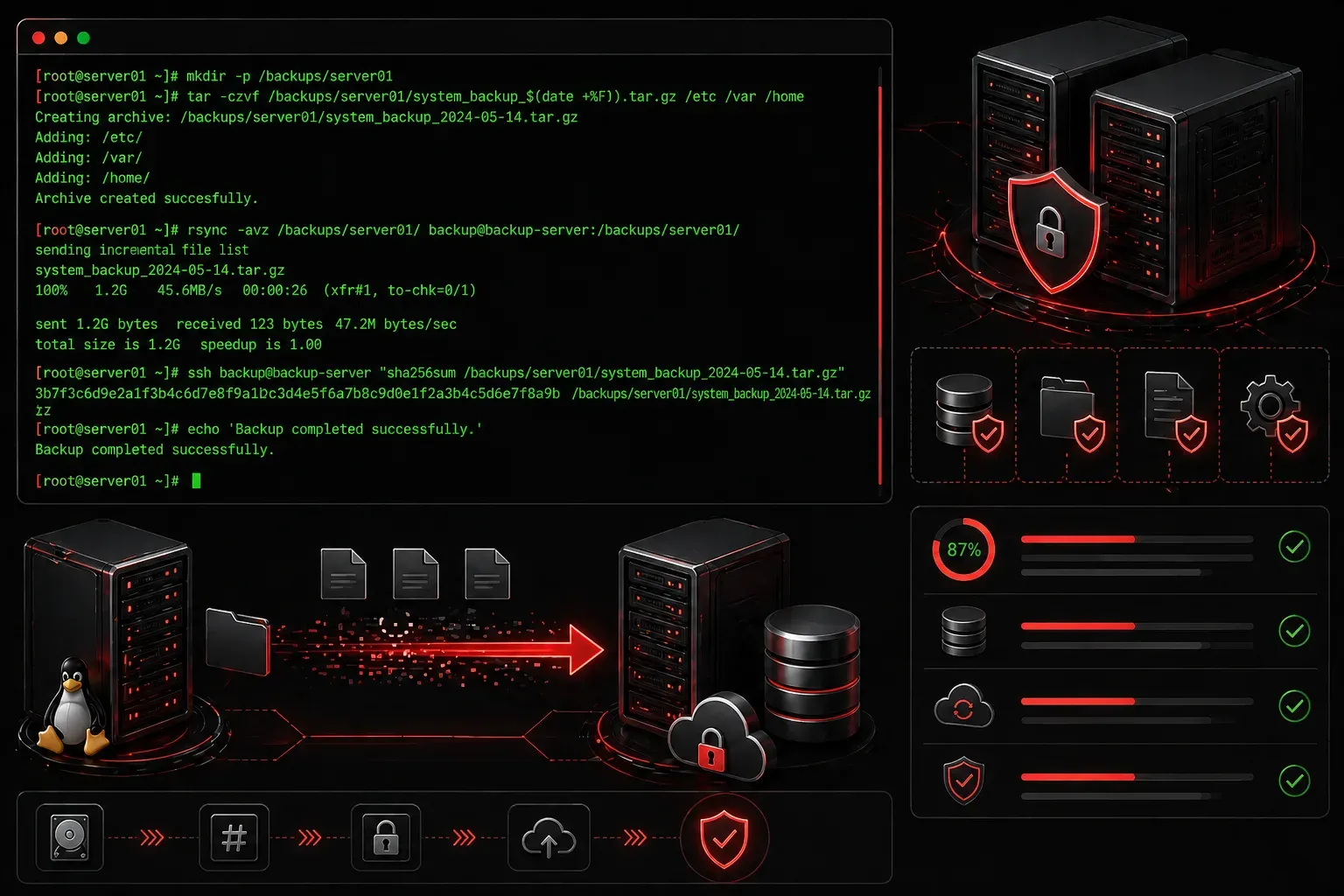
Data loss is one of the most devastating events that can happen to a Linux server administrator. Whether caused by hardware failure, human error, or malicious attacks, losing critical data can bring operations to a halt and cost organizations significant time and money. This is why understanding backup and restore operations is fundamental for anyone managing Linux systems.
Why Backup and Restore Matter
Linux server backup isn't just about copying files; it's about ensuring business continuity and protecting against various failure scenarios. Consider these common situations where backup and restore operations become critical:
- Hard drive failures that corrupt the filesystem
- Accidental deletion of important configuration files
- System updates that break critical services
- Security breaches that compromise data integrity
- Natural disasters affecting physical infrastructure
Without proper data protection strategies, recovering from these scenarios becomes exponentially more difficult and expensive.
Types of Backup Strategies
Understanding different backup approaches helps you choose the right strategy for your environment. Linux systems typically use one of three backup types:
Full Backups
Full backups create complete copies of all selected data. While they provide the most comprehensive protection, they also require the most storage space and time to complete.
Incremental Backups
Incremental backups only capture changes made since the last backup (whether full or incremental). These are faster and use less storage but require all incremental backups to fully restore data.
Differential Backups
Differential backups capture all changes since the last full backup. They balance storage efficiency with restore simplicity; you only need the full backup and the latest differential backup to restore completely.
Essential Linux Backup Tools
Linux provides several powerful tools for backup and restore operations. Here are the most commonly used options:
tar (Tape Archive)
The tar command is the traditional Unix tool for creating archives. It's particularly useful for backing up directory structures while preserving permissions and ownership:
# Create a compressed backup of /home directory
tar -czf home_backup_$(date +%Y%m%d).tar.gz /home

# Extract a tar backup
tar -xzf home_backup_20231215.tar.gz
rsync
The rsync utility excels at synchronizing files and directories between locations, making it ideal for incremental backups:
# Sync local directory to remote backup server
rsync -avz /home/ backup-server:/backups/home/

# Perform incremental backup with hard links
rsync -av --link-dest=/backups/yesterday /home/ /backups/today/
dd (Data Duplicator)
For complete disk or partition backups, dd creates bit-for-bit copies:
# Create complete disk image
dd if=/dev/sda of=/backup/disk_image.img bs=4M

# Restore disk image
dd if=/backup/disk_image.img of=/dev/sda bs=4M
Planning Your Backup Strategy
Effective data protection requires careful planning. Consider these key factors when designing your backup strategy:
- Recovery Time Objective (RTO): How quickly do you need to restore operations?
- Recovery Point Objective (RPO): How much data loss can you tolerate?
- Storage requirements: How much backup storage space is available?
- Network bandwidth: Can your network handle backup traffic during business hours?
Most organizations implement a combination approach—daily incremental backups with weekly full backups, stored both locally for quick recovery and remotely for disaster protection.
Testing Your Restore Operations
A backup strategy is only as good as your ability to restore from it. Regular testing ensures your backup and restore Linux processes actually work when needed. Schedule monthly or quarterly restore tests using non-production systems to verify:
- Backup files are not corrupted
- Restore procedures work as documented
- Staff can execute restore operations under pressure
- Recovery times meet your RTO requirements
Automation and Scheduling
Manual backups often get forgotten or skipped. Linux's cron daemon allows you to automate backup operations:
# Add to crontab for daily 2 AM backup
0 2 * * * /usr/local/bin/backup_script.sh
Automated backups ensure consistency and remove the human element that often leads to backup failures.
What's Next
Now that you understand the fundamentals of backup and restore operations, the next step is exploring specific backup tools in detail. In our upcoming posts, we'll dive deeper into configuring automated backup solutions and implementing enterprise-grade backup strategies using tools like Amanda and Bacula.
Tools and resources for this topic
- CompTIA Linux+ Study Guide — Comprehensive Linux+ exam preparation covering system administration, security, and scripting.