
Understanding the Linux Desktop vs the Terminal
Learn the fundamental differences between Linux's graphical desktop environment and the terminal command line interface. Understand when to use each approach and how they complement each other in daily Linux usage.

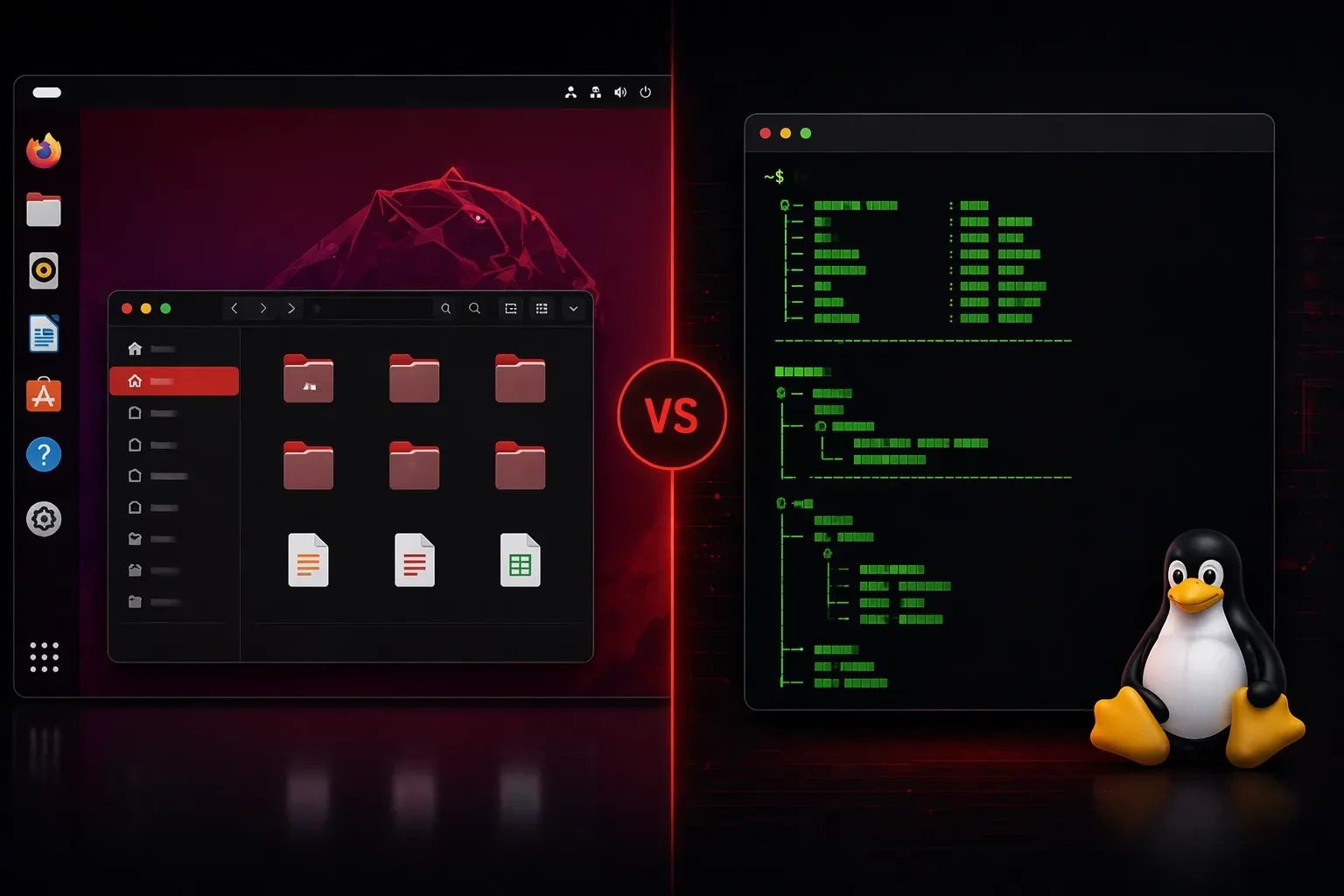
When you first encounter Linux, you'll quickly discover there are two primary ways to interact with your system: through a graphical desktop environment or via the terminal (command line). Understanding the difference between these two approaches is fundamental to becoming comfortable with Linux.
What is the Linux Desktop?
The Linux desktop is the graphical user interface (GUI) that looks and feels similar to Windows or macOS. It includes visual elements like windows, icons, menus, and a taskbar or dock. Popular Linux desktop environments include:
- GNOME: Clean, modern interface used by Ubuntu and Fedora
- KDE Plasma: Highly customizable with a Windows-like feel
- XFCE: Lightweight and efficient for older hardware
- Cinnamon: Traditional desktop layout, used by Linux Mint
The desktop environment handles tasks you'd expect: opening applications, managing files through a file manager, connecting to networks through settings panels, and running programs by clicking icons.
What is the Linux Terminal?
The terminal, also called the command line or shell, is a text-based interface where you type commands to interact with your Linux system. Instead of clicking icons, you type commands like ls to list files or cd Documents to change directories.
Here's what a basic terminal session looks like:
user@ubuntu:~$ ls
Desktop  Documents  Downloads  Music  Pictures  Videos
user@ubuntu:~$ cd Documents
user@ubuntu:~/Documents$ pwd
/home/user/Documents
The terminal gives you direct access to your system's core functionality. Every action you can perform through the desktop can also be accomplished through terminal commands, often more efficiently.
Key Differences in Practice
File Management
Desktop approach: Open the file manager, navigate through folders by double-clicking, drag and drop files, right-click for context menus.
Terminal approach: Use commands like ls to list contents, cd to change directories, cp to copy files, and mv to move them.
# Copy a file using terminal
cp /home/user/document.txt /home/user/backup/

# Create a directory
mkdir new_folder
Installing Software
Desktop approach: Use a software center or package manager GUI, browse categories, click install buttons.
Terminal approach: Use package management commands like apt install firefox on Ubuntu or dnf install firefox on Fedora.
When to Use Each Approach
Use the desktop when:
- You're browsing the web, editing documents, or using multimedia applications
- You need to work with images or graphics
- You prefer visual feedback and point-and-click interactions
- You're performing one-off tasks that don't require repetition
Use the terminal when:
- You need to perform repetitive tasks that can be automated
- You're managing system configurations or services
- You want precise control over system operations
- You're working on remote servers (which often lack graphical interfaces)
They Work Together
The beauty of Linux is that the desktop and terminal aren't mutually exclusive. You can have both open simultaneously. Many Linux users switch between them throughout their day, using the desktop for general computing tasks and the terminal for system administration, development work, or when they need the power and precision that command-line tools provide.
You can even open a terminal window from within your desktop environment by pressing Ctrl+Alt+T on most Linux distributions.
What's Next
Now that you understand the fundamental difference between the Linux desktop and terminal, the next step is learning how to navigate the Linux file system structure. Understanding concepts like the root directory, home folders, and common system directories will give you the foundation needed to work effectively in both environments.