
Understanding the Python Interactive Shell
Learn how to use the Python Interactive Shell (REPL) for immediate code execution, experimentation, and learning. Covers starting the shell, basic usage examples, and practical tips for effective Python development.

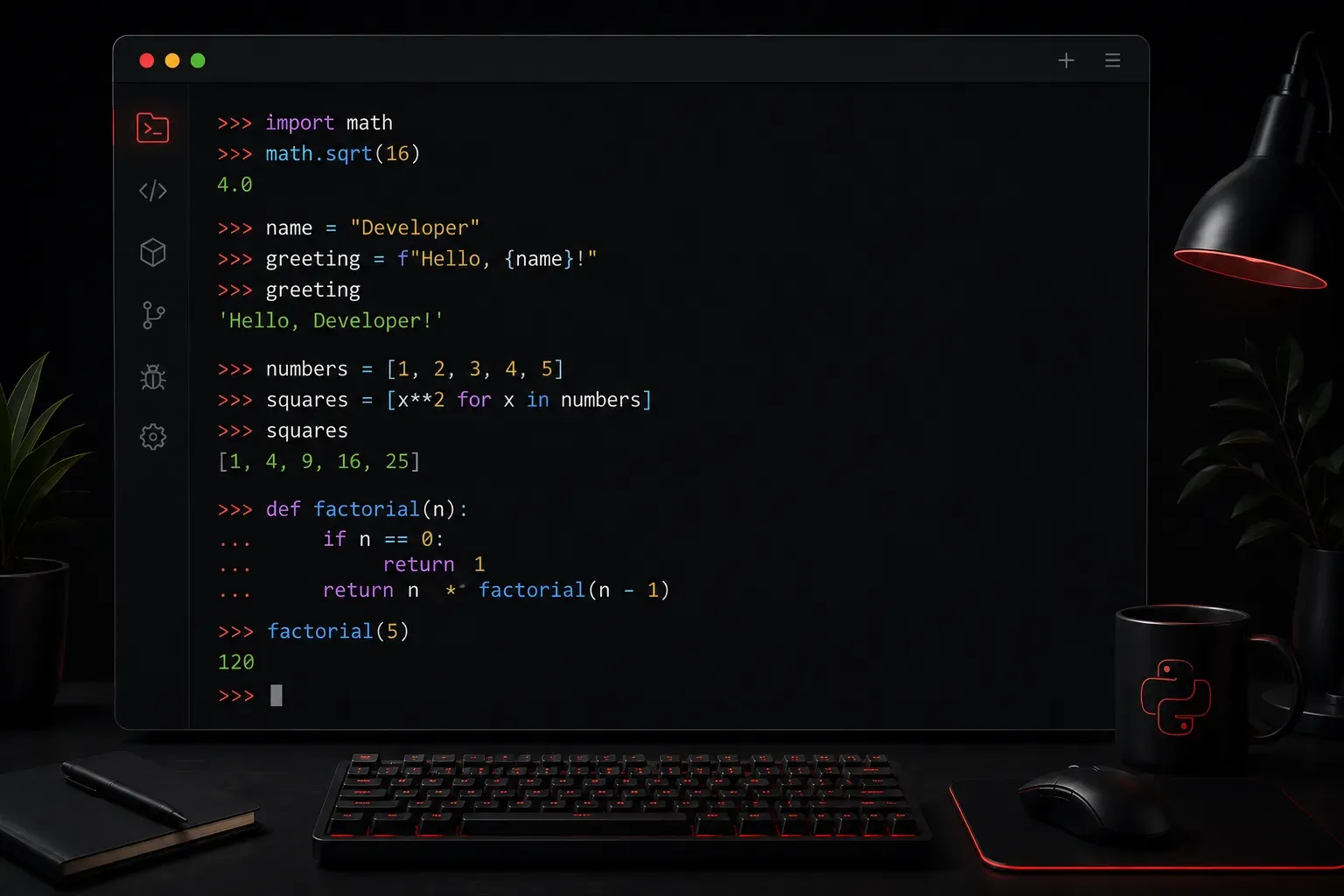
The Python Interactive Shell, also known as the Python REPL (Read-Eval-Print Loop), is one of your most valuable tools when learning Python programming. This interactive environment lets you write and execute Python code line by line, making it perfect for experimentation, testing small code snippets, and learning how Python works.
What is the Python Interactive Shell?
The Python Interactive Shell is a command-line interface that allows you to interact directly with the Python interpreter. When you type a line of code and press Enter, Python immediately executes it and displays the result. This instant feedback loop makes it an excellent learning environment.
Think of it like having a conversation with Python. You ask Python to do something, and it responds immediately with the result or an error message if something goes wrong.
Starting the Python Interactive Shell
To start the Python Interactive Shell, open your terminal or command prompt and type:
pythonOn some systems, you might need to use:
python3You'll see something like this:
Python 3.11.0 (main, Oct 24 2022, 18:26:48) [MSC v.1933 64 bit (AMD64)] on win32
Type "help", "copyright", "credits" or "license" for more information.
>>>
The >>> symbols indicate that Python is ready to accept your input. This is called the Python prompt.
Basic Usage Examples
Let's explore some basic operations in the Python Interactive Shell:
Simple Calculations
>>> 2 + 2
4
>>> 10 * 5
50
>>> 15 / 3
5.0
Working with Variables
>>> name = "Alice"
>>> age = 25
>>> print(f"Hello, {name}! You are {age} years old.")
Hello, Alice! You are 25 years old.
Testing Functions
>>> def greet(person):
...     return f"Hello, {person}!"
...
>>> greet("Bob")
'Hello, Bob!'
Notice the ... prompt that appears when you're writing multi-line code like functions. Python knows you're not finished and waits for you to complete the code block.
Key Features and Benefits
Immediate Feedback
The shell executes code instantly, so you can see results right away. This is perfect for testing small pieces of code or exploring how Python functions work.
Built-in Help System
You can get help on any Python object or function using the help() function:
>>> help(len)
>>> help(str.upper)
Tab Completion
Most Python shells support tab completion. Start typing a function name or variable and press Tab to see available options.
Command History
Use the up and down arrow keys to navigate through previously entered commands, making it easy to modify and re-run code.
Common Use Cases
Learning and Exploration: Test new Python concepts, experiment with syntax, and see how different functions behave.
Quick Calculations: Use Python as a powerful calculator for complex mathematical operations.
Debugging: Test small portions of your code to understand why a larger program isn't working as expected.
API Testing: Quickly test library functions or API calls before incorporating them into larger projects.
Exiting the Shell
To exit the Python Interactive Shell, you can:
- Type
exit()and press Enter - Type
quit()and press Enter - Press Ctrl+D (on Linux/Mac) or Ctrl+Z followed by Enter (on Windows)
Tips for Effective Use
Start each learning session by opening the Python shell and experimenting with new concepts as you encounter them. Don't be afraid to make mistakes – the shell is a safe environment where errors won't break anything important.
Use the shell to test code snippets before adding them to your larger programs. This can save you significant debugging time later.
What's Next
Now that you understand how to use the Python Interactive Shell, you're ready to dive deeper into Python fundamentals. In our next post, we'll explore Python variables and data types, where you'll use the shell extensively to experiment with different ways to store and manipulate data in Python.