
Your First Bash Commands
Learn essential Bash commands including navigation (pwd, ls, cd), file operations (mkdir, touch, cp, mv, rm), and content viewing (cat, less, head, tail). These fundamental commands form the foundation for all command line work.

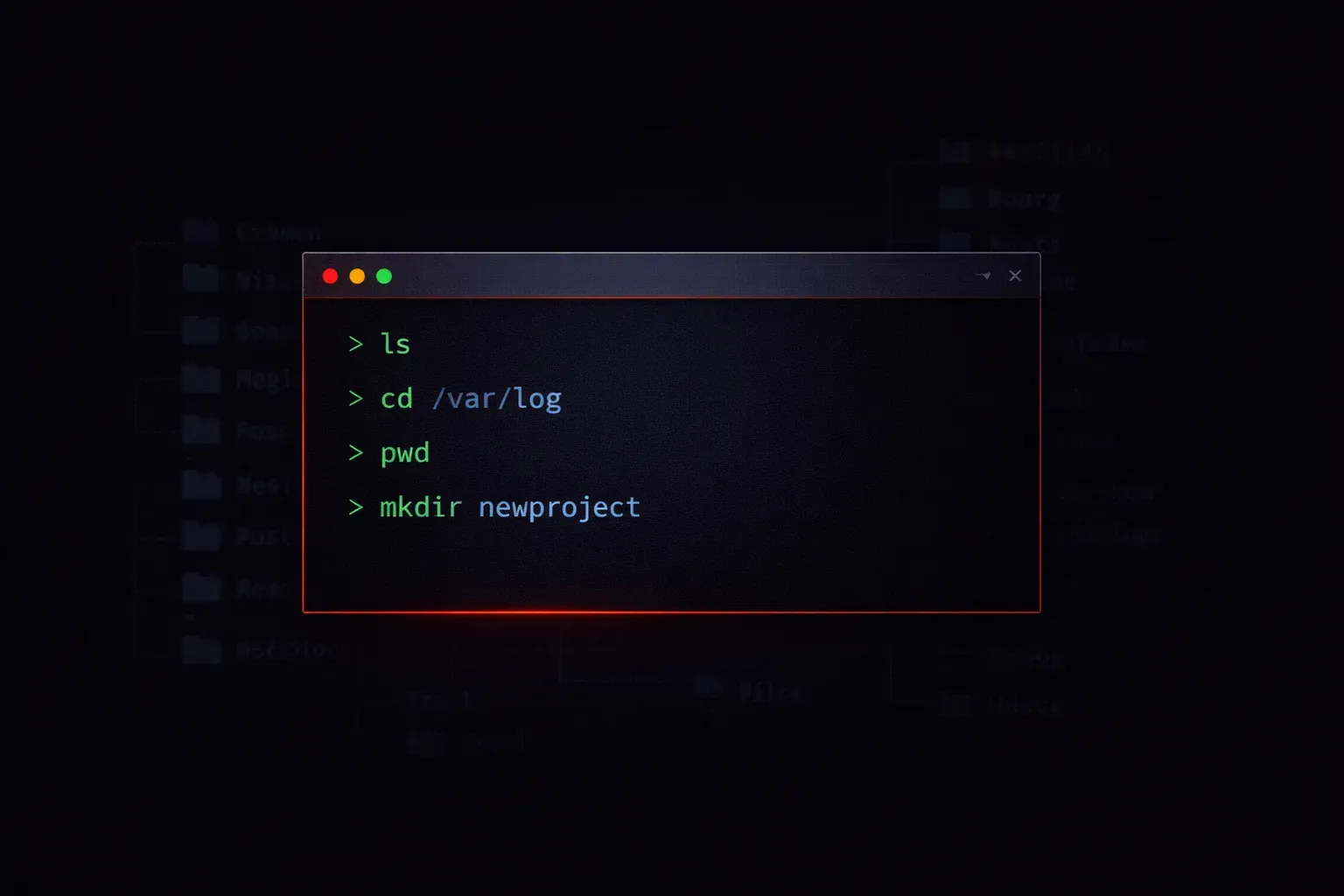
The command line might seem intimidating at first, but learning a handful of essential Bash commands will transform how you interact with your computer. Whether you're working with Linux systems, managing network devices, or diving into automation, these fundamental commands form the foundation of everything you'll do.
Let's start with the most basic command that every beginner should know.
Navigating Your File System
The pwd command shows you exactly where you are in the file system. Think of it as your GPS coordinates in the terminal world.
$ pwd
/home/username
Next, use ls to see what's around you. This command lists all files and directories in your current location:
$ ls
Desktop  Documents  Downloads  Pictures
Add the -la flags to see more details, including hidden files and permissions:
$ ls -la
total 32
drwxr-xr-x 6 username username 4096 Nov 15 10:30 .
drwxr-xr-x 3 root     root     4096 Nov 15 09:15 ..
drwxr-xr-x 2 username username 4096 Nov 15 10:30 Desktop
drwxr-xr-x 2 username username 4096 Nov 15 10:30 Documents
Moving Around
The cd command changes your directory. It's like clicking on folders in a graphical interface, but much faster once you get the hang of it:
$ cd Documents
$ pwd
/home/username/Documents
Some useful shortcuts: cd .. moves you up one directory level, cd ~ takes you to your home directory, and cd - returns you to the previous directory you were in.
Working with Files and Directories
Create new directories with mkdir:
$ mkdir my-project
$ ls
my-project
Create empty files using touch:
$ touch readme.txt
$ ls
my-project  readme.txt
Copy files with cp and move or rename them with mv:
$ cp readme.txt backup.txt
$ mv backup.txt my-project/
$ ls my-project/
backup.txt
Viewing File Contents
The cat command displays the entire contents of a file:
$ cat readme.txt
This is my project readme file.
For longer files, use less to view content page by page (press 'q' to quit):
$ less /var/log/syslogThe head and tail commands show the first or last few lines of a file:
$ head -5 /etc/passwd
root:x:0:0:root:/root:/bin/bash
daemon:x:1:1:daemon:/usr/sbin:/usr/sbin/nologin
Getting Help
Every command comes with built-in documentation. Use man (manual) followed by the command name:
$ man lsFor a quick summary of options, try the --help flag:
$ ls --helpEssential Safety Commands
Before we wrap up, let's cover two commands that require caution. The rm command removes files permanently:
$ rm filename.txtUse rm -r to remove directories and their contents. Be extremely careful with this command - there's no recycle bin in the command line!
Practice Makes Perfect
Start by practicing these commands in a safe directory. Create a folder called "practice" in your home directory, navigate into it, and experiment with creating, moving, and viewing files. The more you use these commands, the more natural they'll become.
Remember, making mistakes is part of learning. Just avoid using rm on important files until you're comfortable with the command line basics.
What's Next
Now that you've mastered these fundamental commands, you're ready to explore file permissions and ownership - crucial concepts for system administration and security. We'll also dive into input/output redirection, which lets you chain commands together for powerful automation workflows.