
Your First Linux Commands
Learn the essential Linux commands every beginner needs: navigation (pwd, ls, cd), file operations (mkdir, cp, mv, rm), viewing files (cat, less, head, tail), and getting help (man). These fundamental commands form the foundation for all Linux command-line work.

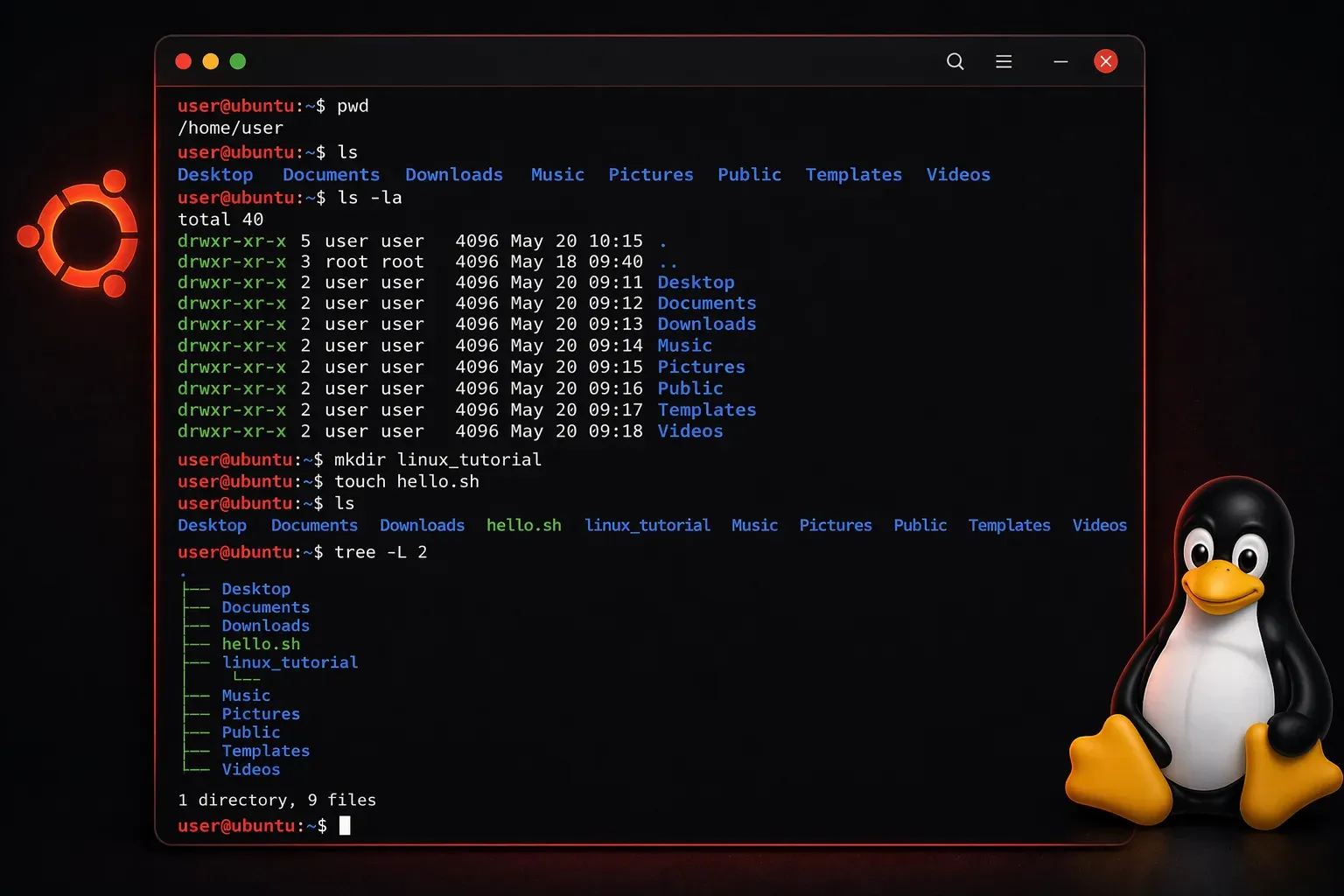
Starting your Linux journey can feel overwhelming with so many commands to learn. But here's the good news: you only need to master a handful of essential commands to become productive on the command line. Let's walk through the most important commands every Linux beginner should know.
Navigation Commands
Think of the Linux filesystem as a giant filing cabinet. You need to know where you are and how to move around.
The pwd command (print working directory) shows your current location:
$ pwd
/home/username
Use ls to list files and directories in your current location:
$ ls
Documents  Downloads  Music  Pictures  Videos
Add -l for detailed information or -a to show hidden files:
$ ls -la
total 32
drwxr-xr-x 5 user user 4096 Nov 15 10:30 .
drwxr-xr-x 3 root root 4096 Nov 10 09:15 ..
-rw-r--r-- 1 user user  220 Nov 10 09:15 .bash_logout
Move between directories with cd (change directory):
$ cd Documents
$ cd ..          # Go up one level
$ cd ~           # Go to home directory
$ cd /           # Go to root directory
File and Directory Operations
Creating and managing files is essential for daily Linux use. The mkdir command creates directories:
$ mkdir projects
$ mkdir -p work/linux-learning    # Create parent directories if needed
Create empty files with touch:
$ touch myfile.txt
$ touch file1.txt file2.txt file3.txt
Copy files and directories using cp:
$ cp myfile.txt backup.txt
$ cp -r projects projects-backup    # Copy directories recursively
Move or rename files with mv:
$ mv myfile.txt renamed-file.txt
$ mv backup.txt Documents/
Remove files with rm (be careful with this one!):
$ rm unwanted-file.txt
$ rm -r old-directory     # Remove directories
$ rm -i important.txt     # Ask for confirmation
Viewing File Contents
You'll frequently need to examine file contents without opening a full editor. The cat command displays entire files:
$ cat myfile.txt
This is the content of my file.
For longer files, use less to view content page by page:
$ less /var/log/syslogPress q to quit less. Use head and tail to see the beginning or end of files:
$ head -5 myfile.txt     # First 5 lines
$ tail -10 myfile.txt    # Last 10 lines
Getting Help
The man command (manual) is your best friend when learning Linux:
$ man ls
$ man cp
Many commands also support --help:
$ ls --help
$ mkdir --help
Practice Makes Perfect
Open your terminal right now and try these commands. Start by checking where you are with pwd, list your files with ls, and create a practice directory with mkdir practice. Navigate into it with cd practice and experiment with creating and moving files.
Remember: Linux commands are case-sensitive, and there's usually no undo button, so start slowly and double-check destructive commands like rm.
What's Next
Once you're comfortable with these basic commands, you'll be ready to explore file permissions and ownership, which control who can read, write, and execute files on your Linux system. Understanding permissions is crucial for system security and proper file management.