
File and Directory Permissions: Keeping Your Data Safe
File and directory permissions are essential security controls that determine who can access, modify, or execute files on your system. This guide covers Windows ACLs and Linux permission systems, explaining how to implement proper access control for data protection.

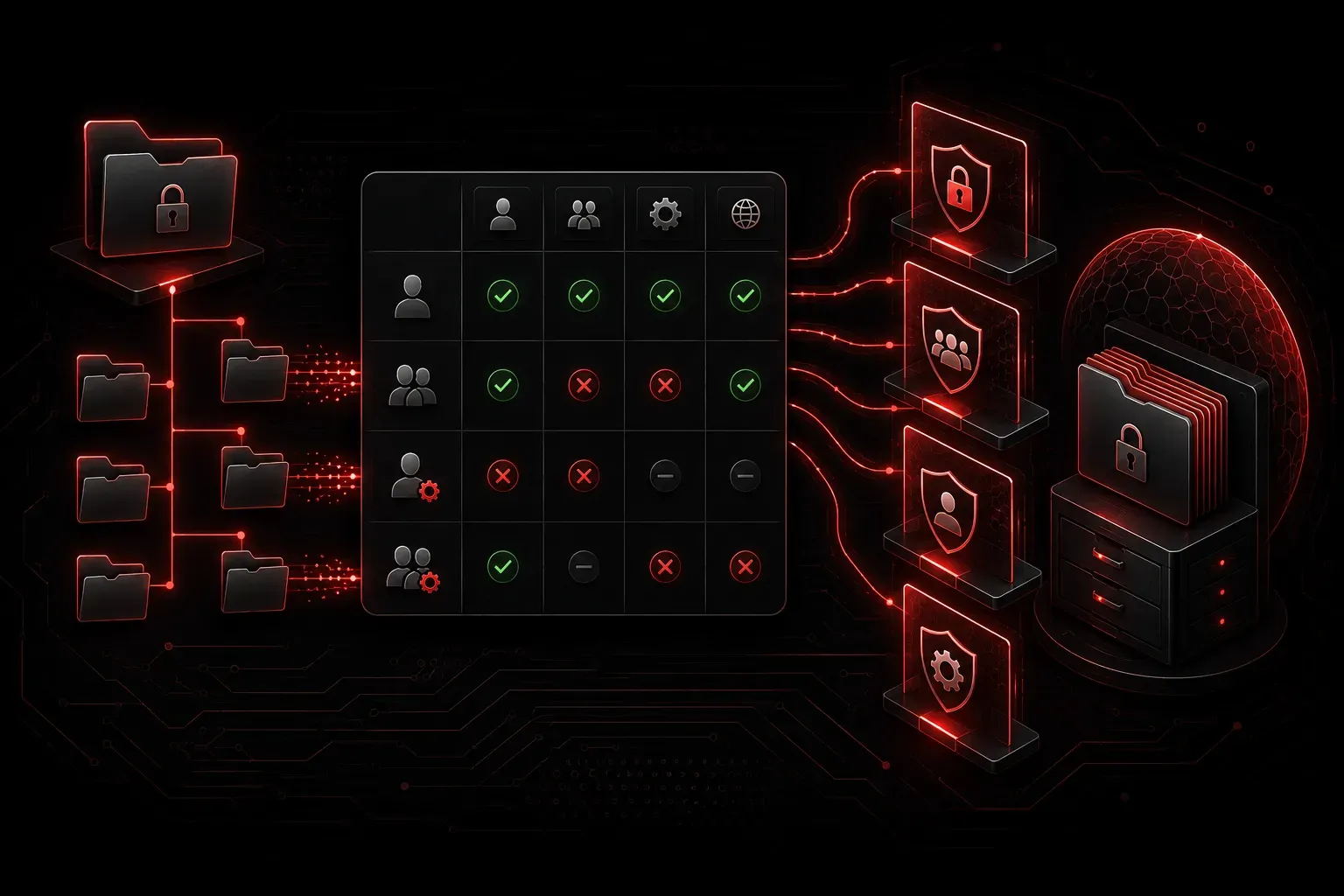
File and directory permissions are your first line of defense against unauthorized access to your data. Think of them as digital locks on your files and folders, controlling who can read, write, or execute specific content on your system. Understanding how these permissions work is crucial for maintaining proper endpoint security.
What Are File and Directory Permissions?
File and directory permissions are security settings that determine which users or groups can access specific files and folders. These access control mechanisms prevent unauthorized users from viewing, modifying, or deleting your important data. Every file and directory on your system has permission settings that specify three main types of access:
- Read: View the contents of a file or list the contents of a directory
- Write: Modify or delete a file, or add/remove files in a directory
- Execute: Run a program file or access files within a directory
Windows File Permissions
Windows uses Access Control Lists (ACLs) to manage file directory permissions. To view or modify permissions on a Windows file or folder:
- Right-click the file or folder
- Select "Properties"
- Click the "Security" tab
Windows permissions include:
- Full Control: Complete access including permission changes
- Modify: Read, write, and delete access
- Read & Execute: View and run files
- Read: View file contents only
- Write: Create and modify files
For data protection, assign permissions based on the principle of least privilege. Users should only have the minimum access required for their job functions.
Linux File Permissions
Linux uses a simpler but powerful permission system. Each file has three permission groups:
- Owner (u): The user who owns the file
- Group (g): Users in the file's group
- Others (o): All other users
To view permissions, use the ls -l command:
$ ls -l myfile.txt
-rw-r--r-- 1 user group 1024 Oct 15 10:30 myfile.txt
The permission string breaks down as follows:
- First character: File type (- for file, d for directory)
- Next three: Owner permissions (rw-)
- Next three: Group permissions (r--)
- Last three: Other permissions (r--)
To modify permissions, use the chmod command:
$ chmod 644 myfile.txt    # rw-r--r--
$ chmod 755 myscript.sh   # rwxr-xr-x
Best Practices for Data Protection
Implementing proper access control through file directory permissions requires following security best practices:
- Regular Audits: Periodically review and update permission settings
- Principle of Least Privilege: Grant minimum necessary access
- Separate Administrative Accounts: Use different accounts for daily tasks and administration
- Group-Based Management: Assign permissions to groups rather than individual users when possible
- Sensitive Data Protection: Apply stricter permissions to confidential files
Common Security Mistakes
Avoid these common permission pitfalls that can compromise your security settings:
- Setting overly permissive permissions (like 777 in Linux)
- Giving full control to all users on Windows
- Forgetting to remove access when employees leave
- Not protecting system directories and configuration files
Remember that file and directory permissions work alongside other security measures. They're most effective when combined with strong authentication, regular updates, and comprehensive security policies.
What's Next
Now that you understand how file and directory permissions protect your data, the next step is learning about endpoint detection and response (EDR) systems. These advanced tools help monitor and respond to threats that might bypass traditional access controls, providing an additional layer of endpoint security.