
Guide to Identifying Network Device Ports for Beginners
This beginner-friendly guide walks through the most common ports found on network devices, including console ports, serial ports, Ethernet ports, SFP fiber slots, USB ports, and PoE ports. Each port type is explained with its physical appearance, purpose, and practical usage. Relevant Cisco CLI com

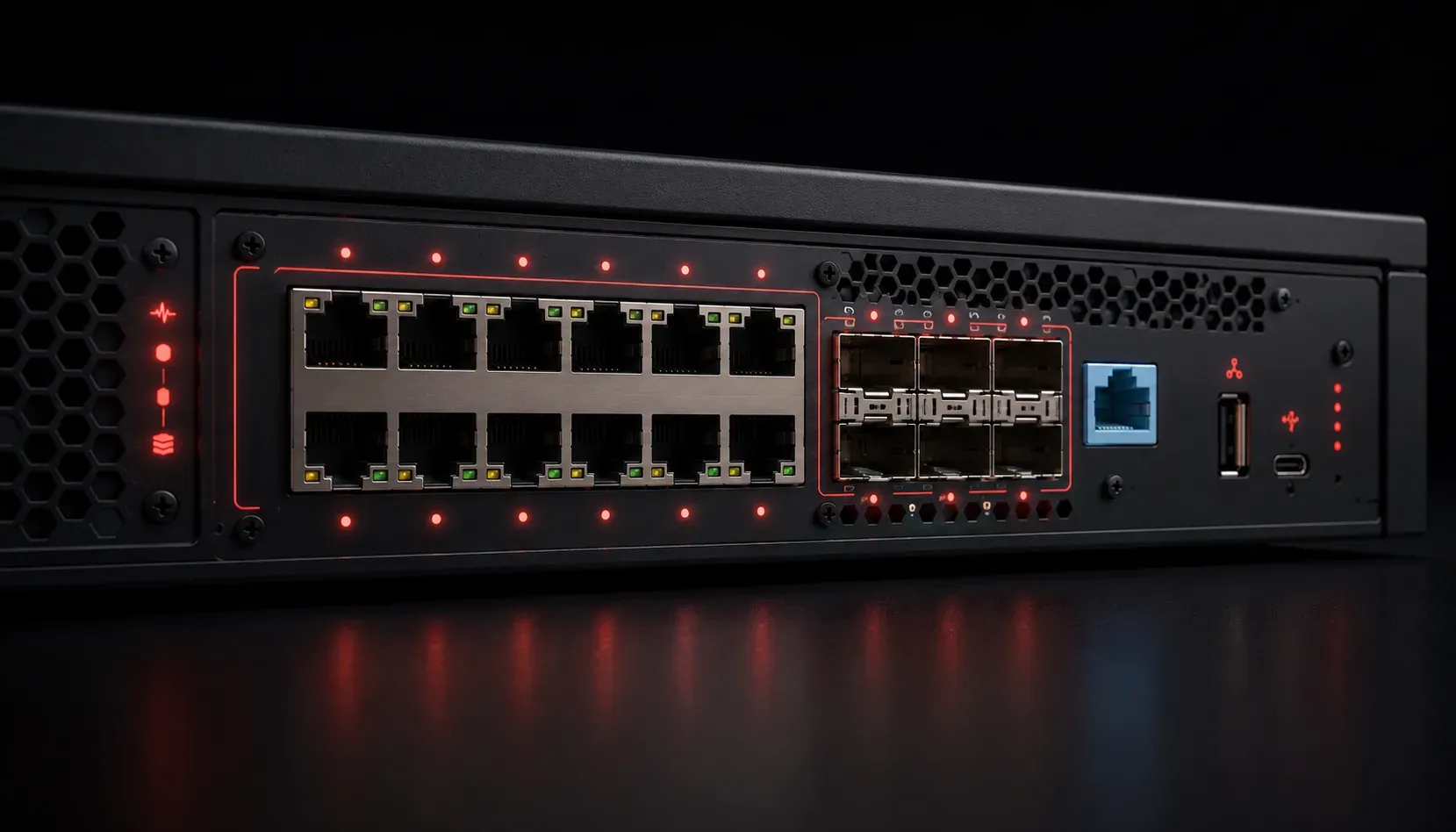
Walk up to any network switch, router, or access point and you'll immediately notice a wall of ports staring back at you. For someone just starting out in networking, figuring out what each one does can feel overwhelming. This guide breaks down the most common ports you'll encounter on Cisco and other network devices, so you can confidently identify them and understand their purpose.
Why Port Identification Matters
Knowing your network device ports is a foundational skill. Whether you're connecting a laptop for the first time, replacing a broken cable, or troubleshooting a downed link, identifying the right port saves time and prevents mistakes. This port identification guide covers everything from the humble console port to modern fiber connections.
Console Port
The console port is your direct line of communication with a network device. It doesn't carry network traffic; it gives you out-of-band management access, meaning you can configure a device even when the network itself isn't working.
On older Cisco devices such as the Catalyst 2960 series, the console port is a light blue RJ-45 port, often labeled CONSOLE. You connect to it using a rollover cable (also called a Cisco console cable) from the device to a serial port on your laptop, or via a USB-to-serial adapter.
Many modern Cisco devices, including the Catalyst 9200 and ISR 4000 series routers, also include a mini-USB console port, which makes connecting from a modern laptop much easier since serial ports are rare today.
Once connected, you open a terminal emulator like PuTTY or Tera Term and configure the session with these serial settings:
Speed (baud rate): 9600
Data bits: 8
Parity: None
Stop bits: 1
Flow control: None
This will land you at the device's CLI where you can begin configuration.
Serial (WAN) Ports
Serial ports on routers were historically used for WAN connections, linking a router to a service provider's line using protocols like HDLC or PPP. They typically look like a trapezoid-shaped connector, often labeled Serial0/0/0 or similar on Cisco IOS devices. You'll commonly see these on older Cisco ISR routers such as the 1800 and 2800 series.
While serial WAN interfaces are becoming less common in modern networks, they still appear in lab environments and on older equipment, so recognizing them is still relevant for beginners studying networking fundamentals.
Ethernet Ports
Ethernet ports are the most common ports you'll find on any network device. They use an RJ-45 connector and support speeds ranging from 10 Mbps all the way to 10 Gbps depending on the standard.
- 10BASE-T / 100BASE-TX: older standards using Cat3 or Cat5 cable respectively, still found on legacy devices. 100BASE-TX is limited to 100 Mbps over two pairs of Cat5 or better.
- 1000BASE-T (Gigabit Ethernet): the most common standard today, running over four pairs of Cat5e or Cat6 cable up to 100 metres
- 10GBASE-T: high-speed copper Ethernet for data centers, requiring Cat6a or Cat7 cable to achieve 10 Gbps at distances up to 100 metres
On Cisco switches such as the Catalyst 2960-X or 9300, Ethernet interfaces are labeled in a format like FastEthernet0/1, GigabitEthernet0/1, or simply Gi0/1 in shorthand. You can check the status of these interfaces with:
Switch# show interfaces status

Port      Name       Status       Vlan  Duplex  Speed  Type
Gi0/1                connected    1     a-full  1000   10/100/1000BaseTX
Gi0/2                notconnect   1     auto    auto   10/100/1000BaseTX
Fiber Ports and SFP Modules
When copper cable won't cut it, due to distance or interference, fiber ports step in. On most Cisco switches and routers, fiber connectivity is provided through SFP (Small Form-factor Pluggable) slots.
An SFP slot is an empty cage on the device that accepts a removable SFP module. The module you insert determines the fiber type and speed. Common examples include:
GLC-SX-MMD: Gigabit SFP for multimode fiber (short distances up to ~550m). Multimode fiber has a larger core diameter (typically 50 or 62.5 microns) and is suited for intra-building runs.GLC-LH-SMD: Gigabit SFP for single-mode fiber (longer distances up to ~10km). Single-mode fiber has a much smaller core (typically 9 microns) and is used for campus or inter-building links where distances exceed what multimode can support.SFP-10G-SR: 10 Gigabit SFP+ for multimode fiber, commonly used in data center top-of-rack deployments on platforms like the Cisco Nexus 9000 series
This modularity is what makes SFPs so useful: you can swap modules to match your cabling infrastructure without replacing the entire device.
USB Ports
Many Cisco devices include one or more USB ports for practical management tasks. Common uses include:
- Storing and loading IOS image files during upgrades
- Saving configuration backups to a USB flash drive
- Providing an alternative console connection (via mini-USB)
You might see a standard Type-A USB port on the front panel labeled USB, and a separate mini-USB port labeled CONSOLE. They look similar but serve different functions, so check the label carefully.
PoE Ports (Power over Ethernet)
PoE ports look identical to regular Ethernet ports (they use the same RJ-45 connector), but they have a superpower: they deliver electrical power over the Ethernet cable along with data.
This means you can power devices like IP phones, wireless access points, and security cameras without running a separate power cable. Common PoE standards include:
- PoE (IEEE 802.3af): up to 15.4W per port
- PoE+ (IEEE 802.3at): up to 30W per port
- PoE++ (IEEE 802.3bt): Type 3 delivers up to 60W per port; Type 4 delivers up to 100W per port
On a Cisco switch such as the Catalyst 9200L or 3850, you can check PoE status with:
Switch# show power inline

Available:370.0(w)  Used:15.4(w)  Remaining:354.6(w)

Interface  Admin  Oper       Power   Device         Class  Max
                             (Watts)
--------- ------ ---------- ------- -------------- ------ ----
Gi0/1     auto   on         15.4    IP Phone 8845  3      30.0
Gi0/2     auto   off        0.0     n/a            n/a    30.0
Quick Reference Summary
- Console port: RJ-45 or mini-USB, light blue, used for direct CLI management
- Serial port: Trapezoid connector, used for legacy WAN connections
- Ethernet port: RJ-45, carries network data at various speeds
- SFP slot: Accepts modular fiber or copper transceivers
- USB port: Type-A for storage, mini-USB for console access
- PoE port: RJ-45 that delivers both data and power
What's Next
Now that you can identify the physical ports on a network device, the next step is understanding how data actually travels between them. In the next post, we'll explore the difference between copper and fiber cabling standards, including when to choose each one and what the specifications actually mean in practice. Stay with us as we build your networking foundation one concept at a time.